
Welcomer
Greet every new member with a message, an embed and a custom image card, say goodbye when people leave, send a private DM, and celebrate member milestones like your 1,000th member.
By the end, you'll have
- A welcome message with an optional embed and image card for every new member
- Optional goodbye messages, a private DM, a Wave button and first-message reactions
- Automatic celebrations when your server hits member milestones
Before you start
- Manage Server, so you can open the dashboard.
- A welcome channel where Dreamliner can send messages, embed links and attach files.
First impressions matter. Welcomer makes every newcomer feel noticed the second they arrive, with a message you write and, if you like, a personalised image card with their avatar. Everything is on one page and it's all free.
Three messages, each with its own text, embed and card.
A custom 1000×350 picture with their avatar and your background.
Announce 100, 1,000 or 10,000 members automatically.
Step 1 · about 1 min
Open Welcomer
Find Welcomer and get to know its sub-pages.
- On the dashboard, open Engagement and click Welcomer. This opens its Overview.
- Make sure Enabled is on at the top.
- Each message has its own sub-page in the sidebar: Join message, Leave message, Welcome DM, Member milestones and Test.
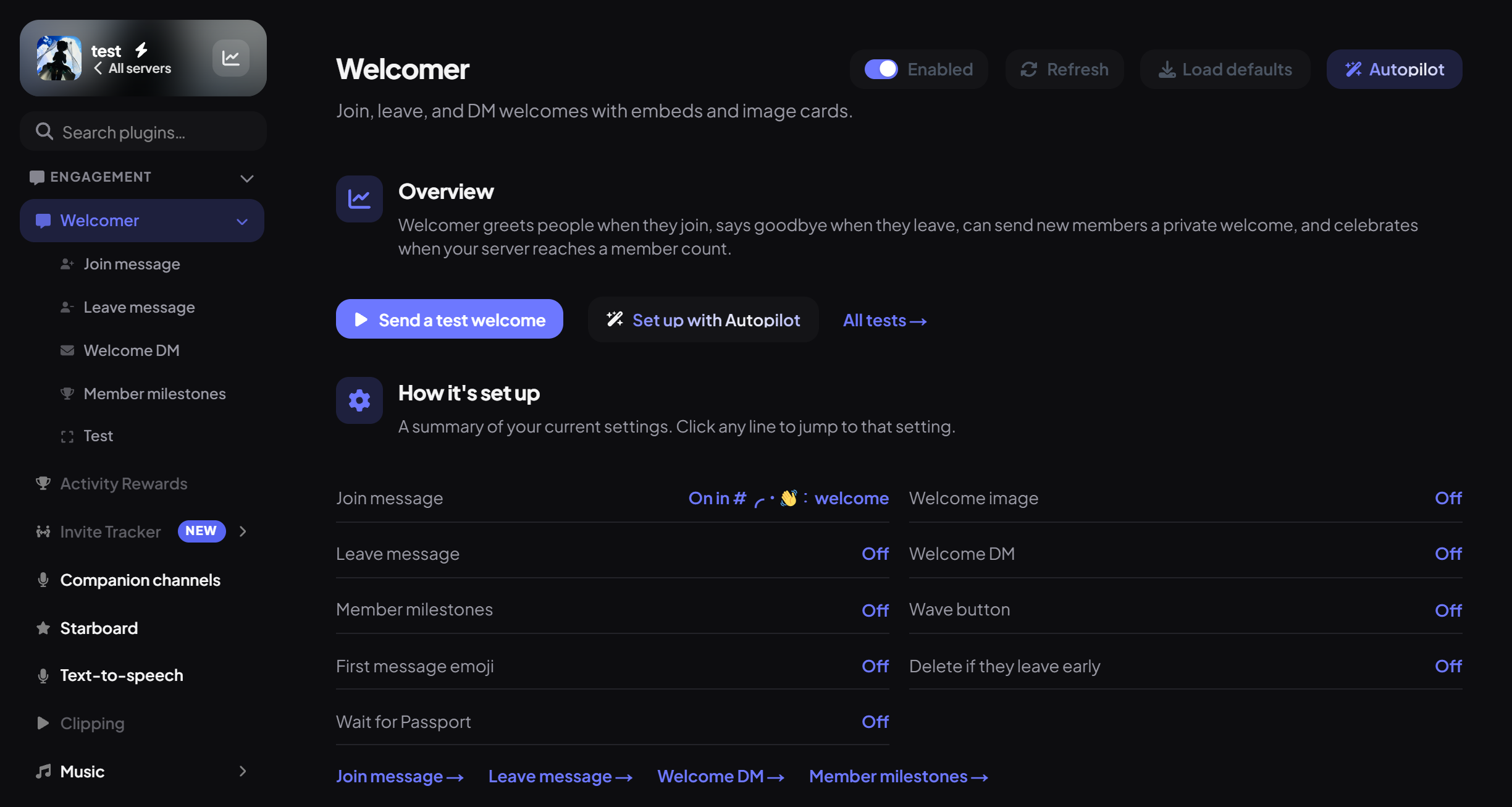
The Overview has Send a test welcome, Set up with Autopilot and All tests, banners for anything that stops a message being sent (like a missing channel, each with a button to fix it), and How it's set up. Click any line in that summary to jump straight to the setting.
Step 2 · about 3 min
Turn on the join message
Greet new members in a channel.
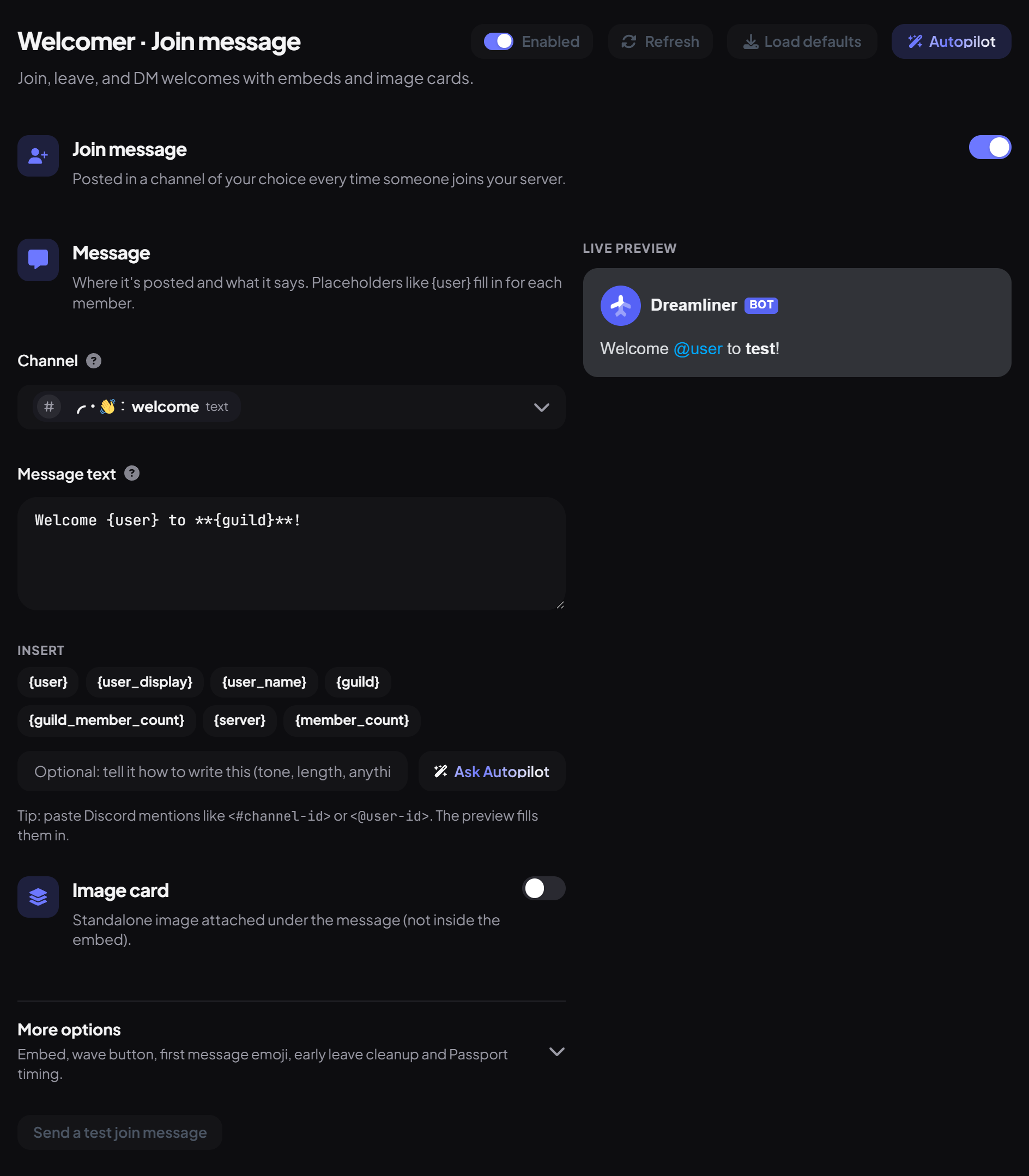
- Open the Join message sub-page and make sure the switch next to Join message is on.
- Under Message, pick a Channel.
- Write the Message text. The default is "Welcome {user} to **{guild}**!". Discord formatting and mentions work, and the chips under Insert add placeholders. Ask Autopilot can write it for you.
- Check the Live preview, press Send a test join message to see it in your channel, then Save changes.
Placeholders you can use
| Placeholder | Becomes |
|---|---|
| {user} | A mention of the member |
| {user_display} | Their display name |
| {user_name} | Their username |
| {guild} or {server} | Your server's name |
| {member_count} or {guild_member_count} | How many members you now have, like 1532 |
| {avatar_url} | A link to their avatar |
| {guild_icon_url} | A link to your server icon |
Step 3 · about 5 min
Add an image card or embed
Make the welcome stand out.
| Card group | What you can change | Defaults |
|---|---|---|
| Text | Greeting, Subtitle and their sizes | "Welcome {user_display}!", "Member #{guild_member_count}" |
| Background | A colour, an image link, or an upload (PNG, JPEG or WebP up to 4 MB) | Dark grey |
| Border and colors | Text color, Accent, Border, Avatar shape (circle or rounded square), corner radius, avatar ring | White text, blurple accent |
| Layout | Avatar left, centre or right; text beside, below or over the image; sizes and nudges | Avatar left, text beside |
The live preview updates as you change things.
Step 4 · about 3 min
Add the extras (optional)
Make new members feel welcome beyond one message.
On the Join message sub-page, open More options at the bottom:
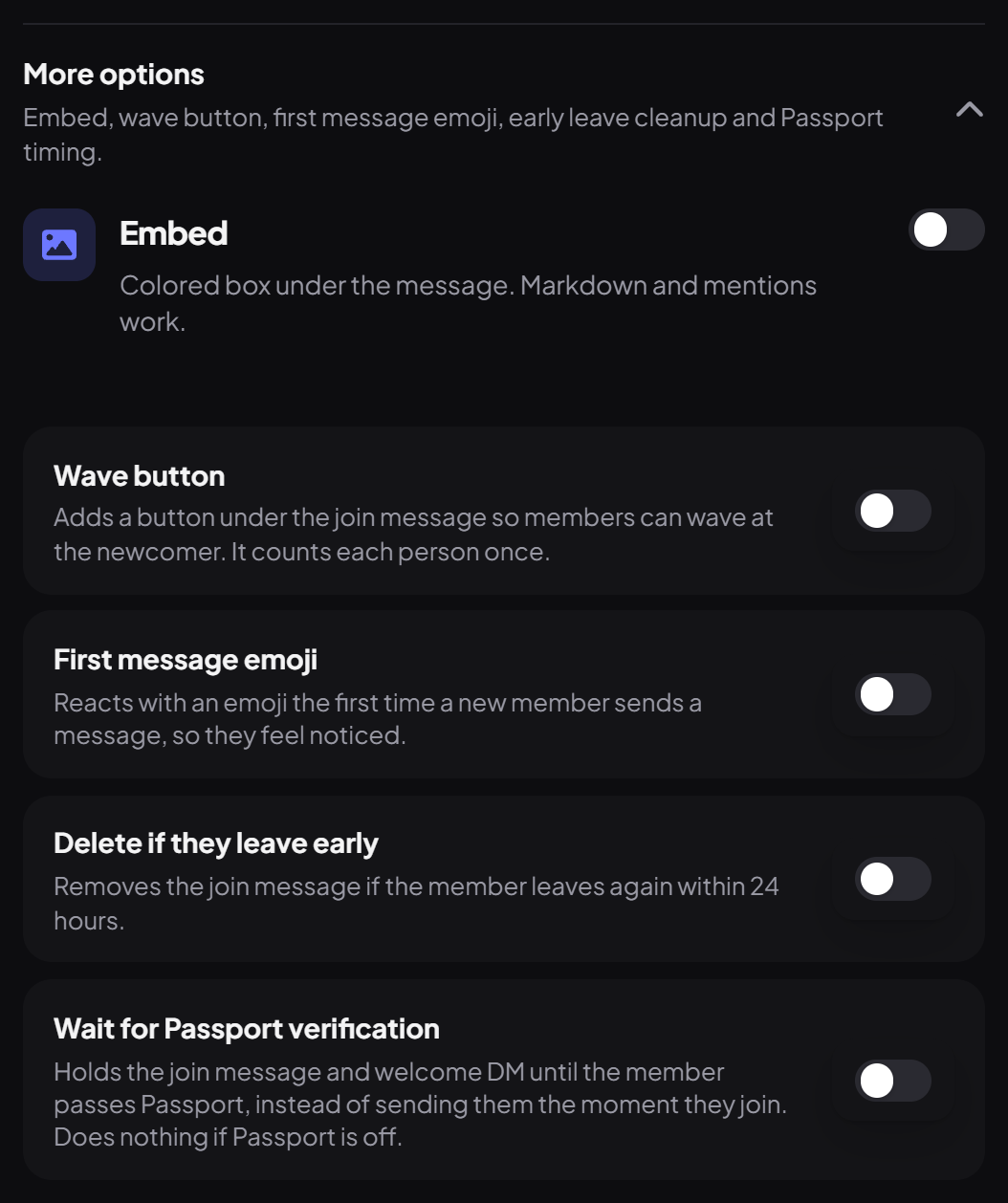
| Extra | What it does |
|---|---|
| Wave button | A button under the join message so members can wave at the newcomer (set its Label and Emoji). It counts each person once. |
| First message emoji | Reacts with an emoji the first time the new member sends a message (within 7 days), so they feel noticed. |
| Delete if they leave early | Removes the join message if the member leaves again within 24 hours. |
| Wait for Passport verification | Holds the join message and welcome DM until the member passes Passport, so you never greet bots. Does nothing if Passport is off. |
Step 5 · about 2 min
Goodbyes and DMs
Say goodbye, or welcome people privately.
Step 6 · about 3 min
Celebrate member milestones
Announce when your server hits a big number.
- Open the Member milestones sub-page and switch it on.
- Tap a count (100, 500, 1,000, 5,000 or 10,000) or press Custom milestone. You can have up to 50, and Quick add offers the presets you haven't used yet.
- Under Shared message, set the Channel and Message text. Open any milestone to change its Member count, give it a Label, or give it a message of its own (shown as Own message in the list).
- Press Send a test milestone message, then Save changes.
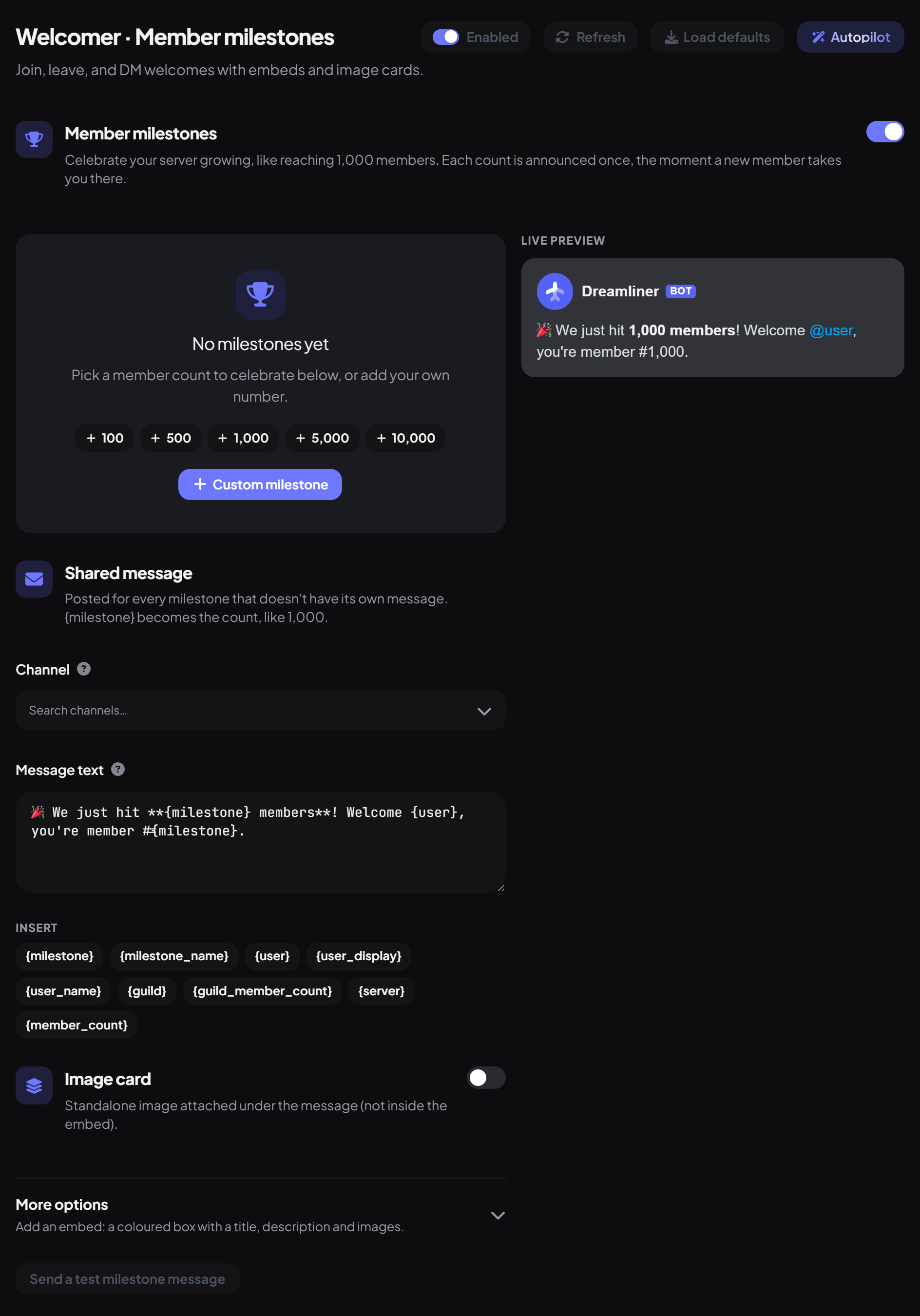
Extra placeholders here: {milestone} (like 1,000) and {milestone_name} (the label you gave it).
Step 7 · about 1 min
Test everything
See every message for real before members do.
The Test sub-page has a Send button for the Join message, Leave message, Welcome DM and Milestone message. Each sends the real message, addressed to you, using the settings on the page, so you don't need to save first. If one can't be sent yet (it's off, or has no channel), it says why with a button to fix it.
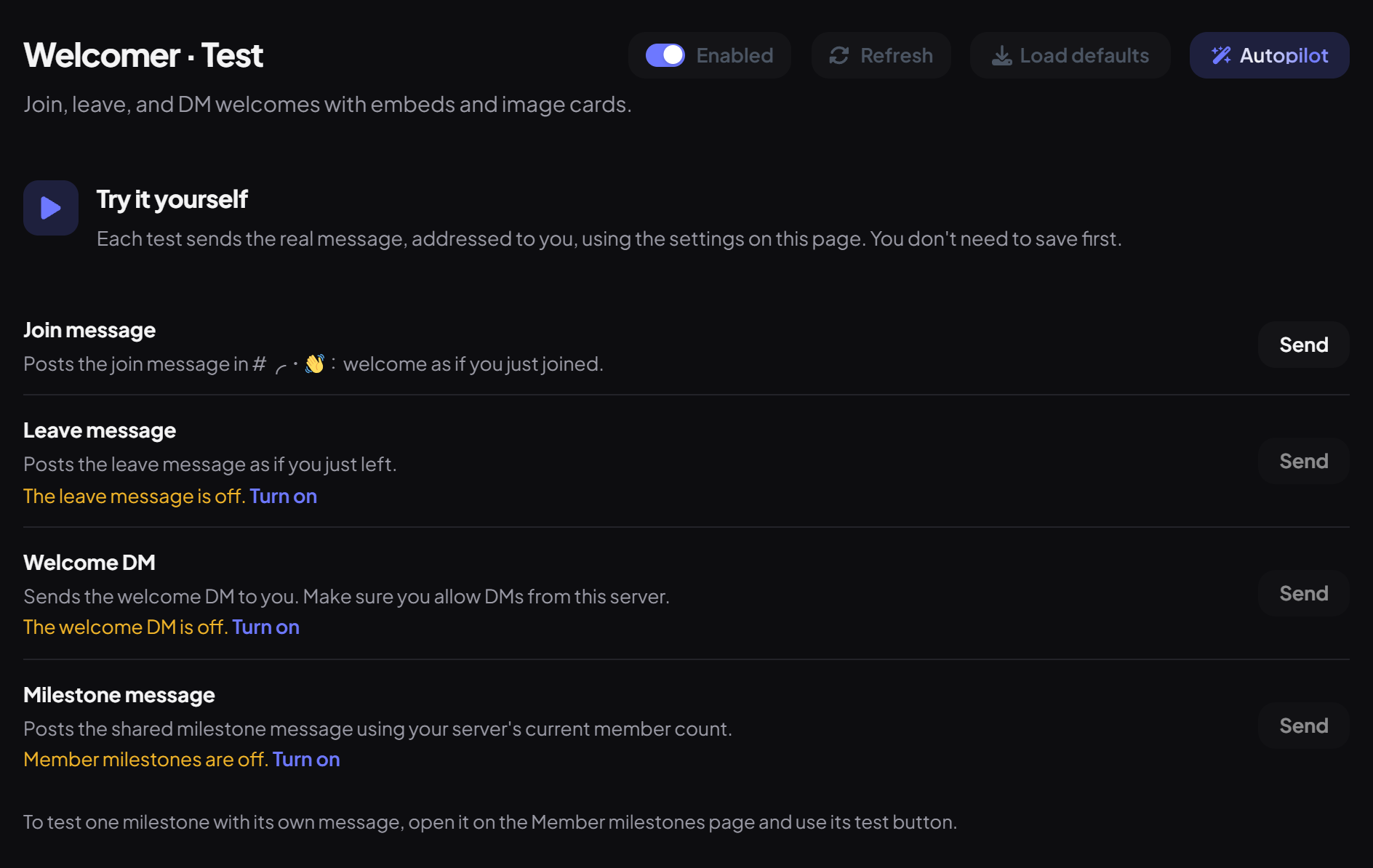
Let Autopilot set it up
The Autopilot button at the top (or Set up with Autopilot on the Overview) asks a few questions about your server and writes the welcome for you. It uses one of your free Autopilot uses (unlimited with Dreamliner One).
You're set up
What you just did
- Turned on a join message in your welcome channel
- Styled it with an embed or image card
- Added extras, goodbyes, a DM and milestones
- Tested every message on the Test page
Want to know who invited each new member? Add Invite Tracker.
Common questions
Nothing is posted when people join.
Check the join message has a channel, the switch is on, and Dreamliner can send messages there. If Wait for Passport verification is on, the welcome only comes after they verify.
Can it give new members a role?
Not Welcomer itself. Use Autorole for roles on join.
Is there a command?
No, everything is on the dashboard, with Test buttons to try it out.
Read next