
Set up staff permissions
Give your moderators and admins exactly the commands they need with Dreamliner Roles, without handing out Discord's powerful server permissions.
By the end, you'll have
- Your moderator and admin Discord roles linked to Dreamliner's Moderator and Admin roles
- A sensible set of commands switched on for each, and anything risky kept for admins
- A custom role for a team of your own, like Support or Trial Mod, if you need one
Before you start
- Dreamliner in your server. If it isn't yet, follow Add Dreamliner to your server first.
- Manage Server on that server, so you can open its dashboard.
- Your staff roles already made in Discord (for example @Moderator and @Admin).
Out of the box, Dreamliner keeps things safe: everyone gets harmless everyday commands like /help, and anyone with Discord's Administrator or Manage Server can use everything. Your moderators sit in between. Until you tell Dreamliner who they are, they can't use moderation commands at all.
That's what Dreamliner Roles are for. They work like Discord's roles, but only for Dreamliner: each one has a list of who's in it and a list of what they're allowed to do. It takes about ten minutes to set up, and you won't need to touch it again until your team changes.
Step 1 · about 2 min
Understand the two layers
Know which permissions come from Discord and which from Dreamliner.
A staff member needs to pass two separate checks before a moderation command works:
What their Discord roles allow. Some commands also need these, like Manage Messages for /clean, so a mod can't do more through Dreamliner than Discord lets them do by hand.
Which Dreamliner commands and features they're allowed to use. This is the part you set up in this guide.
Discord's role order still applies on top of both. A moderator can never warn, mute, kick or ban someone whose highest role is equal to or above their own, unless they own the server.
Do
- Give moderators a Discord role with only the permissions they really need
- Let Dreamliner Roles decide which commands each team can use
- Keep risky commands like bans for admins until you trust a new mod
Avoid
- Giving moderators Manage Server just so commands work (it bypasses everything)
- Granting every permission to the Member role
- Assigning individual people when a Discord role would do
Step 2 · about 1 min
Meet the three built-in roles
See what's already there before changing anything.
Every server starts with three Dreamliner Roles. You can't delete them, but you can change what they allow.
| Role | Who's in it | What it's for |
|---|---|---|
| Member | Everyone in the server, automatically | Everyday, low-risk things: /help, info and stats commands, music, tags, suggestions, reminders, closing your own ticket. Nothing that acts on other members. |
| Moderator | Nobody yet | Your moderation team. You'll link your mod roles and pick its commands in the next steps. |
| Admin | Nobody yet | Extra powers for senior staff, like bans and setup-level commands. It doesn't include Moderator's, so link your admin role to both. |
Step 3 · about 1 min
Open the Roles page
Get to the place where Dreamliner Roles are managed.
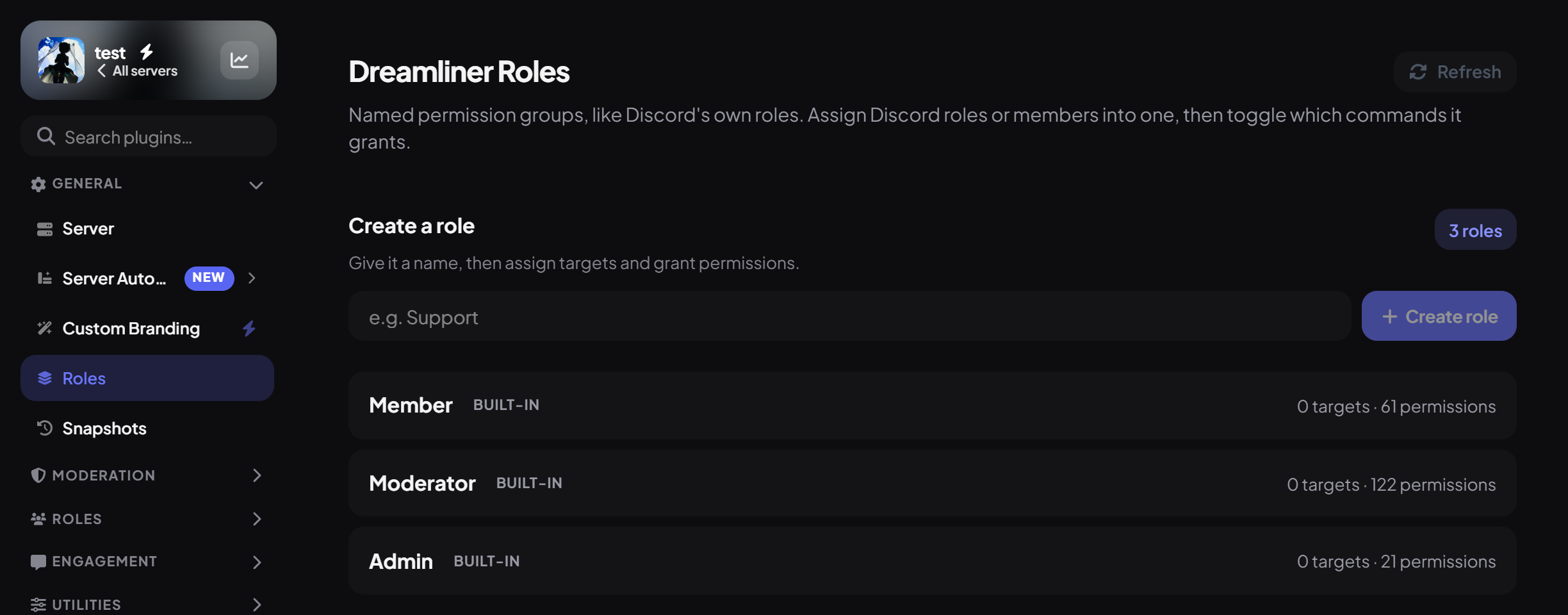
- Run
/configin your server and open the link, or go to the dashboard and pick your server. - In the sidebar, under General, click Roles.
- You'll see Member, Moderator and Admin, plus a box to create your own. Click a role to open it.
Step 4 · about 1 min
Link your mod team to Moderator
Tell Dreamliner who your moderators are.
- Open Moderator.
- Under Assigned targets, use Discord roles to search for your moderator role (for example @Moderator) and pick it.
- Only need one or two specific people? Add them under Individual members instead.
- Do the same for Admin with your admin role.
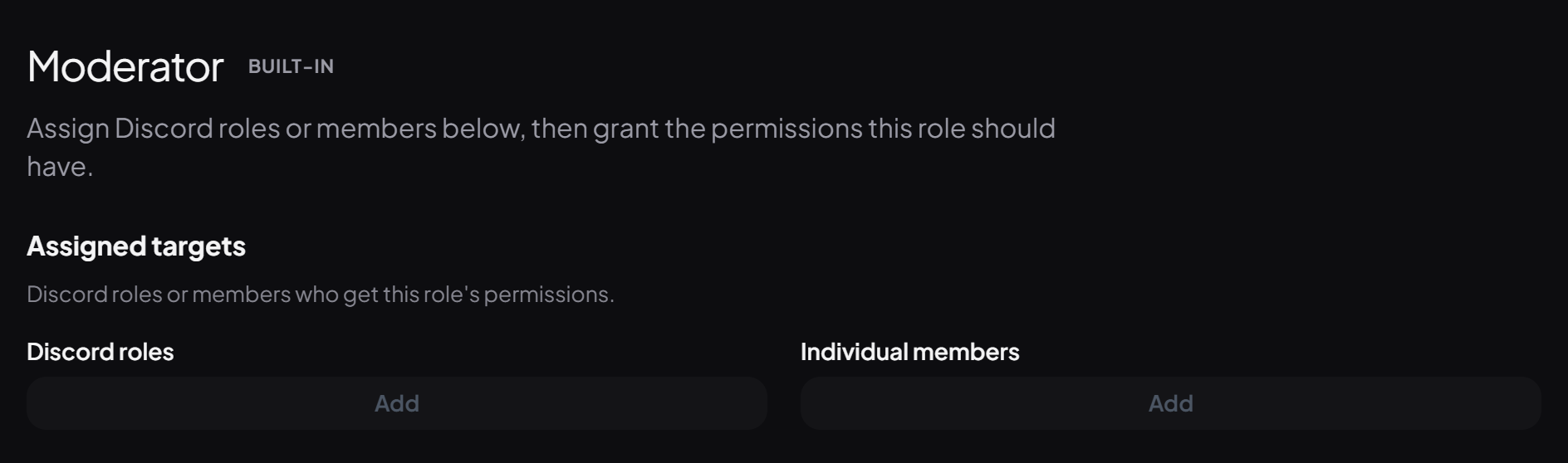
Changes on this page save as soon as you make them. There's no Save button to remember here.
Step 5 · about 3 min
Choose what each role can do
Switch on the right commands for moderators and admins.
Below the targets is the Permissions grid, grouped by plugin, like Discord's own role permissions page. Tick what the role should be able to do. Use the search box to find something fast, or All on / All off to set a whole plugin at once.
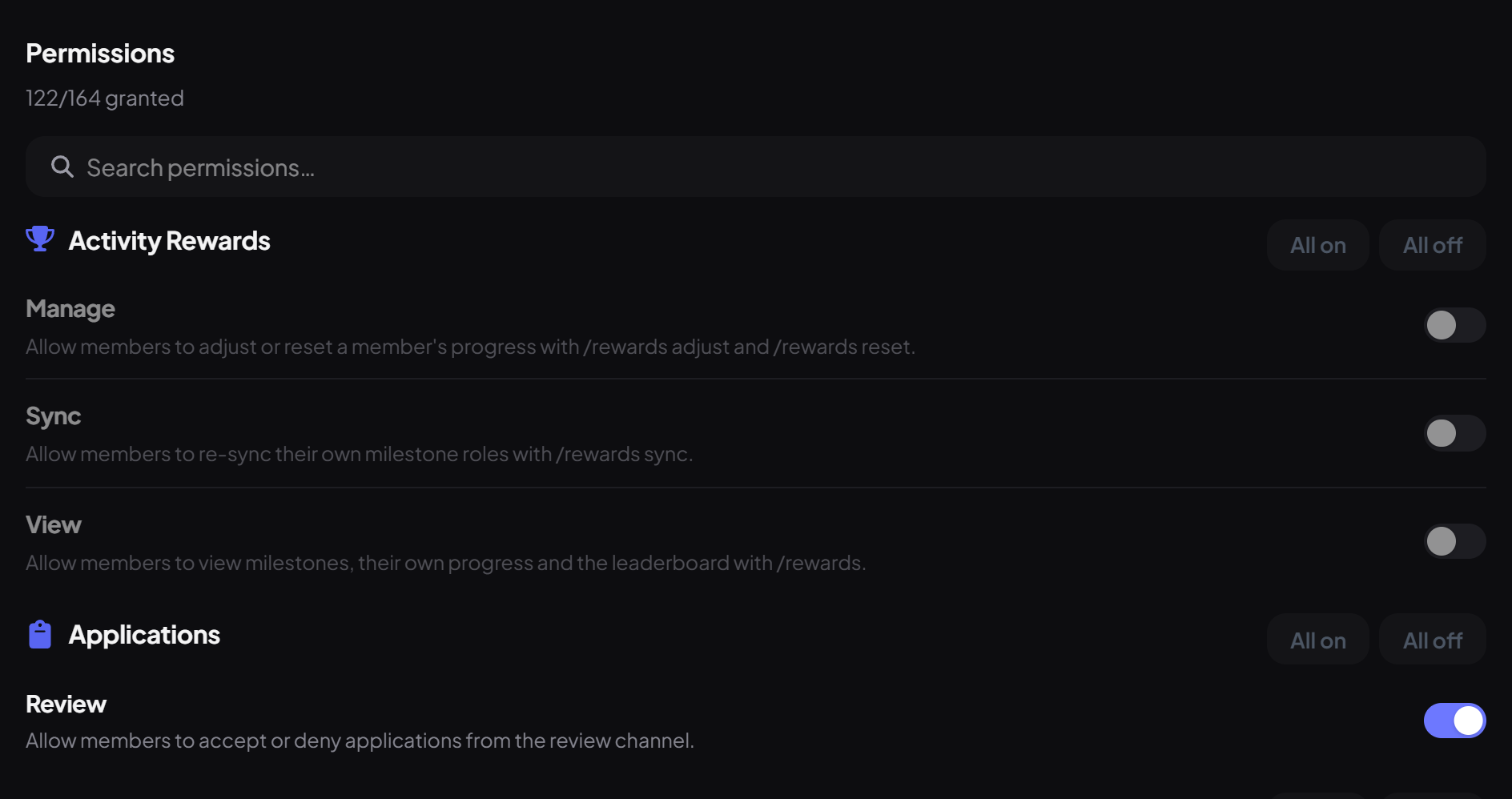
Not sure where to start? This is a solid first setup that most communities can use as-is:
| Area | Moderator | Admin |
|---|---|---|
| Warnings, mutes and notes | On | On |
| Kicks | On | On |
| Bans and unbans | Optional, for trusted mods | On |
| Viewing cases and member history | On | On |
| Clearing messages (/clean) | On | On |
| Lockdown and slowmode | Optional | On |
| Tickets: claim, close, add people | On | On |
| Appeals: review and decide | Optional | On |
| Reload settings and other setup-level commands | Off | On |
Step 6 · about 1 min
Add a custom role (optional)
Make a role for a team that isn't quite moderators.
Built-in roles cover most servers, but a separate team often deserves its own access. For example, a support team that only handles tickets, or trial mods with a smaller set of commands.
- On the Roles page, type a name under Create a role (for example "Support") and create it.
- Link its Discord role under Assigned targets, just like before.
- Tick only what that team needs.
Step 7 · about 1 min
Decide on admin bypass
Choose whether server admins skip Dreamliner Roles.
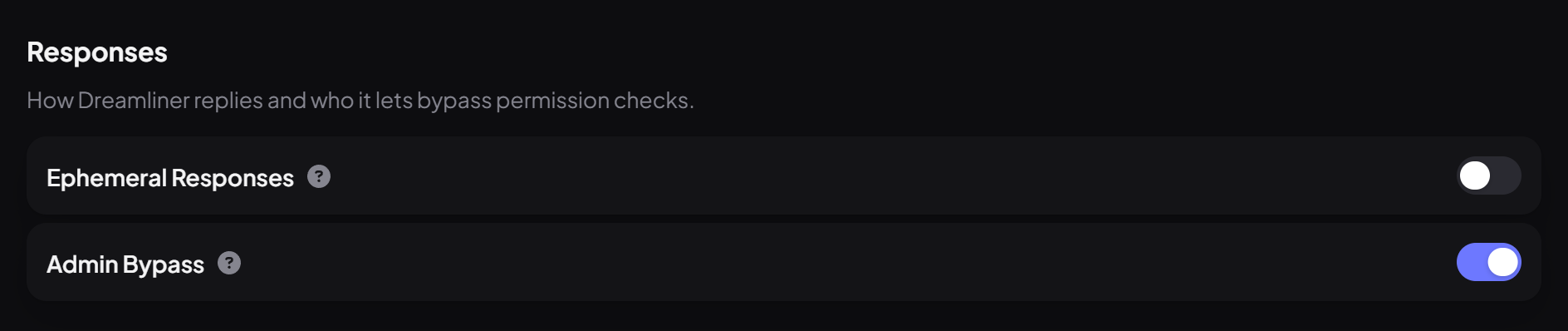
By default, three groups pass every Dreamliner permission check without being in any Dreamliner Role: the server owner, anyone with Discord's Administrator, and anyone with Manage Server. That's why the commands already worked for you.
To change it, open the dashboard's Server page, find Admin Bypass under Responses, switch it off, then press Save in the save bar that appears.
Step 8 · about 1 min
Test it with a moderator
Confirm a real moderator can use what you switched on, and nothing more.
- Ask a moderator (not an admin, they bypass everything) to run a command you switched on, like
/warnon a test account. - Then ask them to try something you left off. They should see a short "You do not have permission" reply that only they can see.
- To check someone's access without asking them, run
/info useron them. It lists which Dreamliner Roles they belong to.
Your team is set up
What you just did
- Linked your moderator and admin Discord roles to Dreamliner's Moderator and Admin roles
- Chose a sensible set of commands for each, with risky ones kept for admins
- Decided whether admins bypass the checks, and tested it with a real moderator
When your team changes, you usually won't need to come back here. Just give or take the Discord role, and Dreamliner follows along.
- Set up in minutes with Autopilot: design channels and roles and configure plugins for you.
Common questions
A moderator gets "You do not have permission". What do I check?
First, is their Discord role linked to a Dreamliner Role that has that command ticked? Second, does the command also need a Discord permission (like Manage Messages for /clean) that their Discord role is missing? It's almost always one of those two.
It works for admins but not for mods.
Admins bypass every check by default, so it working for them proves nothing. Link the mod's Discord role to Moderator and tick the command there.
Can I limit a command to certain channels?
Dreamliner Roles apply server-wide: a permission is on or off for someone everywhere. For channel-specific behaviour, use the plugin's own settings. Many plugins let you pick which channels they work in.
Can moderators change their own access?
No. Changing Dreamliner Roles needs Manage Server, the same permission the dashboard needs. Keep Manage Server for the people who run the server.
Read next