
Applications
Recruit staff, event hosts or partners with application forms in Discord: members apply with a button, your team accepts or denies, and roles are given automatically.
By the end, you'll have
- An opening members apply to with a button
- A form of up to 20 questions
- Reviews that give roles and DM the applicant
Before you start
- A channel for the opening post and a staff-only review channel.
- Dreamliner with Send Messages, Embed Links and Manage Roles (above the roles it gives).
- Manage Server, so you can open the dashboard.
Applications run your recruitment inside Discord. Post an opening, members answer your questions in a form, and your team reviews each application in a private channel. It's free.
Up to 20 questions, 5 per page, with many answer types.
Accept or deny in Discord or on the dashboard.
Give or remove roles when someone is accepted.
Step 1 · about 5 min
Create an opening
Set up a position members can apply for.
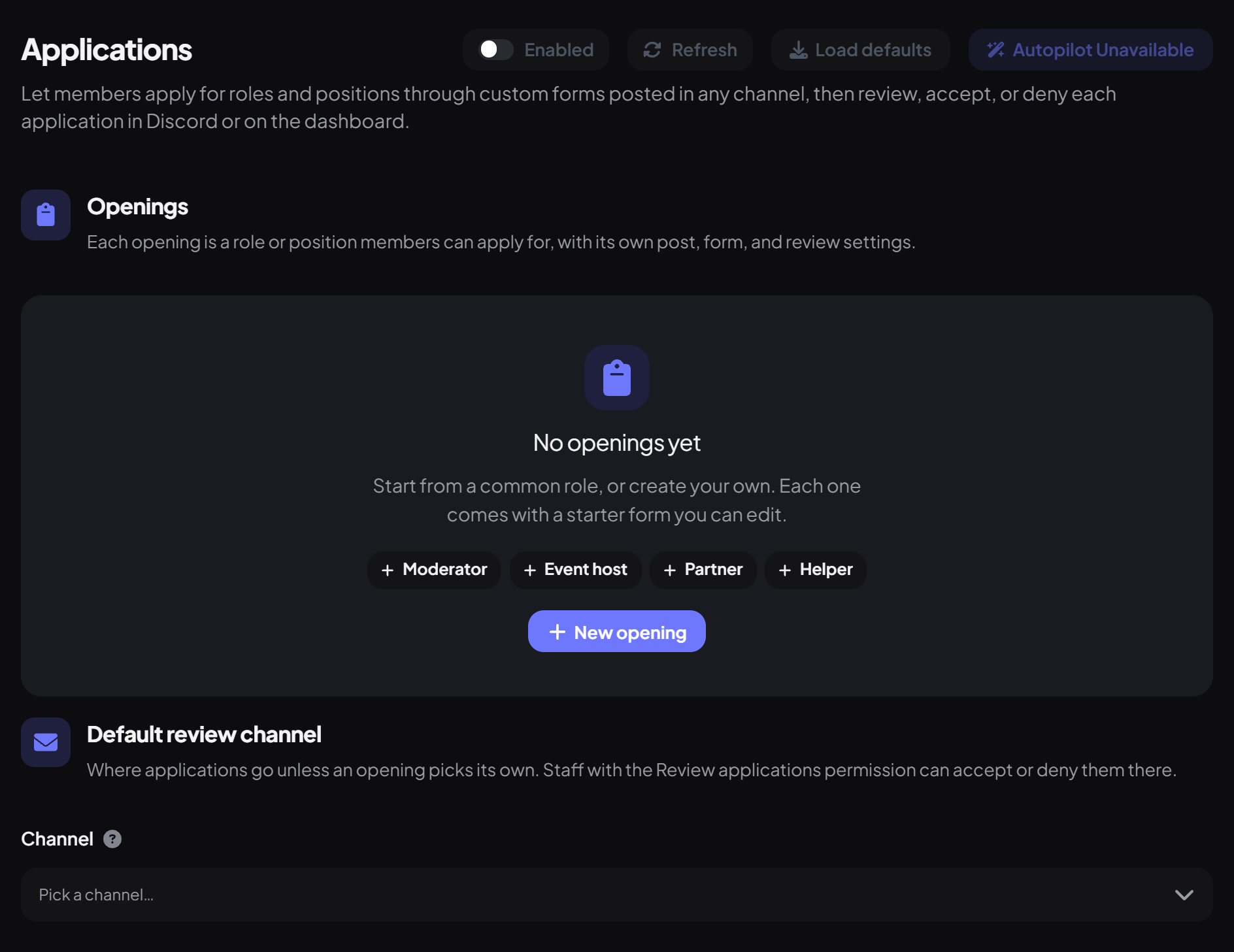
- On the dashboard, open Support and click Applications. Switch on Enabled.
- Set a Default review channel (keep it staff-only: answers can be personal).
- Press New opening, or start from a preset: Moderator, Event host, Partner or Helper.
- Under Opening, give it a Name and Description. Under Post, pick the channel and design the message and Apply button.
Step 2 · about 4 min
Write the form
Ask the right questions.
Under Application form, add up to 20 questions (shown 5 per page). Question types include short or long text, dropdowns, user and role pickers, checkboxes and file uploads. Give the form a Form title.
| Section | What you set |
|---|---|
| Review | The review channel for this opening, roles to ping, and an optional discussion thread. |
| Who can apply | Required and blocked roles, account age, time in the server, and a reapply cooldown after a denial (7 days by default). |
| Decisions | Roles to give or remove on accept, and the accepted and denied DMs ({reason} adds the deny reason). |
Press Save, then Publish opening. Use Update post after later changes.
Reviewing applications
- Members press Apply, answer each page, and get "Application sent".
- Each application arrives in the review channel with the answers and Accept and Deny buttons.
- Deny asks for an optional reason, sent to the applicant.
- Accepting gives and removes the roles you chose and DMs the applicant.
- View Applications on the dashboard lists every application with search and filters.
You're set up
What you just did
- Created and published an opening
- Wrote the form and decision rules
- Learned how reviewing works
Common questions
Can I pause applications?
Turn off Accepting applications on the opening, then press Update post.
Is there a web form?
No, applications are filled in inside Discord.
Read next