
Tickets & AI Responder
Give members a private way to reach your team: ticket panels with categories and forms, claiming, transcripts and escalation, plus an AI Responder that answers common questions first.
By the end, you'll have
- A ticket panel members use to open private support tickets
- Categories with their own staff, forms, limits and escalation
- Transcripts on close, and an optional AI Responder for first-line help
Before you start
- A channel for the panel, and a Discord category for ticket channels.
- Dreamliner with Manage Channels, Manage Roles, Manage Threads and Read Message History.
- Manage Server, so you can open the dashboard.
Tickets turn "DM a mod" into a proper help desk. Members press a button, fill in a short form if you want one, and get a private channel with your team. When it's sorted, the ticket closes and a transcript is saved. It's free.
Buttons or a menu, with a category for each kind of request.
Claim, assign, set status and priority, add people.
Answers common questions before staff step in.
Step 1 · about 2 min
Set the basics
Choose your staff and channels.
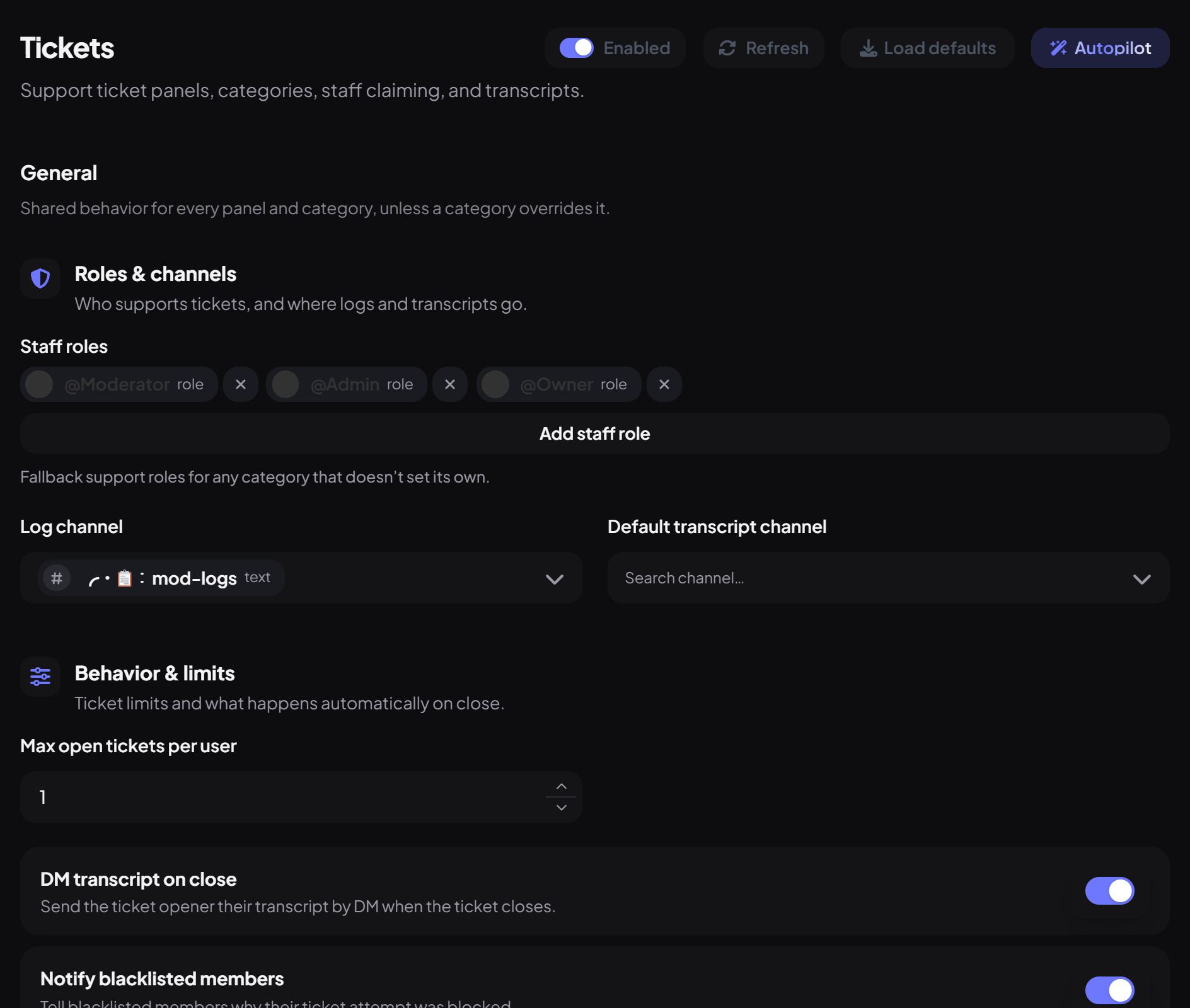
- On the dashboard, open Support and click Tickets. Switch on Enabled.
- Under Roles & channels, pick your Staff roles, a Log channel and a Default transcript channel.
- Under Behavior & limits, set Max open tickets per user (1 by default) and whether to DM transcript on close.
Step 2 · about 5 min
Build a panel
Create the message members open tickets from.
- Press Add panel, give it a Label, choose the Channel and a Style: buttons (up to 5 categories) or a select menu (up to 25).
- Write the Message and optional Embed. {avg_response_time} and {avg_resolution_time} show your team's recent averages.
- Press Add category for each kind of request (next step).
- Press Save, then Post panel.
Step 3 · about 5 min
Set up categories
Route each request to the right place.
| Section | What you set |
|---|---|
| Basics | Label, emoji, description (for menus) and button colour. |
| Location | The Discord category, a private channel or private thread, the naming pattern (ticket-{number}) and the welcome message. |
| Access | Support roles for this category, and roles to ping when a ticket opens. |
| Form questions | Up to 5 questions asked before the ticket opens: text, dropdowns, user or role pickers, file upload and more. |
| Limits & closing | Per-user limit, auto-close after inactivity, who can close, transcript channel, and a required close reason. |
| Escalation ladder | Up to 10 steps, like "after 30 minutes, ping Senior Staff" or "bump priority". |
How a ticket works
- A member presses a button (or picks from the menu), answers any form, and gets "Your ticket is ready".
- The ticket opens with a welcome card showing the answers, plus Claim and Close buttons. Ping roles are notified.
- Staff claim it, chat, and can add people, set status or priority with /ticket.
- Closing asks for confirmation (and a reason if required), saves a web transcript, posts it to the transcript channel and DMs it to the member.
- Closed tickets can be reopened from View Tickets on the dashboard.
View Tickets and commands
View Tickets under Tickets shows open and closed tickets, stats like average resolution time and top claimer, handler performance, and each ticket's details and transcript.
| Command | What it does | Who by default |
|---|---|---|
/ticket close | Close a ticket (with an optional reason). | The opener; Moderator for others' tickets |
/ticket claim · unclaim | Take or release a ticket. | Moderator |
/ticket add · remove | Add or remove someone. | Moderator |
/ticket priority | Low, medium, high or urgent. | Moderator |
/ticket status set | Open, In Progress, Awaiting Response… | Admins (grant to staff as needed) |
/ticket transcript | Get the transcript. | The opener and staff |
/ticket blacklist | Stop someone opening tickets. | Admin |
Step 4 · about 6 min
Turn on the AI Responder (optional)
Answer common questions before staff do.
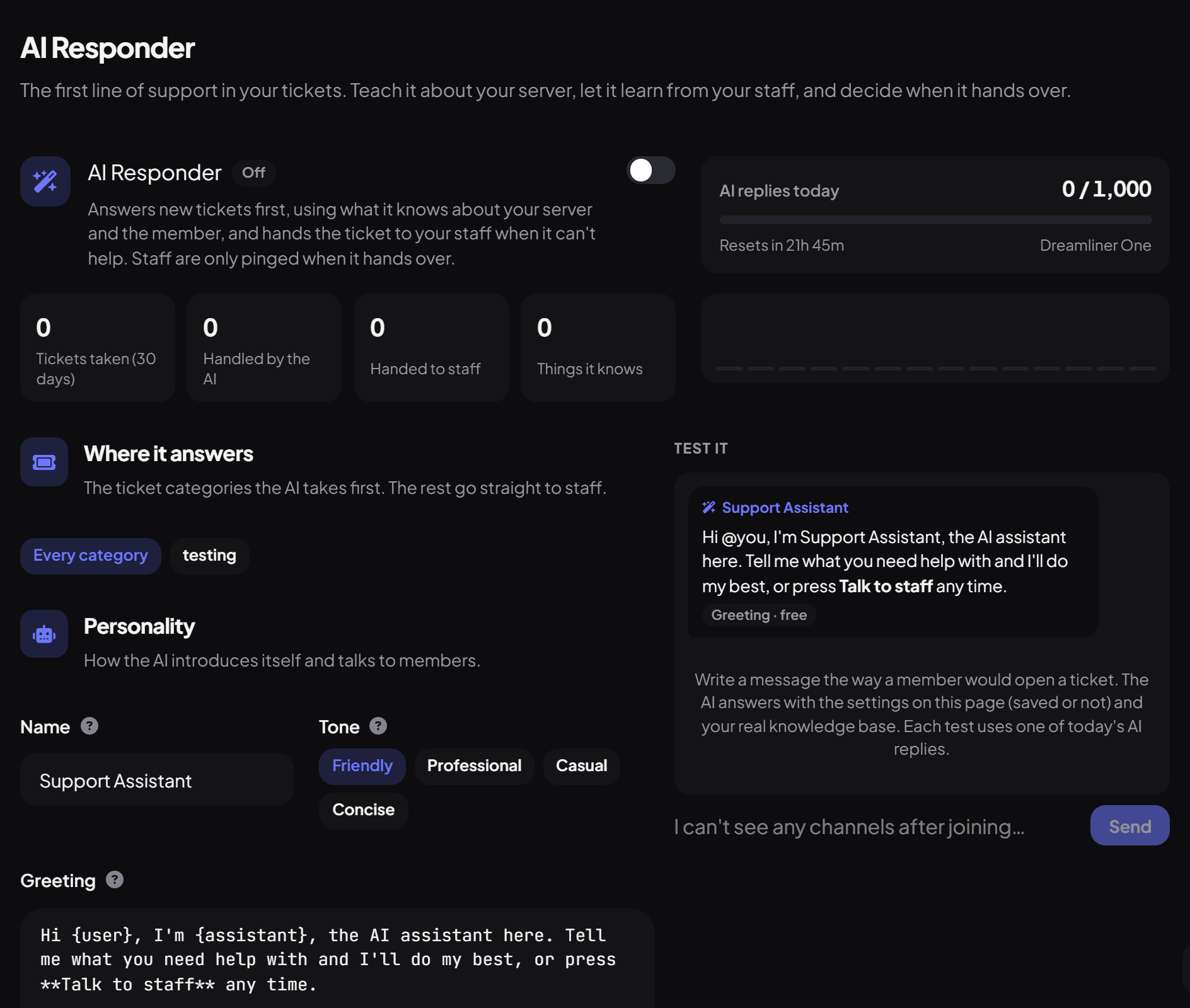
- Open AI Responder under Tickets and switch it on.
- Under Where it answers, choose categories (or every category).
- Give it a Name, Tone, Greeting and Your instructions.
- Add what it should know to the Knowledge base: questions and answers, or notes. Every help centre guide has a Use to train AI button that adds it here.
- Try it in Test it, then save.
You're set up
What you just did
- Set staff, channels and limits
- Built and posted a panel with categories
- Learned the ticket flow, commands and the AI Responder
Common questions
Members can't see their ticket.
Dreamliner needs Manage Channels and Manage Roles to set ticket permissions, or Create Private Threads for thread tickets.
Changes to my panel don't show.
Save, then press Repost panel. The old panel message keeps working until you delete it.
Read next