
Team Control
Run your staff team properly: a rank ladder, clock-in shifts, leave requests, promotions and strikes, activity quotas, member feedback, onboarding trials and a live roster board.
By the end, you'll have
- A rank ladder built from your staff roles, so Dreamliner knows who's on the team and at what level
- Shifts, leave, promotions and strikes your team can run from Discord, with roles changed for you
- Activity quotas, feedback and an optional live roster board, so you can see how everyone's doing
Before you start
- Your staff rank roles created in Discord, lowest to highest (for example Trial Mod, Moderator, Senior Mod, Admin).
- Dreamliner's role placed above every rank role, and above any status roles you'll use (on duty, on leave, suspended).
- Manage Server, so you can open the dashboard.
Team Control replaces the spreadsheets and pinned messages most staff teams run on. It knows who's on your team from their roles, tracks what they do, and handles the admin around them, from leave to promotions. The core is free; Dreamliner One adds bigger limits and extras.
Your staff roles in order. Holding one means you're on the team.
Clock in and out, take breaks, request LOA or reduced activity.
Shifts, mod actions, tickets, messages and voice time against per-rank targets.
The plugin is split into pages in the dashboard sidebar: an overview, then Team, Shifts, Leave, Actions, Activity, Feedback, Onboarding and Roster board. This guide goes through them in that order. Only the rank ladder is required; set up the rest as you need it.
Step 1 · about 1 min
Turn Team Control on
Enable the plugin and find its pages.
- In the dashboard sidebar, open Moderation and click Team Control. Its Overview is your staff room: your team at a glance.
- Switch on Enabled at the top and press Save changes in the bar at the bottom.
- Once your ranks are set up, press Sync roles to pull in everyone who holds a rank role.
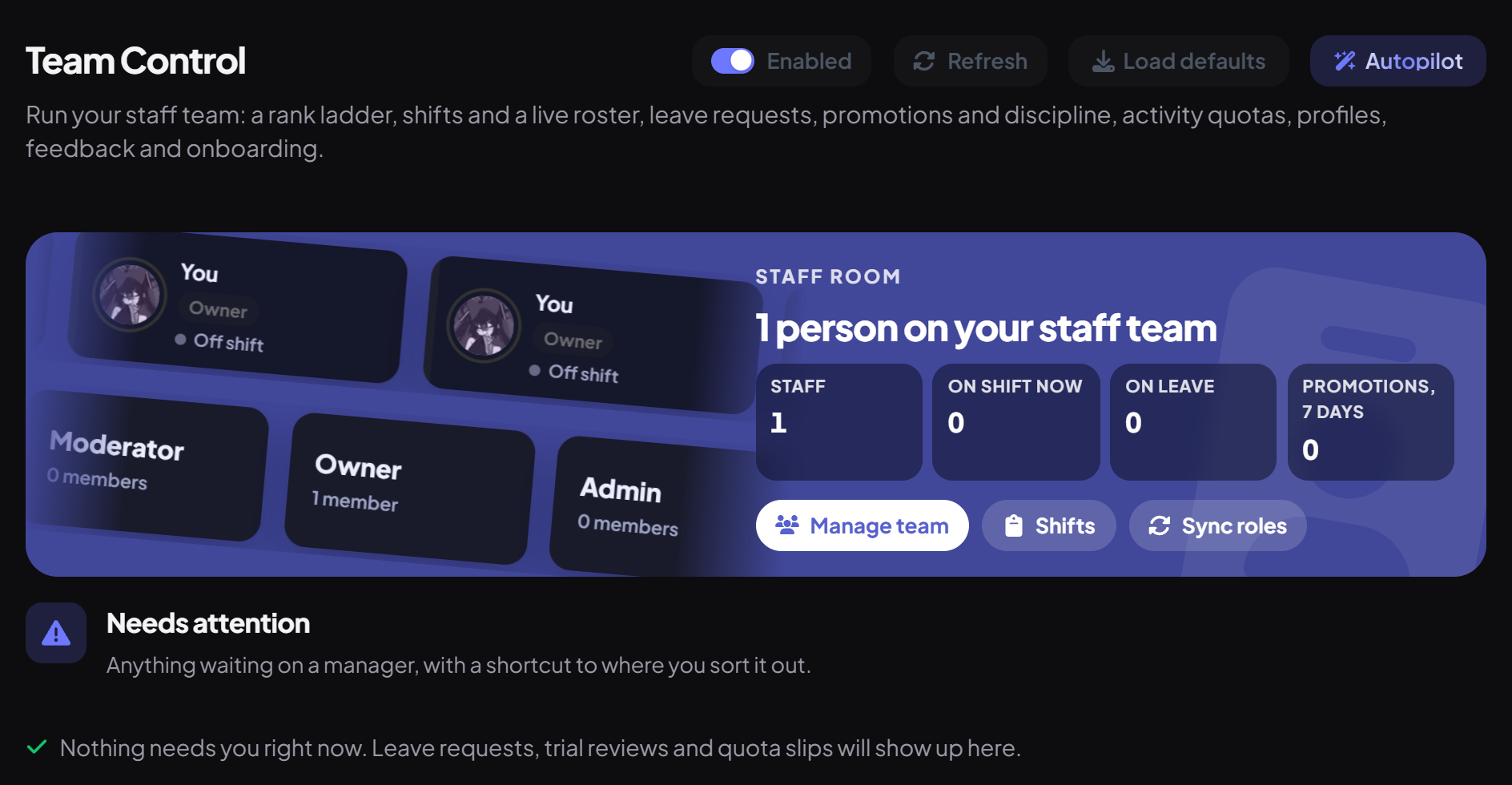
The Staff room banner shows your team members drifting past with their rank and whether they're on shift, plus Staff, On shift now, On leave and Promotions, 7 days. Use Manage team, Shifts or Sync roles from there. Before you add ranks it reads Your staff room is ready for a team, with Set up your ranks (and Set up with Autopilot). With ranks but nobody holding them yet, it offers Sync roles now and Check your ranks.
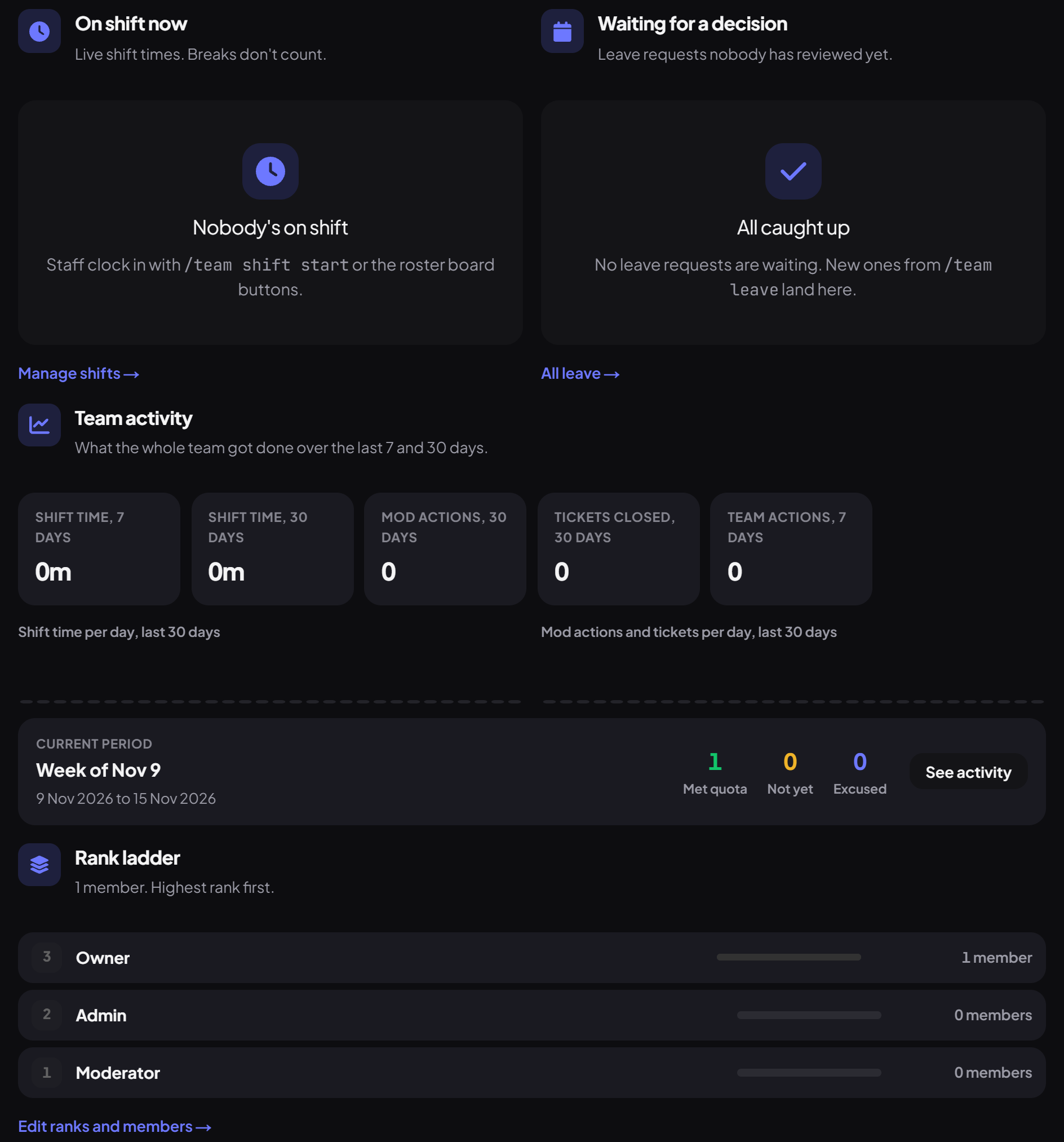
Below the banner, the Overview shows:
| Panel | What it shows |
|---|---|
| Needs attention | Anything waiting on a manager, each with a shortcut to sort it out: leave requests to review, trials that ended, new staff behind on onboarding, members below quota, active strikes, and setup problems like a rank with no role. |
| On shift now | Who's clocked in, with live shift times (breaks don't count). Manage shifts opens Shifts. |
| Waiting for a decision | Leave requests nobody has reviewed yet, which you can approve or deny right there. All leave opens Leave. |
| Team activity | Shift time over 7 and 30 days, mod actions and tickets closed over 30 days, and team actions over 7 days, with daily charts and the Current period's quota results (Met quota, Not yet, Excused). |
| Rank ladder | Your ranks, highest first, with how many members hold each. Edit ranks and members opens Team. |
| Recent team activity | Promotions, warnings, strikes and finished shifts, newest first, with links to the Action log and Shift history. |
Step 2 · about 3 min
Build your rank ladder
Tell Dreamliner your staff ranks and their roles.
Everything else depends on this. Open the Team page:
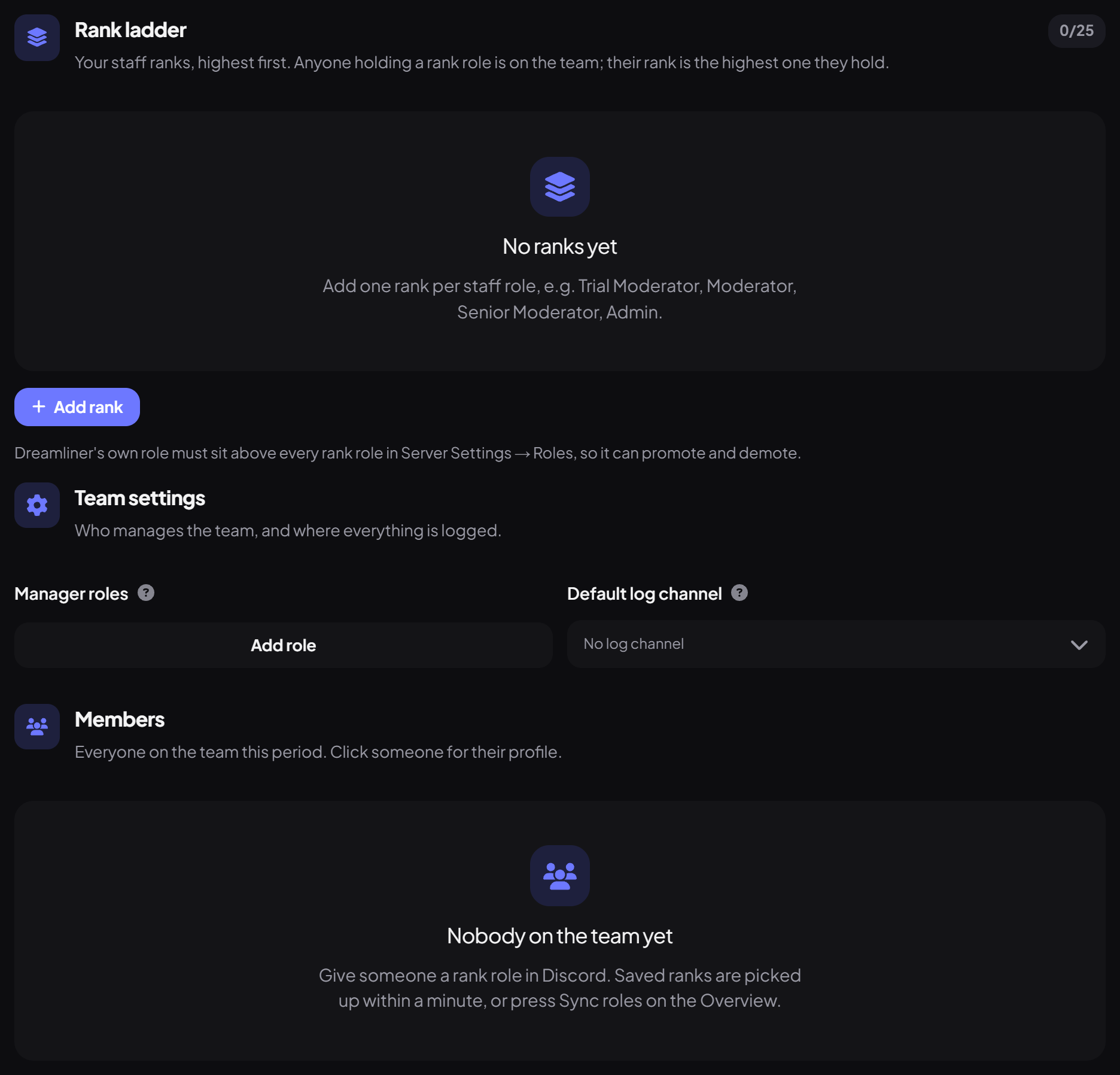
- Under Rank ladder, press Add rank for each rank, give it a name and pick its Discord role.
- Order them highest first. Drag them, or use the arrows. The order decides who can manage whom.
- Under Team settings, pick your Manager roles (who gets pinged for leave requests, alerts and trial reviews) and a Default log channel that every log falls back to.
- Press Save changes, then Sync roles on the Overview to pull everyone in straight away.
- Anyone holding a rank role is on the team; their rank is the highest one they hold. Losing every rank role takes them off the team.
- Changes in Discord are picked up automatically, and a full check runs every 30 minutes.
- Each rank needs its own role. Two ranks sharing a role causes a warning.
Step 3 · about 3 min
Set up shifts
Let staff clock in and out, and see who's on duty.
On the Shifts page, under Shift settings:
| Setting | What it does | Default |
|---|---|---|
| On-duty role | Given while someone is clocked in, so members can see who's available. | None |
| Nickname prefix | Added to their nickname while on duty, like "[ON] ". | None |
| Shift log channel | Where clock-ins and clock-outs are logged. | Default log channel |
| Most on duty at once | A cap on how many can be on duty together. 0 means no limit. | 0 |
| Shortest shift | Shifts shorter than this are voided and don't count. | 5 minutes |
| Longest shift | Shifts are ended automatically after this, and they're told by DM. | 12 hours |
| Allow breaks | Lets them pause a shift. Breaks don't count as worked time. | On |
| No shifts while on leave | Blocks clocking in during an approved LOA. | On |
Add Shift types like "Patrol" or "Support desk" if your team does different kinds of work, and limit each to certain ranks.
| Command | What it does |
|---|---|
/team shift start | Clock in, optionally choosing a shift type. |
/team shift break | Start or end a break. |
/team shift end | Clock out. |
/team shift status | Who's on duty, or one person's shift. |
/team shift leaderboard | Most hours this period or last. |
Forgot to clock in? A manager can use Add shift under Shift history, and Edit or Void any shift there.
Step 4 · about 2 min
Handle leave requests
Let staff ask for time away, and approve it in one click.
Staff run /team leave request, choose LOA (fully away) or RA (reduced activity), how many days and when it starts, then write a reason. On the Leave page:
| Setting | What it does | Default |
|---|---|---|
| LOA role / Reduced activity role | Given while their leave is running, and removed when it ends. | None |
| Request channel | Where requests post with Approve and Deny buttons. | Default log channel |
| Ping for requests | Who's pinged for new requests. | Manager roles |
| Shortest / Longest leave | Allowed length in days. | 1 / 60 |
| Cooldown | Days between requests. | 0 |
| Reason required | Requests need a reason. | On |
| Approve automatically | Skips review entirely. | Off |
| Excuse from quota | Someone away for at least half a period isn't judged on that period's quota. | On |
Approving or denying DMs them. When leave starts, the role is added; when it ends, it's removed and they get a "Welcome back". Managers can Extend or End now on the dashboard, and staff can end their own early with /team leave end.
Step 5 · about 3 min
Promote, demote and discipline
Change ranks and handle problems, with roles updated for you.
Every staff action is logged with a number and a reason. Use /team action in Discord or the Take action form on the Actions page:
| Action | What happens |
|---|---|
| Promote / Demote | Swaps their rank role for the next one up or down, or the rank you choose. |
| Warn | A recorded warning. |
| Strike | A recorded strike that counts toward your thresholds. |
| Suspend | Removes their rank roles, adds the suspended role, and puts everything back after the days you set. |
| Remove from the team | Removes every rank and status role and ends their shift and leave. |
Under Strike thresholds, decide what happens automatically at a number of strikes: notify managers, demote one rank, suspend, or remove from the team. By default, 3 strikes notifies managers. Strikes expire after 90 days unless you change it.
Also on this page: an announcement channel for promotions, whether the member gets a DM, and whether reasons are required (both on by default). Voiding an action keeps it on record but doesn't change roles back.
Step 6 · about 3 min
Track activity and quotas
See who's pulling their weight, fairly.
Team Control counts five kinds of activity for everyone on the team:
- Shift hours, not counting breaks
- Moderation cases they open with Infractions
- Tickets they close
- Messages in the staff channels you choose (on the Activity page)
- Hours in voice channels
Set targets per rank on the Team page: open a rank and fill in Shift hours, Mod actions, Tickets closed, Staff messages or Voice hours. Leave a target at 0 to not require it. Then on the Activity page:
| Setting | What it does | Default |
|---|---|---|
| Quota period | Weekly, every two weeks, or monthly, in fixed UTC periods. | Weekly |
| Weeks start on | Monday or Sunday. | Monday |
| Staff channels | Channels where messages count. | None |
| Inactivity alert | Pings managers when someone does nothing for this many days. 0 turns it off. | 7 days |
The Team activity panel shows this period and last, a per-day chart and everyone against their quota. Staff can check their own with /team activity.
Free servers can still get a report any time with /team report.
Step 7 · about 1 min
Collect member feedback
Let members rate the staff who helped them.
Ratings are 1 to 5 stars with an optional comment. Members rate with /team rate, and after a ticket closes the person who opened it gets a DM to rate whoever handled it. On the Feedback page:
| Setting | What it does | Default |
|---|---|---|
| After tickets | Asks for a rating when a ticket closes. | On |
| Direct ratings | Allows /team rate. | On |
| Members only | Stops staff rating each other. | On |
| Cooldown | Hours before the same person can rate the same staff member again. | 24 |
| Feedback log channel | Where ratings are posted, naming who left them. | Default log channel |
Staff see their own average; only managers see who left each rating.
Step 8 · about 2 min
Onboard new staff with a trial
Give new team members a checklist and a review at the end.
Onboarding is off by default. Turn it on with the switch on the Onboarding page, then:
- Pick the Trial rank new staff join at (or leave it as any rank), and the Trial length in days (14 by default; 0 means no trial).
- Add Checklist items, like "Read the staff handbook" or "Shadow a senior mod", each with optional details.
- Choose a Review channel and whether to DM a welcome with the checklist.
Managers tick items off on the dashboard or with /team onboarding check. When the trial ends, a review posts with three buttons: Pass (promotes one rank), Extend 7 days and Fail (removes them from the team, with a reason).
Step 9 · about 1 min
Post a live roster board
Show your whole team, and who's on duty, in one always-up-to-date message.
- On the Roster board page, turn it on and pick a Channel.
- Set a Title ("Team roster" by default) and keep Shift buttons on to add Clock in, Break and Clock out buttons.
- Press Save changes, then Refresh board to post it.
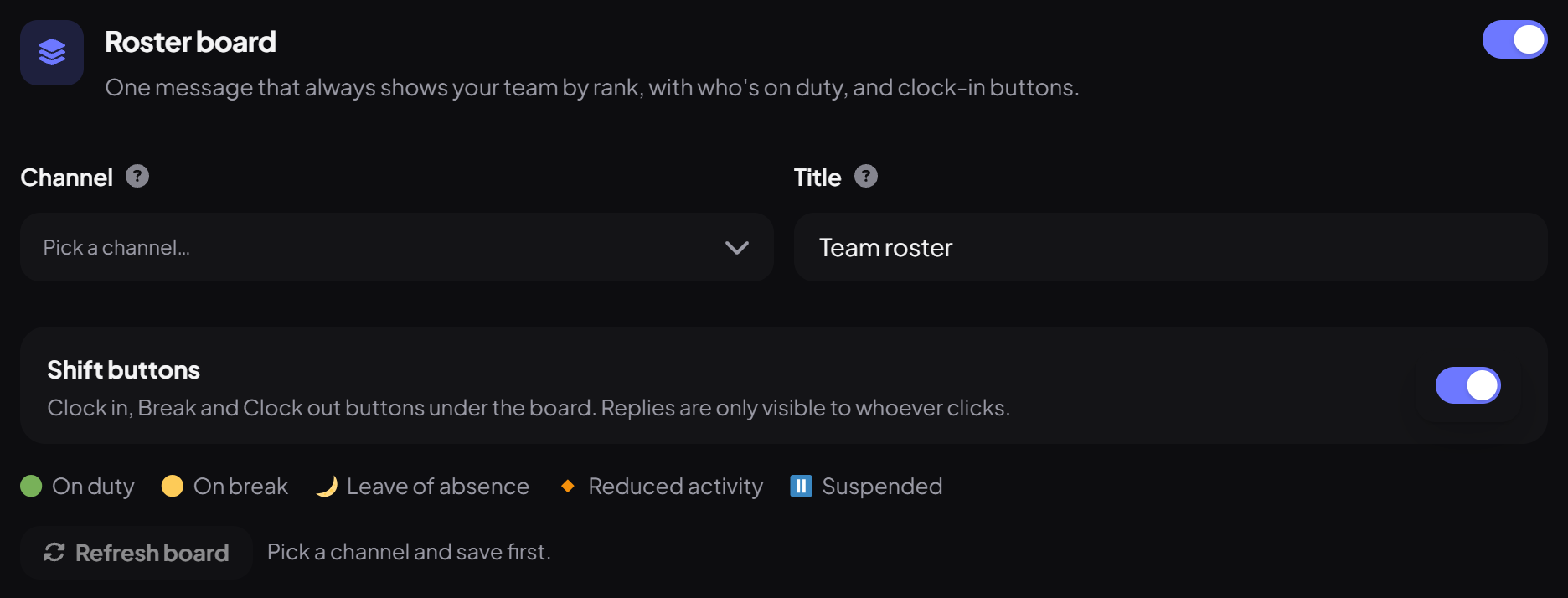
The board lists everyone by rank, highest first, with a status dot for on duty, on break, on leave and so on. It updates itself as things change, and reposts if someone deletes it. Anyone on the team can also see it privately with /team roster.
Step 10 · about 1 min
Decide who can do what
Match Team Control's powers to your management structure.
Anyone holding a rank can clock in, request leave and see the roster without any extra permission. The rest are granted to Dreamliner Roles on the Roles page:
| Permission | Lets them | Default |
|---|---|---|
| View team | See profiles, activity and the roster | Everyone |
| Rate | Rate staff with /team rate | Everyone |
| Review leave | Approve and deny leave requests | Admin |
| Promote | Promote and demote, and pass trials | Admin |
| Discipline | Warn, strike, suspend, remove, and fail trials | Admin |
| Manage | Notes, onboarding ticks, reports and syncing | Admin |
If senior moderators should approve leave or promote juniors, tick those on your Moderator role or a custom "Management" role. Rank rules from step 5 still apply on top.
Profiles: everything about one staff member
Click anyone on the Team page, or use /team profile or the Team profile option when you right-click a member. A profile shows their quota progress, shifts from the last 30 days, rank history, leave, feedback, actions, onboarding and private manager notes.
Your team is set up
What you just did
- Built a rank ladder from your staff roles and synced the team
- Set up the parts you need: shifts, leave, actions, quotas, feedback, onboarding and a roster board
- Matched permissions to how your team is managed
Team Control counts moderation cases from Infractions and tickets from Tickets, so the more your team uses Dreamliner, the more complete its activity picture gets.
Common questions
Someone isn't showing up on the team.
Check they have one of your rank roles, then press Sync roles on the Overview or run /team sync.
Promotions fail or roles don't change.
Dreamliner needs Manage Roles and its role above every rank, duty, leave and suspended role. The Overview lists anything blocking it.
Why can't a senior mod promote someone?
They need the Promote permission, and they can only promote to ranks below their own. Check both.
Does voice time need anything turned on?
Voice hours come from Dreamliner's server stats. If voice time stays at zero, check the Stats plugin is on.
What's free and what needs Dreamliner One?
Everything in this guide works for free. Dreamliner One raises the limits (25 ranks, 15 shift types, 40 checklist items, unlimited history) and adds points mode, scheduled reports and CSV export.
Read next