
Slowmode
Slow a whole channel down with Discord's own slowmode, or slow down just one member or one role with Dreamliner's individual slowmode, which Discord can't do on its own.
By the end, you'll have
- A quick way for staff to slow down any channel with /slowmode set, and to remove it again
- Individual slowmode rules that limit specific members or roles without slowing everyone else down
- Staff who can use the commands, and a tested setup you know is working
Before you start
- Dreamliner in your server with its role above your member roles. See Add Dreamliner to your server.
- Manage Server, so you can open the dashboard.
- A second, non-staff account (or a friend) to test individual slowmode with.
Slowmode controls how often people can send messages. Dreamliner gives you two kinds, and they work well together. You can use either one, or both at once.
Discord's built-in slowmode. Everyone in the channel waits the same time between messages. Staff set it with /slowmode set.
Dreamliner's own. Only the members or roles you choose are slowed down, in the channels you choose. Everyone else chats normally.
Individual slowmode is the one Discord can't do. It's ideal for someone who keeps flooding a channel but doesn't deserve a mute, for a new-members role, or for a bot-commands channel where one person spams.
Step 1 · about 1 min
Turn the plugin on
Enable Slowmode for your server.
Slowmode starts switched off on every server, so nothing happens until you turn it on.
- Open your server on the dashboard.
- In the sidebar, open Moderation and click Slowmode.
- Switch on Enabled at the top of the page, then press Save changes in the save bar at the bottom.
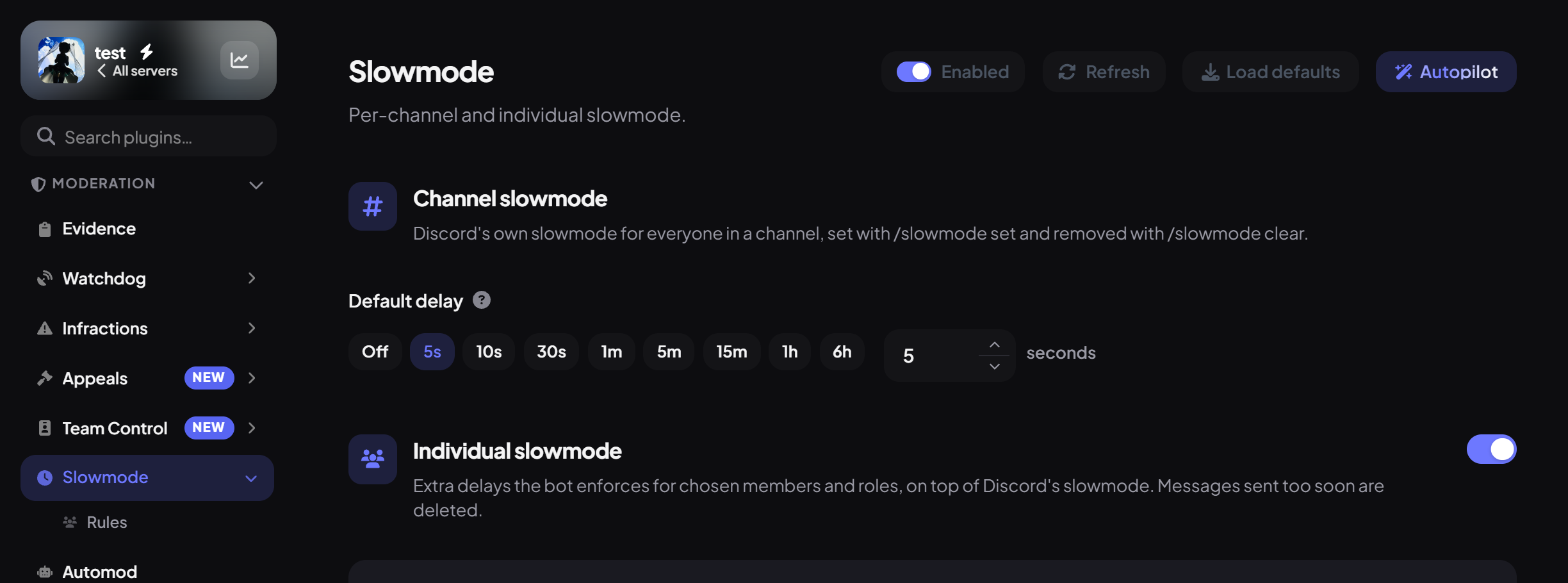
The main Slowmode page has two sections: Channel slowmode and Individual slowmode. Your individual slowmode rules have their own sub-page, Rules, under Slowmode in the sidebar.
Step 2 · about 2 min
Slow down a whole channel
Use /slowmode set and /slowmode clear for Discord's channel slowmode.
This is the quick fix during a busy moment: a raid, a giveaway announcement, a heated argument. It applies to everyone in the channel, exactly like setting slowmode in Discord's channel settings, just faster.
- In the channel you want to slow down, run
/slowmode set. - Pick a preset (5 seconds, 10 seconds, 15 seconds, 30 seconds, 1 minute, 5 minutes, 15 minutes or 1 hour), or type an exact number of seconds (up to 21,600, which is 6 hours). Seconds win if you give both.
- To change a different channel without going there, fill in the channel option.
- When things calm down, run
/slowmode clearto switch it off again.
On the dashboard, the Channel slowmode section at the top of the Slowmode page has one setting, Default delay. It's used when someone runs /slowmode set without a preset or seconds. Pick a chip (Off, 5s, 10s, 30s, 1m, 5m, 15m, 1h or 6h) or type an exact number into the seconds box next to them. It starts at 5 seconds.
How individual slowmode works
It's worth knowing exactly what members experience before you set rules up:
- A slowed-down member sends a message as normal. That message counts, and their wait starts.
- Dreamliner reacts to that message with a small clock, so they can see they're on a timer. The reaction disappears when the wait is over.
- Anything else they send before the wait is up is deleted straight away. There are no warnings, mutes or DMs, and sending more doesn't make the wait longer.
- Once the time is up, their next message goes through and the cycle starts again.
- Each channel has its own timer: waiting in #general doesn't stop someone posting in #memes.
- Threads count as their own channels. A rule for one channel doesn't cover its threads, but an "All channels" rule does.
- Bots, webhooks and system messages are never slowed down.
- Timers are kept in memory, so a bot restart clears any waits that were running.
Step 3 · about 1 min
Open the Rules sub-page
Get to where individual slowmode rules live.
- On the main Slowmode page, make sure the switch in the Individual slowmode header is on (it is by default).
- Press Manage rules, or click Rules under Slowmode in the sidebar.
- On the Rules sub-page, press Add rule. The new rule opens straight away.
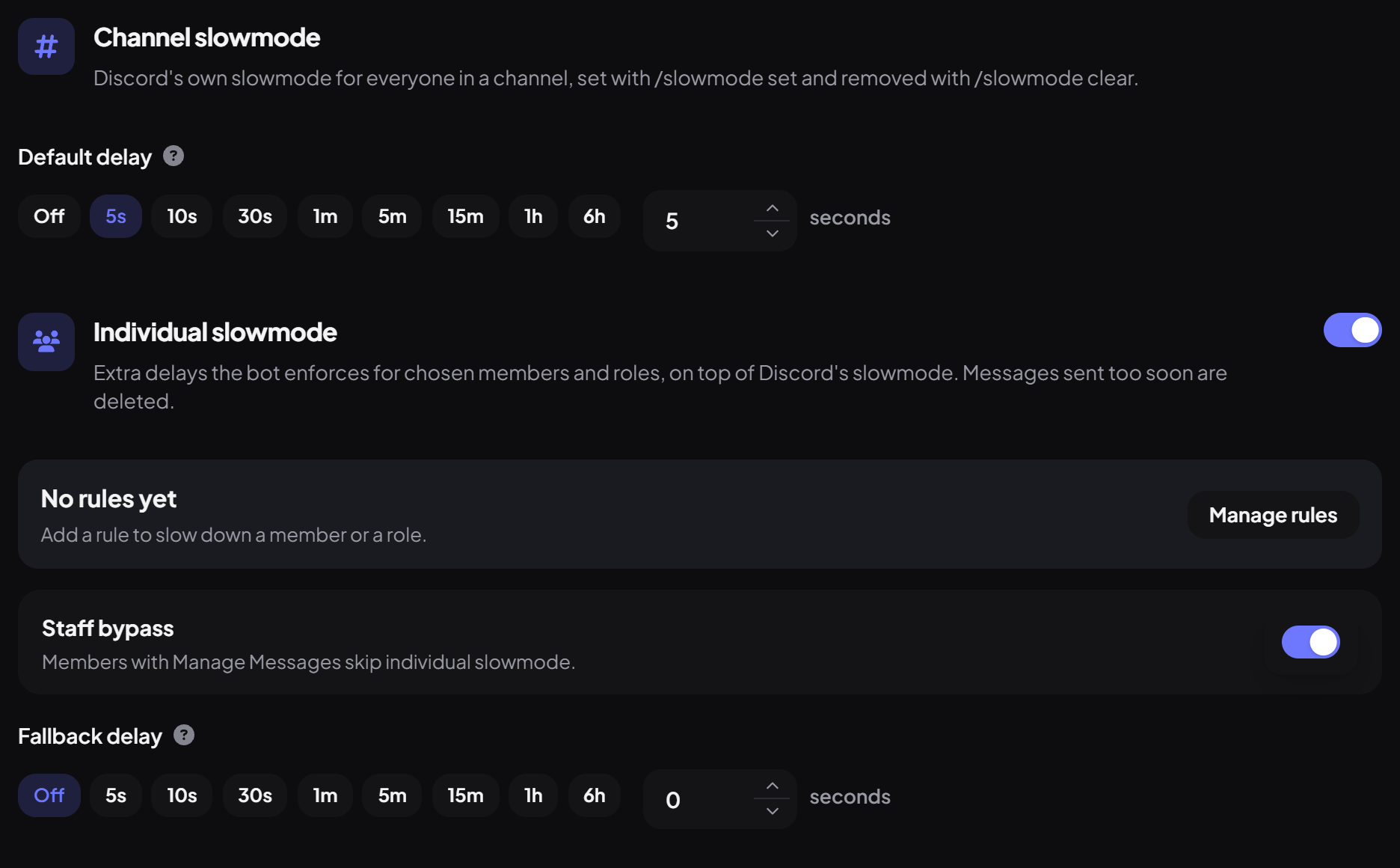
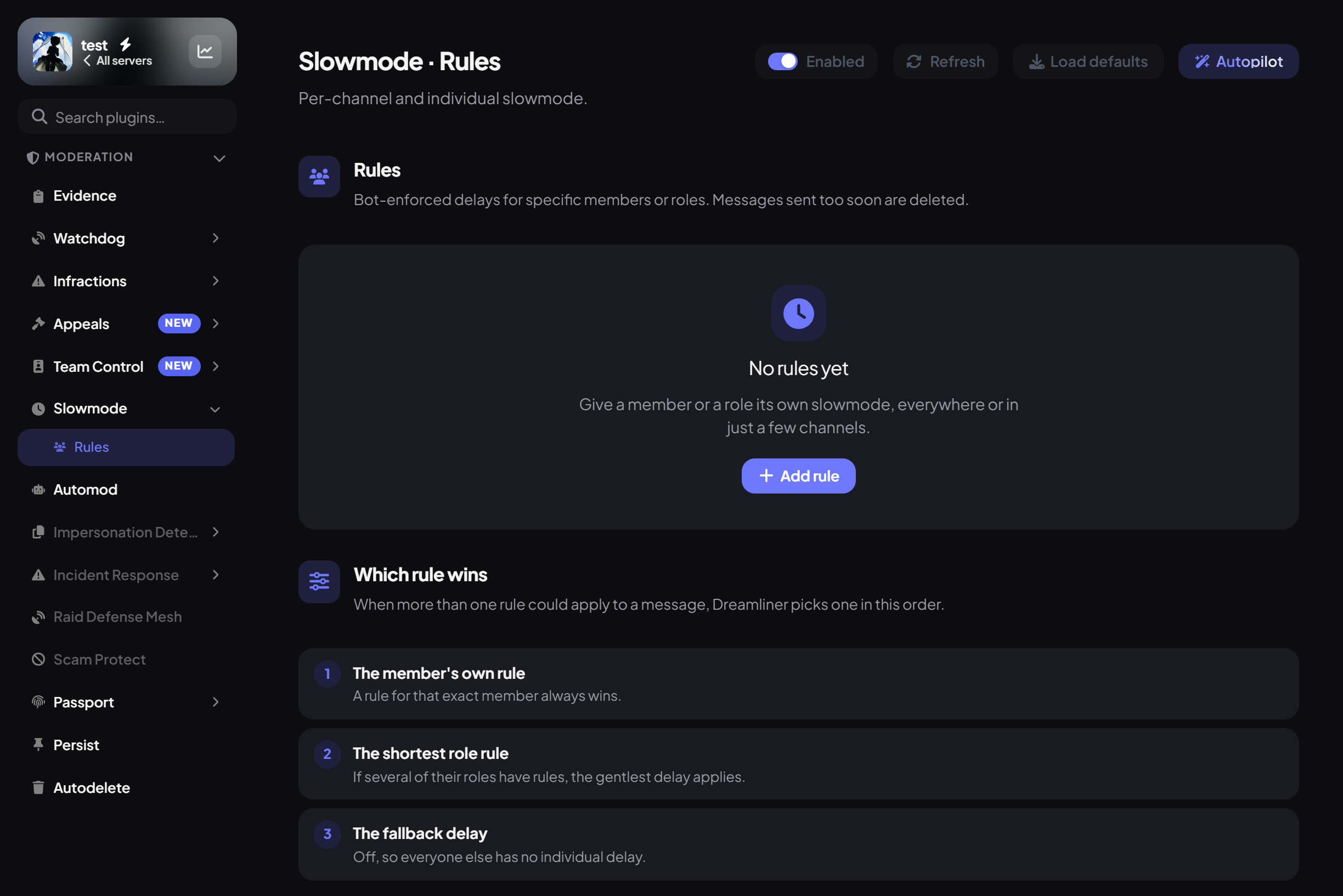
Once you have rules, each one in the list shows who it's for, its delay and where it applies, like "Role · 30 seconds · All channels" or "Member · 10 seconds · 2 channels". Click a rule to open it, or use the bin icon to delete it.
Step 4 · about 2 min
Fill in the rule
Slow down one member or one role, everywhere or in chosen channels.
- Under Who it's for, choose A member or A role in Applies to, then search for the member or role. Switching between the two clears the one you picked.
- Under Delay, pick how long they wait between messages: a chip from 5s to 6h, or an exact number in the seconds box (1 to 21,600).
- Under Channels, leave All channels on to apply it everywhere, or switch it off and use Add channel to pick specific channels.
- Press ‹ All rules to go back to the list, then Save changes.
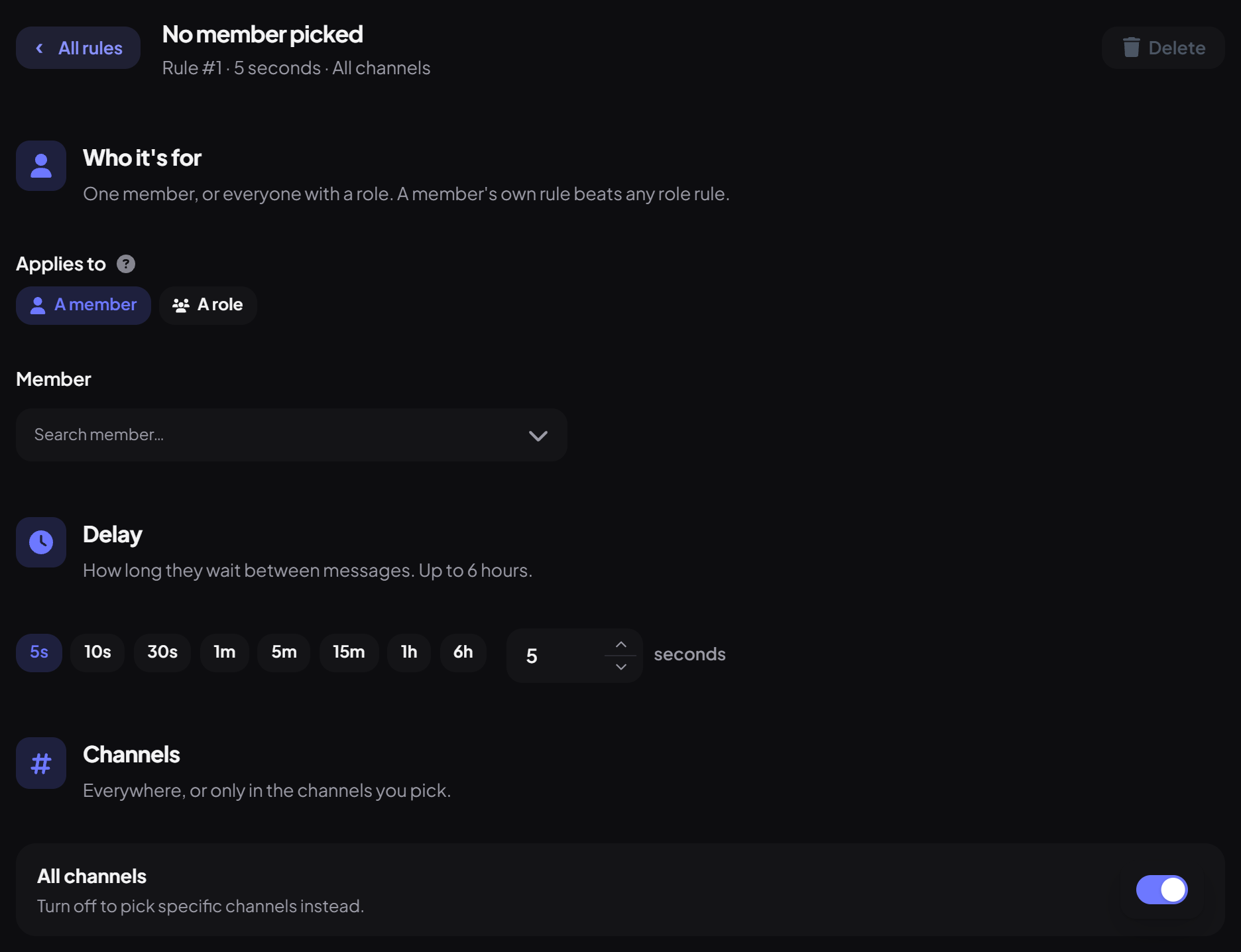
The top of the rule shows a summary, like "Rule #1 · 5 seconds · All channels", and a Delete button.
Step 5 · about 1 min
Set the fallback delay and staff bypass
Decide what happens to everyone without a rule, and whether staff are exempt.
Two settings on the main Slowmode page, under Individual slowmode, shape how your rules behave. You can see them below Manage rules in the screenshot in step 3.
Step 6 · about 1 min
Give your team the commands
Make sure the right staff can use /slowmode.
Slowmode has three permissions. You grant them to Dreamliner Roles on the dashboard's Roles page (search "slowmode" in the permission grid).
| Permission | Lets them | Given to by default |
|---|---|---|
| Set | /slowmode set and /slowmode status | Moderator |
| Clear | /slowmode clear | Moderator |
| Manage rules | /slowmode check, to see who's slowed down and why | Moderator |
Step 7 · about 1 min
Or let Autopilot write the rules
Set up individual slowmode by describing it.
- Press Autopilot at the top of the Slowmode page.
- Describe what you want: who to slow down (everyone, a role or a member), how long, and where. It asks up to five follow-up questions.
- Check the rules it adds on the Rules sub-page, then press Save changes. Nothing changes until you save.
Step 8 · about 2 min
Check and test it
Confirm the right people are slowed down, and nobody else.
- Run
/slowmode statusin a channel. It shows the channel's Discord slowmode, whether individual slowmode is on, how many rules there are, the staff bypass and the fallback delay. - Run
/slowmode checkwith a member and a channel. It tells you their effective delay there, which rule matched, or that they're bypassed because they have Manage Messages. - From a test account the rule covers, send two messages quickly. The first gets the clock reaction and the second disappears.
Command reference
| Command | What it does | Needs |
|---|---|---|
/slowmode set | Sets Discord's slowmode on a channel from a preset or exact seconds (0–21,600). | Set + Manage Channels |
/slowmode clear | Turns Discord's slowmode off on a channel. | Clear + Manage Channels |
/slowmode status | Shows channel slowmode and individual slowmode settings. | Set |
/slowmode check | Shows a member's effective individual delay in a channel and why. | Manage rules |
You're set up
What you just did
- Turned Slowmode on and learned /slowmode set and clear for whole channels
- Added individual rules for the members or roles that need slowing down
- Chose a fallback delay and staff bypass, gave your team the commands and tested it
Slowmode pairs well with warnings and timeouts. If someone keeps pushing it, the Infractions guide covers the next step.
Common questions
A slowed-down member says their messages vanish. Is that a bug?
No, that's individual slowmode working. Messages sent before their wait is up are deleted. The clock reaction on their last message shows they're on a timer.
Nothing happens when I test a rule.
Check that the plugin is Enabled and saved, that the Individual slowmode switch is on, and that your test account doesn't have Manage Messages (Staff bypass skips anyone with it). /slowmode check tells you exactly what applies to someone.
Can I slow down a whole category?
Rules work per channel, not per category. Pick each channel in the category, or use All channels.
Do waits survive a bot restart?
No. Running waits are kept in memory, so after a restart everyone starts fresh. Your rules themselves are saved and keep working.
Does it work in threads?
Yes. Each thread is treated as its own channel, so a rule set to All channels covers threads, while a rule for one channel doesn't cover that channel's threads.
Read next