
Autopilot
Dreamliner's AI that sets things up for you: plugin setup wizards you talk to, a writer for your messages, a builder that designs a whole server, Switch, which moves you over from other bots using screenshots, and Avia, the assistant that answers your questions.
By the end, you'll have
- A clear picture of everything Autopilot can do, and where to find it
- How uses work, what's free, and what Dreamliner One unlocks
- Exactly what Autopilot sees, what it changes, and the safety rules it always follows
Before you start
- Manage Server in your Discord server: every Autopilot feature needs it.
Setting up a Discord bot usually means hours of reading settings and guessing what to pick. Autopilot is Dreamliner's answer: describe what you want in plain words and it does the setup for you. It never acts on its own. You always see what it's about to do, and nothing changes until you say so.
A short chat that fills in a plugin's settings for you.
Designs and builds roles, channels and permissions.
Reads screenshots of another bot and rebuilds your setup.
The Autopilot family
Autopilot isn't one button. It's six tools that share the same brain and the same allowance:
| Tool | What it does | Where to find it |
|---|---|---|
| Setup wizards | Asks a few questions, then fills in a plugin's settings. | The Autopilot button at the top of 27 plugin pages |
| Ask Autopilot | Writes or rewrites a message for you. | Under Welcomer's message boxes |
| Character drafts | Writes a first draft of an AI character from a description. | The Characters editor |
| Server Autopilot | Designs a whole server and builds it. | Server Autopilot in the sidebar, under General |
| Switch | Imports your setup from MEE6, Dyno, Carl-bot and others. | Switch in the sidebar |
| Avia | Answers questions, reads help articles and checks your server's setup. | The Ask Avia button in the help centre and on the dashboard |
Step 1 · about 3 min
Setup wizards: talk, don't configure
Set up any supported plugin with a quick conversation.
- Open a plugin on the dashboard and press Autopilot at the top, next to Load defaults.
- Answer its questions. Some have quick-reply buttons, and questions about a channel or role show a picker so it gets exactly the right one.
- When it has enough, you'll see Setup ready with a summary. Press Use this setup (or Start over).
- The settings are filled in on the page, but not saved. Check them, then press Save.
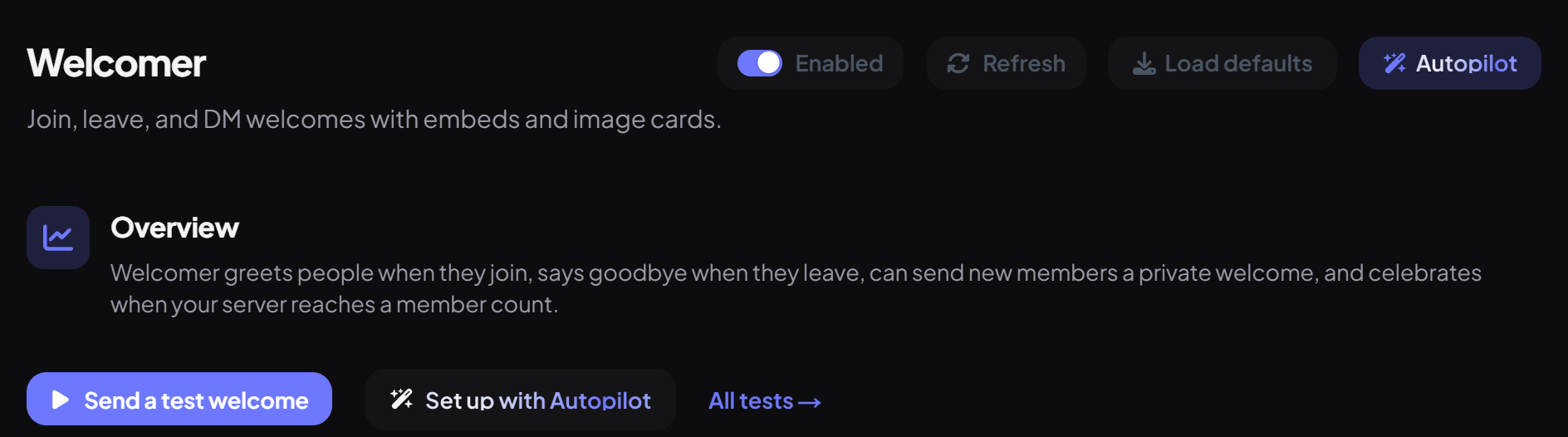
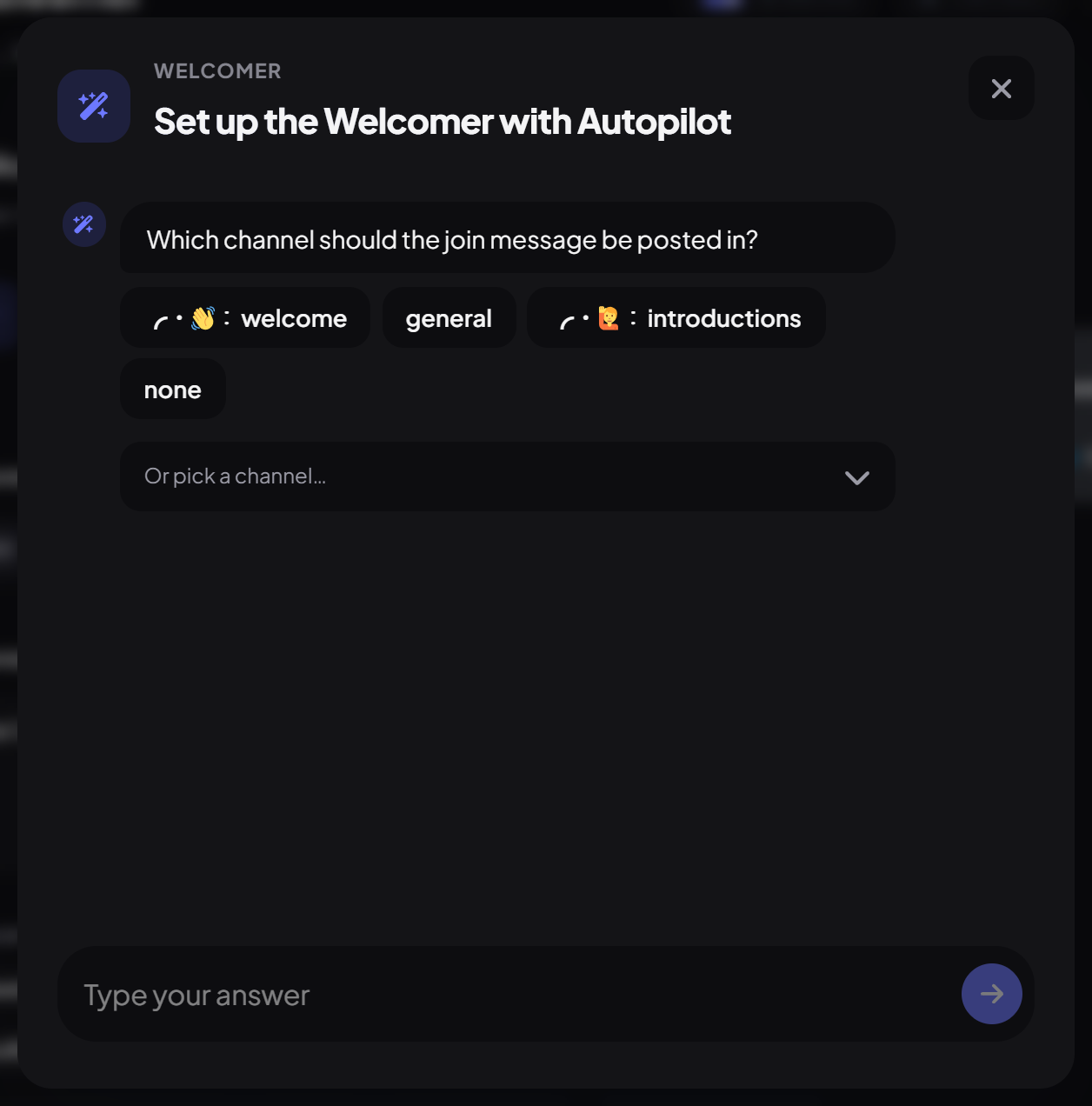
- Each wizard asks only a handful of questions (3 to 8). If you skip details, it uses sensible defaults.
- Anything you don't mention is left exactly as it was.
- It only sees your channel, role, category and emoji names, not your members or messages.
- A greyed-out "Autopilot Unavailable" button means that plugin doesn't have a wizard yet, not that you're out of uses.
| Area | Plugins with a wizard |
|---|---|
| Moderation & protection | Automod, Appeals, Slowmode, Team Control, Passport, Persist, Autodelete |
| Engagement | Welcomer, Activity Rewards, Invite Tracker, Companion channels, Starboard, Tags, Autoreplies, Autothreads, Autoreactions |
| Roles | Autorole, Role rules, Member identity, Role panels |
| Utilities & support | Counters, Booster Roles, Tickets, Suggestions |
| Fun | Counting, Giveaways, Images |
Step 2 · about 1 min
Ask Autopilot: let it write for you
Get a well-written message in one click.
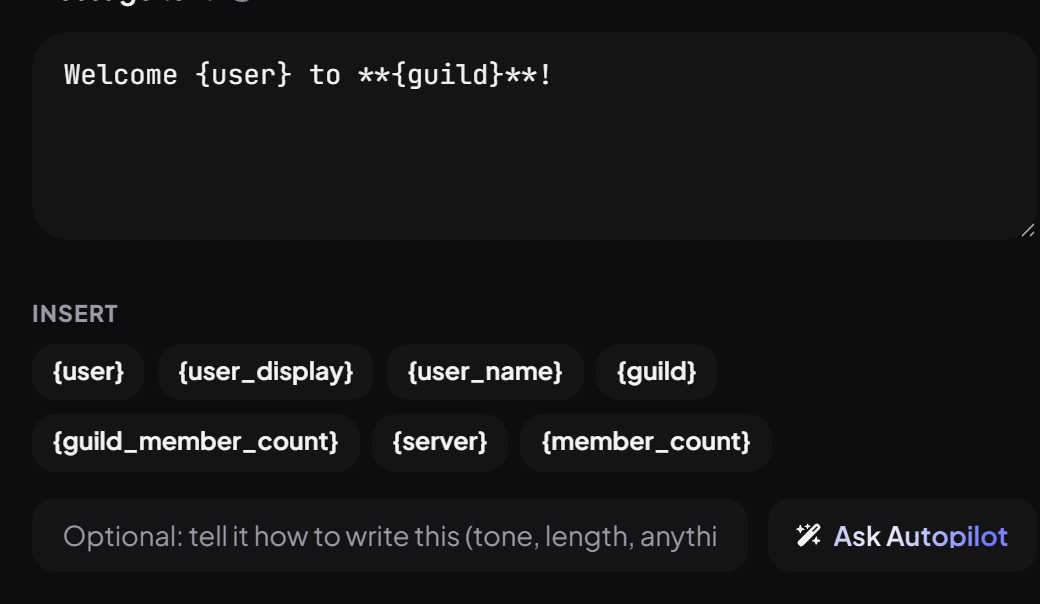
Under Welcomer's join, leave and DM messages (and the embed description), there's a box to tell it how to write ("short and funny", "formal, mention the rules channel") and an Ask Autopilot button. You get a preview to Insert, Regenerate or Dismiss.
Step 3 · about 10 min
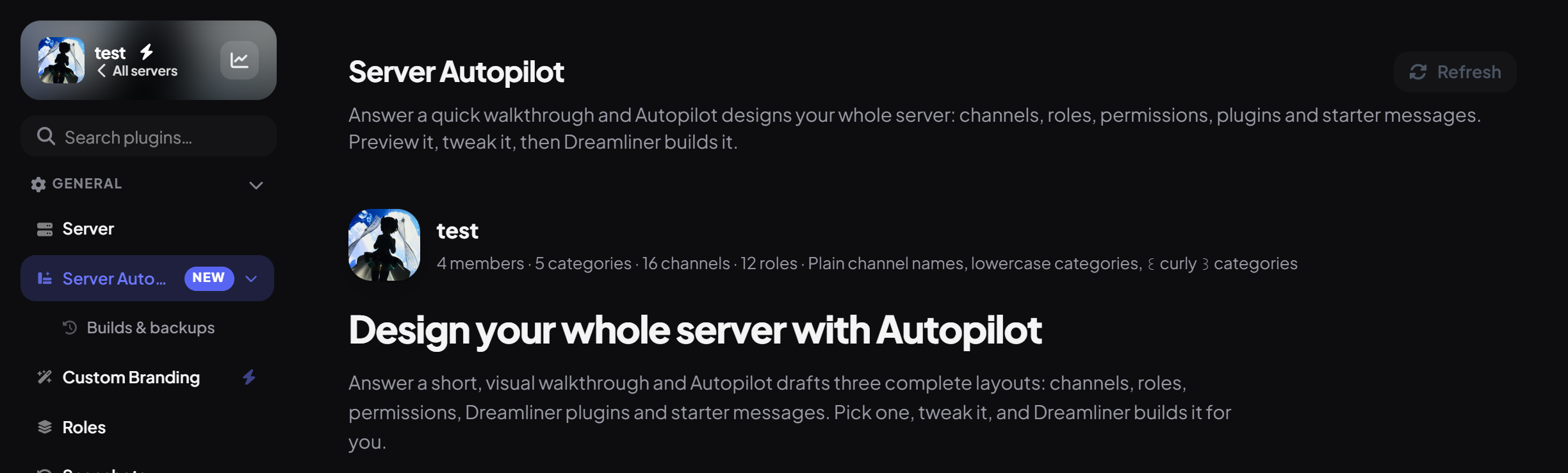
Server Autopilot: a whole server, designed for you
Build roles, channels, permissions and plugins in minutes.
It works in five stages:
| Stage | What happens |
|---|---|
| 1. Scan | It looks at your server: current channels and roles, your naming style, and whether Dreamliner has Manage Channels and Manage Roles. |
| 2. Answer | Quick setup (about 5 questions) or detailed setup (11): server type, size, age limit, mood, features, staff and member roles, verification, plugins and more. |
| 3. Generate | It designs three versions at once (Balanced, Compact and Expansive). This is the only part that costs a use. |
| 4. Customise | Rename, reorder, add or remove channels and roles, change emoji, adjust permissions and edit starter messages. Free. |
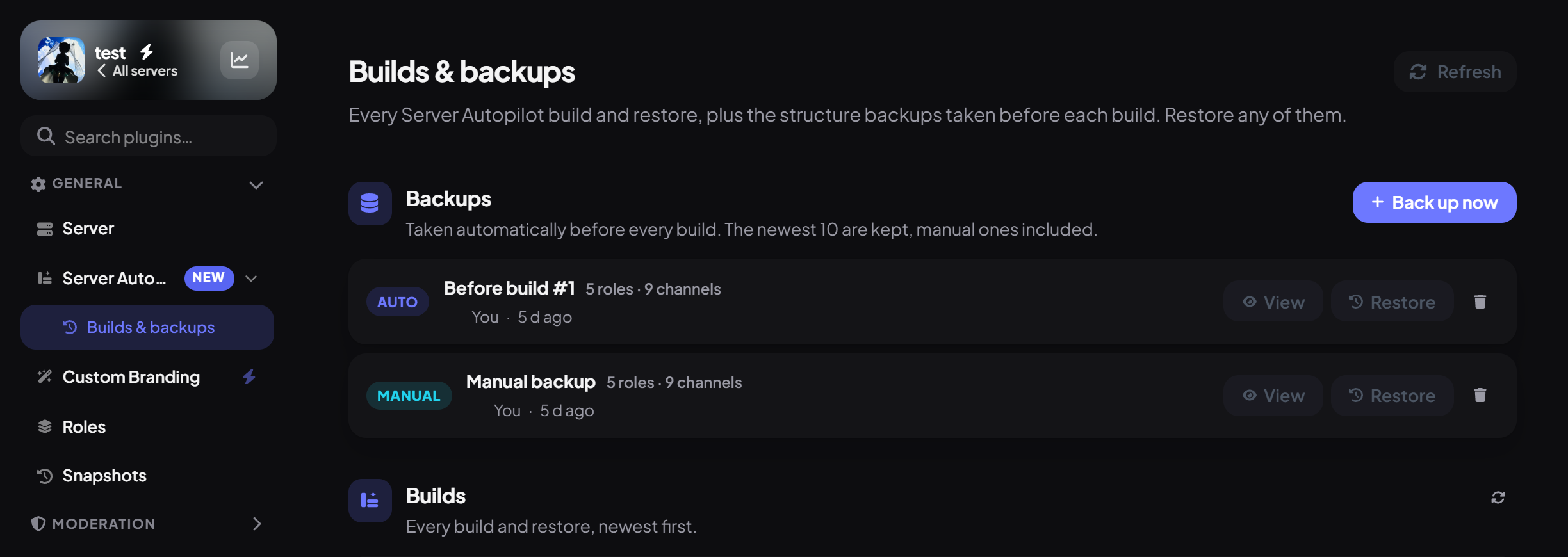
| 5. Build | It shows the exact plan, takes a backup, and builds. Free. |
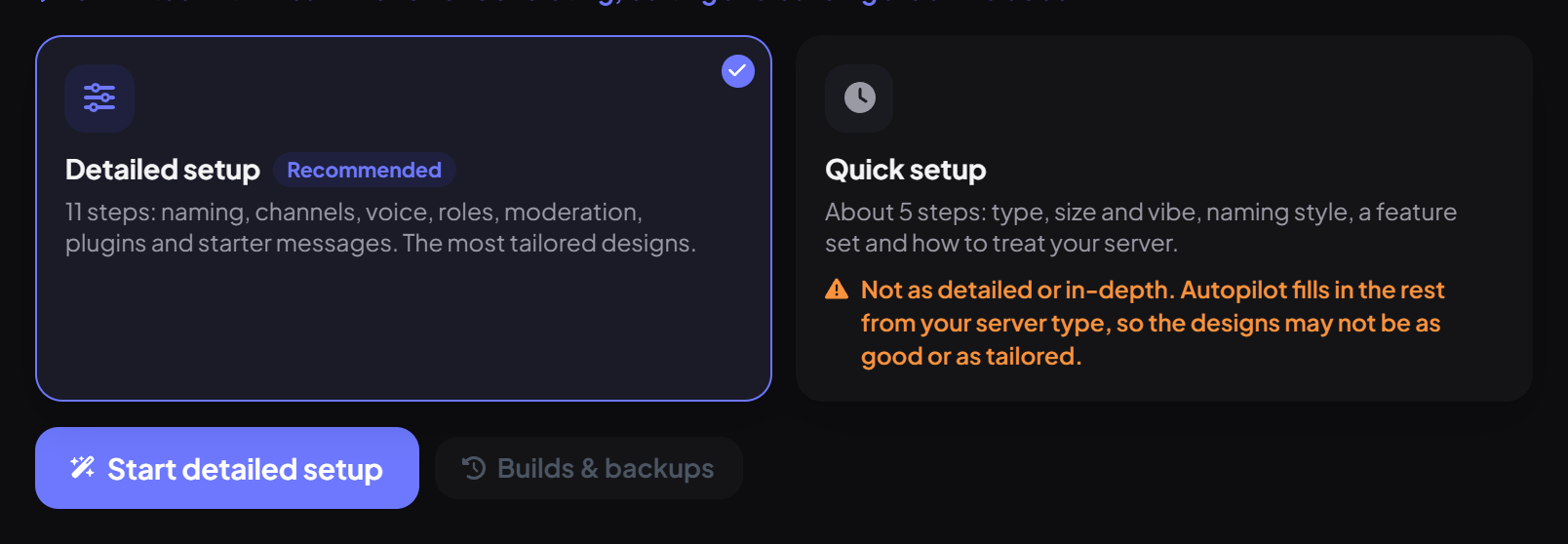
When you build, you choose what happens to what's already there:
| Mode | What it does | Deletes anything? |
|---|---|---|
| Add | Creates only what's missing and leaves everything else alone. | No |
| Merge | Reuses matching channels and roles, renaming and moving them. Messages are kept. | No |
| Fresh start | Also removes channels and roles that aren't in the design. You type your server name to confirm. | Yes, except "Never touch these" items |
Step 4 · about 5 min
Switch: move over from another bot
Bring your old bot's setup across without retyping it.
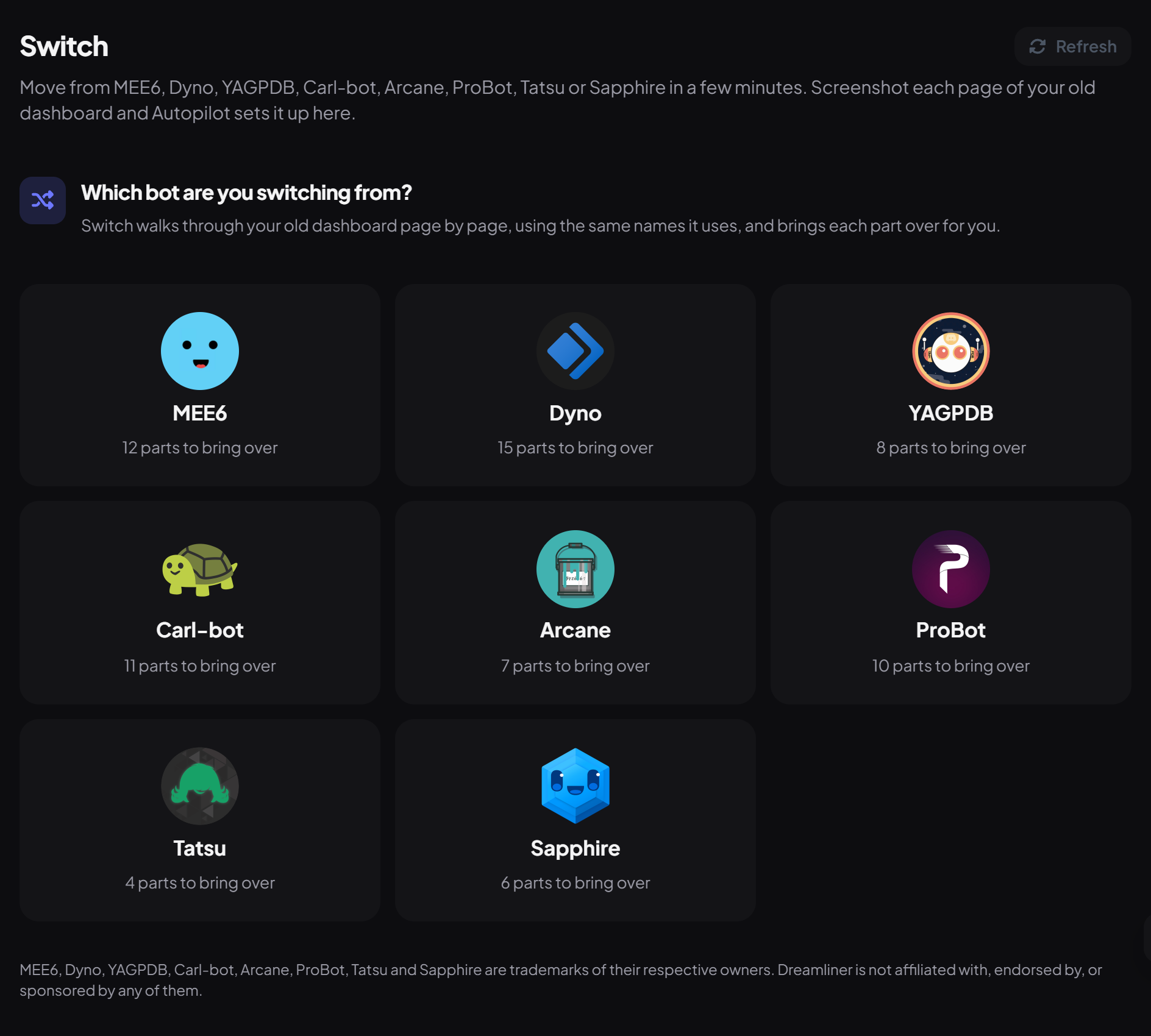
- Open Switch in the sidebar and pick the bot you're leaving: MEE6, Dyno, YAGPDB, Carl-bot, Arcane, ProBot, Tatsu or Sapphire.
- For each part of that bot (its welcome messages, autoroles, auto-responders…), drop in 1 to 4 screenshots of its dashboard.
- Press Read with Autopilot. It writes down what it found, and you can correct it.
- Press Import into the matching Dreamliner plugin, check the result and press Import this. Save when you're done.
- A whole switch costs one use, for 6 hours in the same browser tab.
- It translates the old bot's placeholders into Dreamliner's.
- Coming from MEE6 levels? A separate importer brings members' levels into Activity Rewards, with no AI involved.
- Screenshots are only read, never stored.
Step 5 · about 2 min
Avia: Autopilot's help assistant
Get answers and troubleshooting without leaving the page.
Avia is the friendly face of Autopilot: an assistant you can ask anything about Dreamliner. It lives in the Ask Avia button in the bottom-right corner of the help centre and the dashboard.
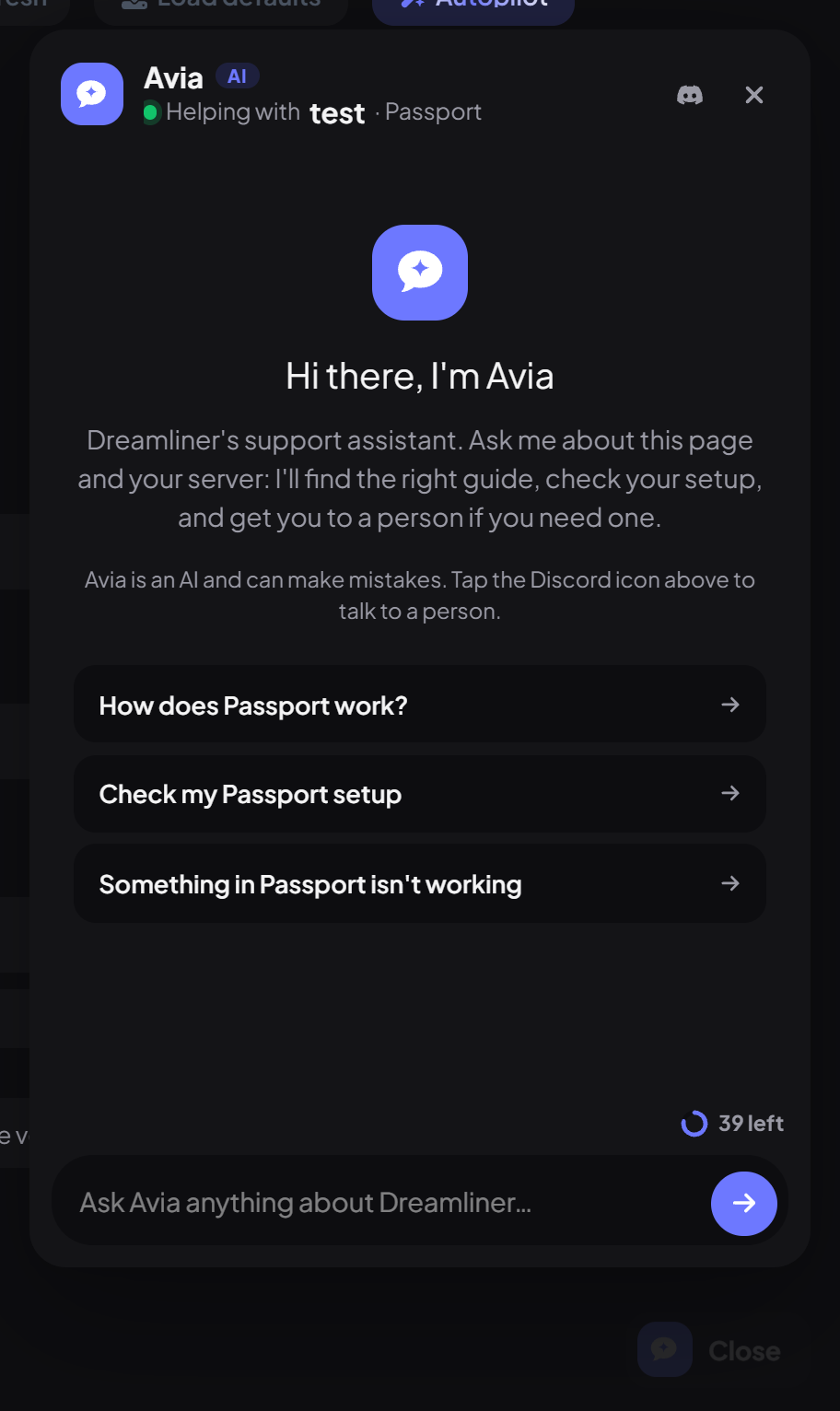
- On a dashboard page, Avia already knows which server and plugin you're looking at.
- It answers from the help centre's guides and links you to the right page, so it doesn't make things up.
- Avia can't change anything: it tells you exactly what to click instead.
- Turn it off on the dashboard in Account settings → Avia → Dashboard Avia Integration.
Uses and Dreamliner One
Every server gets 4 free Autopilot uses, shared across all the tools. You can see how many are left in the Autopilot block on your server's Server page.

| Tool | What counts as one use |
|---|---|
| Setup wizard | One conversation (your first answer). Start over begins a new one. |
| Ask Autopilot | Each generate or regenerate. |
| Character draft | Each draft. |
| Server Autopilot | Each set of three designs. If it fails completely, the use is given back. Customising and building are free. |
| Switch | One whole switch, for 6 hours. |
See what One includes on the Dreamliner One page.
Safety: what Autopilot will never do
- It never gives a permission Dreamliner doesn't have itself.
- Community channels, your system channel, Dreamliner's own role, booster and integration roles, and roles above Dreamliner are never edited or deleted.
- Wizards fill the page but never save. Server builds show the full plan first, and deleting anything needs your server name.
- A backup is taken before every build and every restore. Restoring puts back channels, roles and permissions (not messages, and restored roles start with no members).
- Cancelling a build stops it before the next step; restore from the backup to undo what was already done.
- Every action is recorded in your dashboard's audit log.
What Autopilot sees
| Tool | What's sent to the AI |
|---|---|
| Setup wizards | Your answers, plus your channel, role, category and emoji names. |
| Ask Autopilot | Your server name, the current text and your instructions. |
| Server Autopilot | Your answers, server name, and existing channel and role names. |
| Switch | The screenshots you upload. |
| Avia | Your conversation and the help pages it looks up, plus a read-only check of a server you pick. |
Autopilot never reads your members' messages. Most of Autopilot runs on OpenAI; Avia runs on DeepSeek, and your chats with Avia stay in your browser. Dreamliner keeps your usage count, your recent Server Autopilot designs and your last 10 backups. Read more in the Privacy Policy.
In short
What you just did
- Wizards set up plugins from a chat; Ask Autopilot writes messages
- Server Autopilot designs and builds a whole server, with backups
- Switch imports your old bot's setup from screenshots
- Avia answers questions, shows its work and checks your server
- 4 free uses per server, unlimited with Dreamliner One, and strict safety rules throughout
Common questions
Does Autopilot change my server without asking?
Never. Wizards only fill in the page for you to save, and Server Autopilot shows the full plan and waits for you to press build.
I ran out of free uses. What now?
Everything Autopilot does can also be set up by hand on each plugin's page. Dreamliner One makes Autopilot unlimited for your server.
Who can use Autopilot?
Anyone with Manage Server (or Administrator) in your Discord server.
Read next