
Autoreactions
React to messages automatically with any emoji: a ⭐ on every showcase post, a ✅ on suggestions, or a custom server emoji whenever someone says your server's catchphrase.
By the end, you'll have
- Dreamliner reacting with the emoji you choose, in the channels you choose
- Rules that only fire on certain words, files or links
- Several emojis on one message, by stacking rules
Before you start
- Manage Server, so you can open the dashboard.
- Dreamliner with Add Reactions and Read Message History in those channels.
A reaction is the easiest way to get a conversation going: it shows a post was seen and invites everyone else to vote or react. Autoreactions adds them for you, the moment a matching message arrives. It's free and you can have as many rules as you like.
Normal emoji, your server's custom emojis, or Dreamliner's own.
Every message, or ones with certain words, files or links.
Every matching rule adds its reaction, so ✅ and ❌ can go on together.
Step 1 · about 2 min
Add a rule
Pick the emoji and the channel.
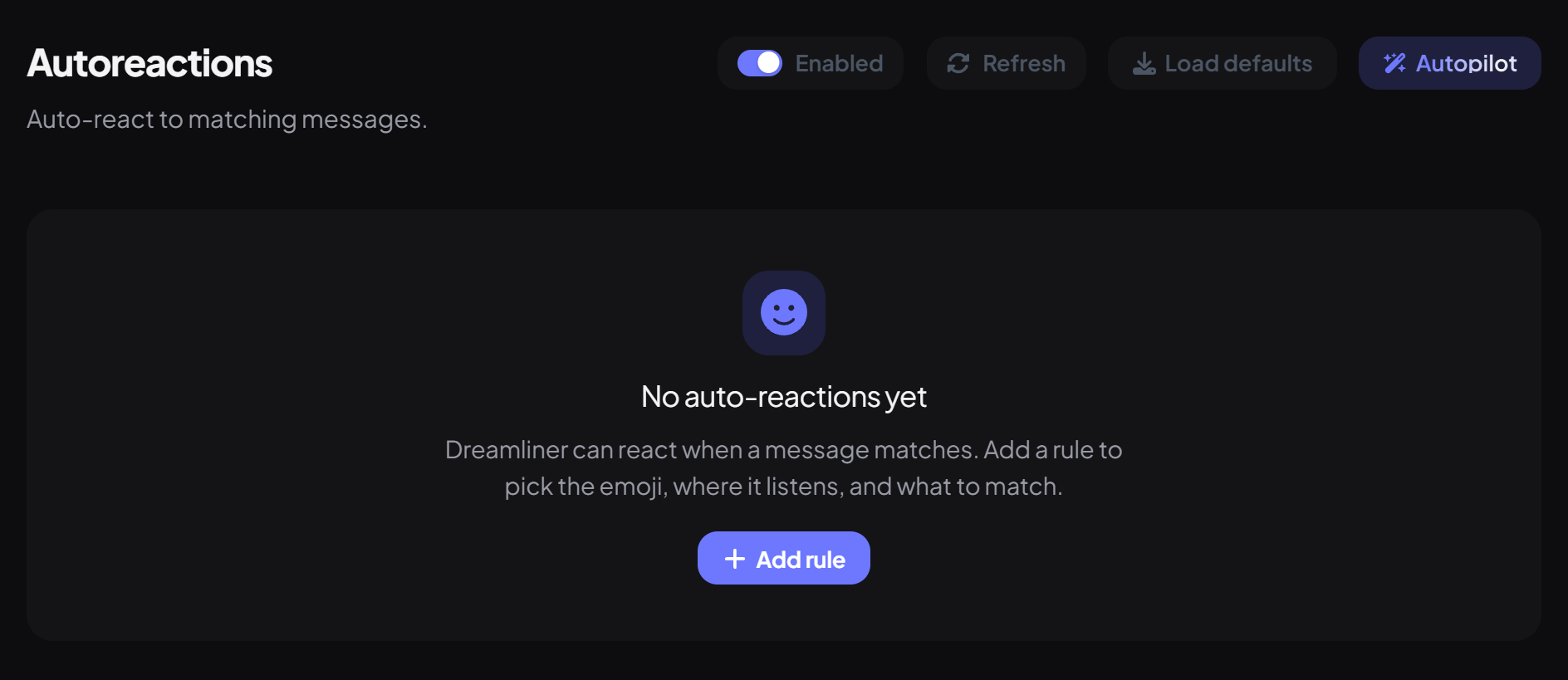
- On the dashboard, open Engagement and click Autoreactions. Switch on Enabled at the top.
- Press Add rule. New rules react with 👍 to every message in every channel.
- Under React, choose the Emoji. Your server's emojis come first, then Dreamliner's. You can also search or paste a normal emoji.
- Pick the Channel, or leave it on All channels.
- Press Save.
Step 2 · about 2 min
Choose which messages get it
React only where it makes sense.
| Match | Reacts when… |
|---|---|
| Every message | Always. |
| Contains | The text appears anywhere in the message. |
| Starts with | The message begins with the text. |
| Exact | The whole message is exactly the text. |
| Regex | The message matches a regular expression. Use \b for whole words, like \bpog\b. |
Matching ignores capital letters. Under Limits you can also add:
| Limit | What it does |
|---|---|
| Every Nth match | Only react on every N matching messages in that channel (2 to 1000). |
| Attachments only | Skip messages without a file or image. |
| Links only | Skip messages without a link. |
| Cooldown (seconds) | Wait at least this long before reacting again, up to a day. |
Ideas that work well
| Channel | Rule |
|---|---|
| #showcase | ⭐ on every message with Attachments only. Pairs with Starboard. |
| #suggestions | Two rules: ✅ and ❌ on every message. |
| #announcements | 🎉 on every message. |
| Anywhere | Your custom emoji when a message contains your server's in-joke. |
Good to know
- Messages from bots and webhooks never get reactions.
- All channels includes threads, forum posts and voice channel chats.
- Dreamliner can only use custom emojis from your server or its own. If an emoji can't be used, the reaction is quietly skipped.
- There are no commands: rules live on the dashboard. The Autopilot button can write rules for you.
You're set up
What you just did
- Added rules with the emojis you want
- Limited them to the right messages
- Stacked rules for votes
Turn popular posts into a highlight reel with Starboard.
Common questions
Reactions aren't appearing.
Check Dreamliner has Add Reactions and Read Message History in that channel, and that the emoji is from your server or Dreamliner.
Is this the same as reaction roles?
No. Autoreactions only adds emojis. For roles from buttons or menus, use Role Panels.
Read next