
Clipping
Never miss a funny moment in voice: start a clipping session and use /clip to save the last 30 seconds to 5 minutes as a shareable video page, complete with who was talking and a transcript.
By the end, you'll have
- The right people able to start sessions and make clips
- Clips saved from voice with one command, hosted on Dreamliner Clips
- Each clip's title, trim and privacy set the way you want
Before you start
- Dreamliner with Connect and Speak in your voice channels.
- Manage Server, so you can open the dashboard and grant permissions.
The best moments in voice happen when nobody's recording. Clipping keeps a short rolling memory of the channel while a session is running, and nothing is saved until someone uses /clip. Then the last few minutes become a video page you can share. It's free.
Only the last few minutes are kept, and only in memory.
/clip saves it as an MP4 with who spoke and a transcript.
Public, password-protected or private clips.
Step 1 · about 2 min
Decide who can clip
Grant the clipping permissions.
Nobody gets clipping by default except the server owner, Administrators and Manage Server holders. Give it to your members or a role in Staff permissions:
| Permission | Allows |
|---|---|
| Record (can_record) | Starting and stopping a clipping session with /clipping. |
| Clip (can_clip) | Saving clips with /clip. |
Step 2 · about 1 min
Set the limits
Choose clip length and how long clips are kept.
- On the dashboard, open Engagement and click Clipping.
- Set Clip Max Seconds: 30 seconds, 1, 2, 4 or 5 minutes (5 minutes by default).
- Set Retention Days, how long new clips are kept (1 to 365, 30 by default). Then Save.
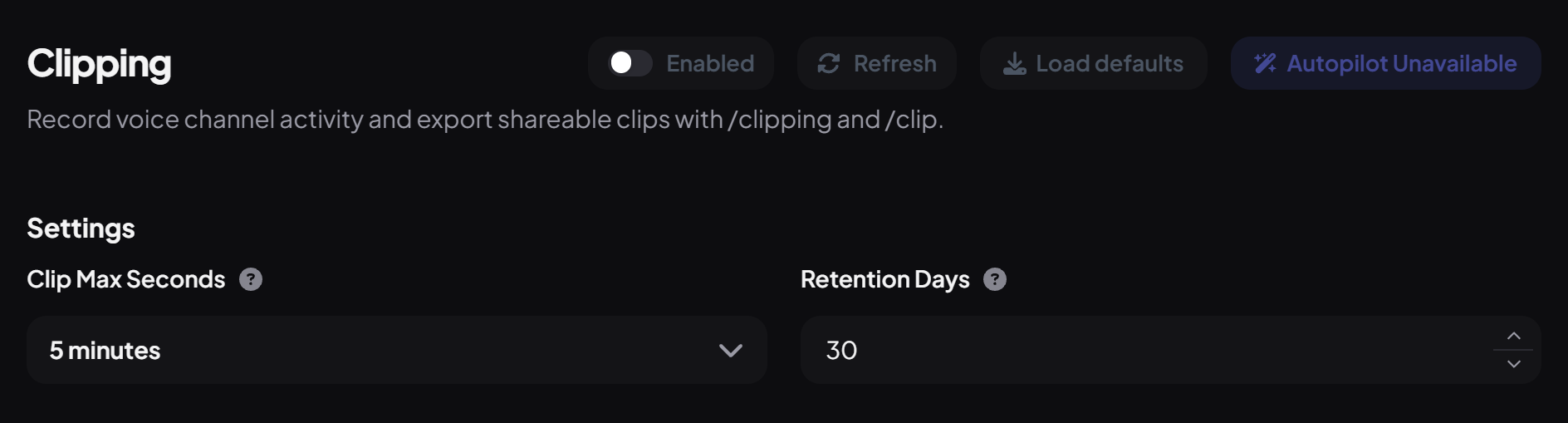
Changing the maximum takes effect from the next session.
Step 3 · about 2 min
Start a session and clip
Capture your first moment.
- Join a voice channel and run
/clipping start. Dreamliner joins and plays a short rising chime. - When something worth keeping happens, run
/clipand choose how far back (30 seconds by default, up to your maximum). - Dreamliner plays a chime and replies with a link to the clip.
- When you're done, run
/clipping stop.
Step 4 · about 2 min
Edit and share clips
Trim, title and set who can see it.
Open the clip's page and press Edit (only the person who made it can):
All your clips are on Dreamliner Clips (/clipping clips links to it): clips from your servers, ones you made, and ones you're in. People who spoke in a clip can always watch it.
Good to know
- New clips are public by default. Change privacy if the conversation was personal.
- A clip is always the full length you ask for; if the session is newer than that, the start is silent.
- Transcripts are English only.
- Only one session per server, and Music or Text-to-speech can't run at the same time.
- After /clipping stop, Dreamliner stays deafened for 15 minutes, then leaves. It leaves straight away if the channel empties.
You're set up
What you just did
- Granted clipping to the right people
- Set clip length and retention
- Started a session, clipped and edited a clip
Common questions
/clip says I don't have permission.
Clipping isn't given to any role by default. Grant Clip (and Record) in Staff permissions.
Is Dreamliner recording everything?
No. Only the last few minutes are held in memory during a session, and nothing is saved unless someone uses /clip.
Read next