
Notifications (YouTube & Twitch)
Announce new YouTube uploads and Twitch streams in your server automatically: pick which upload types count, tidy up live messages when a stream ends, set quiet hours, and celebrate subscriber milestones.
By the end, you'll have
- Announcements for your favourite YouTube channels and Twitch streamers
- Role pings and a message written your way
- An optional embed with the video or stream thumbnail and a watch button
- Separate handling for videos, Shorts and livestreams
- Live messages that update while streaming and turn into a summary afterwards
Before you start
- Manage Server, so you can open the dashboard.
- Dreamliner with Send Messages and Embed Links in the announcement channel.
Let your community know the moment a new video drops or a stream starts. Add a creator, pick a channel, and Dreamliner announces it for you. Free servers can track 10 creators; Dreamliner One raises that to 50.
Videos, Shorts and livestreams, checked every 5 minutes.
Checked every 2 minutes.
Text, role pings and an optional embed.
Step 1 · about 1 min
Open Notifications and turn it on
Find the page and get to know its sub-pages.
- On the dashboard, open Engagement and click Notifications. Switch on Enabled at the top and press Save changes: nothing posts until you do.
- The page opens on its Overview. The rest lives in the sidebar under Notifications: Creators and Settings.
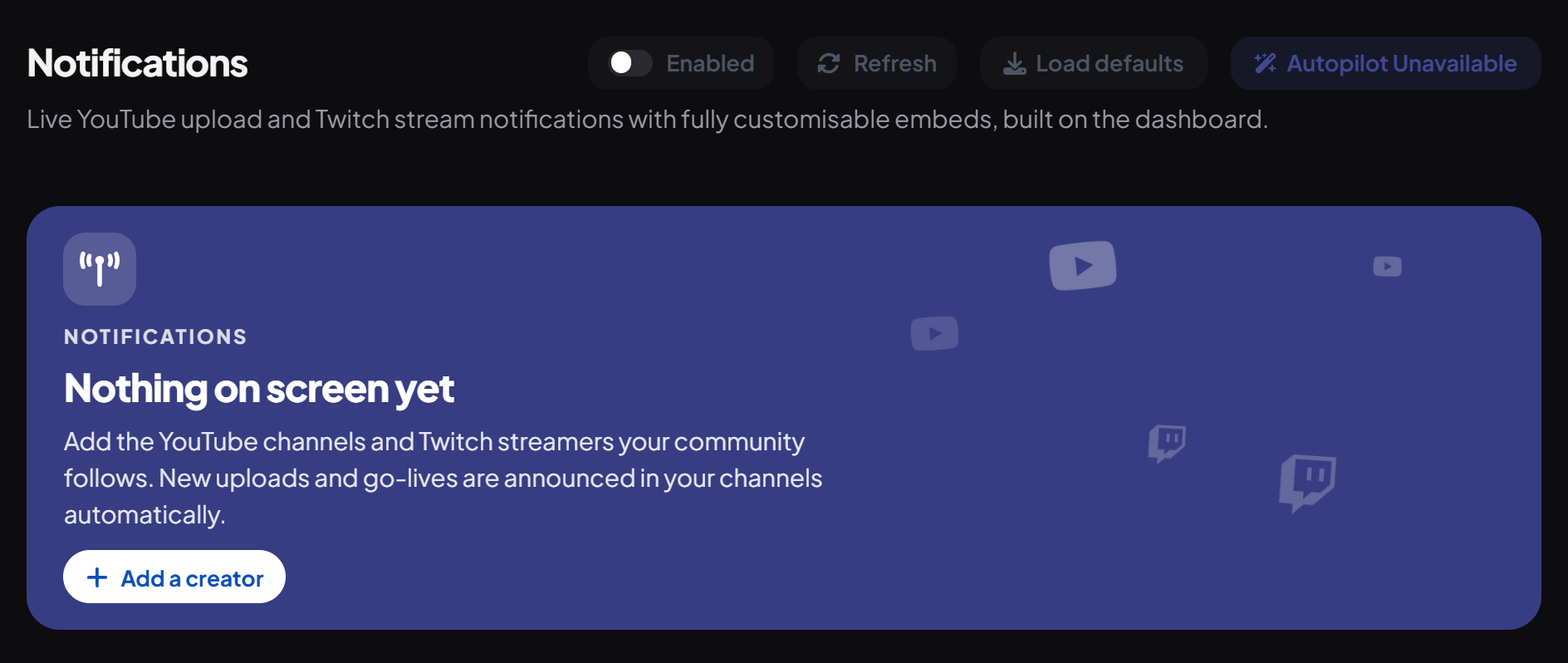
The banner at the top of the Overview is built from your creators: their avatars in a row, then Creators, Sent, 30 days and Live now, with Manage creators and Add a creator buttons. Two lanes of their latest uploads and live streams drift slowly across the other side. While someone is streaming, it says On air and who's live right now. On a new server it reads Nothing on screen yet, with an Add a creator button.
Below it, Last 30 days charts what was sent, and Recent notifications lists the newest ones with links to the message and the video or stream.
Step 2 · about 2 min
Add a creator
Set up your first notification.
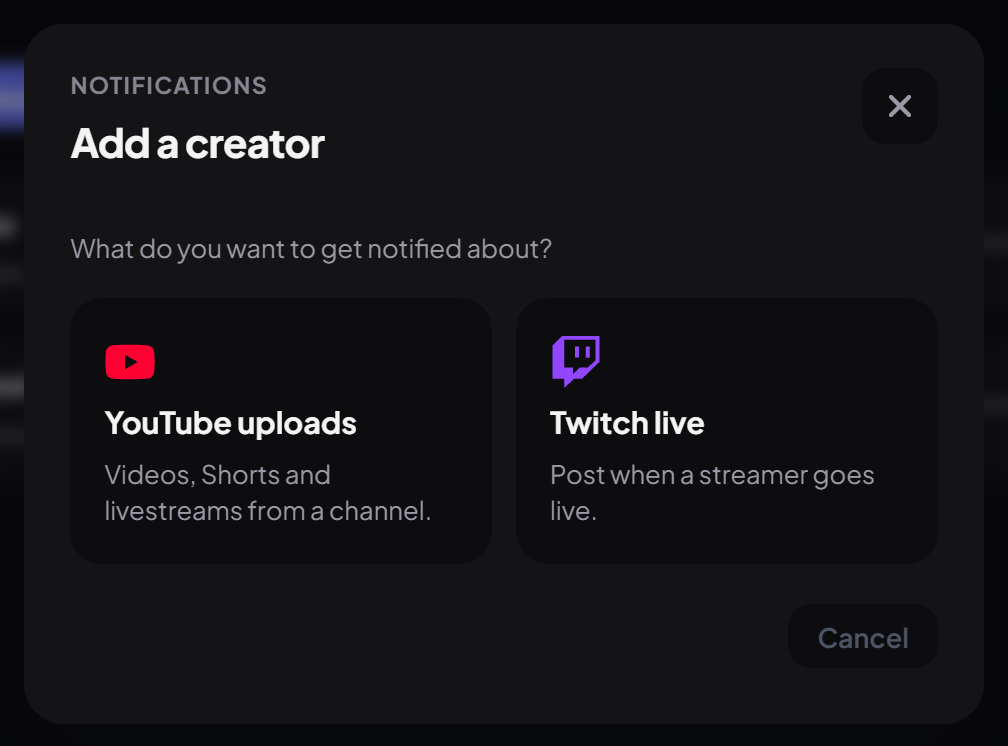
- Press Add a creator (on the Overview, or on the Creators sub-page) and choose YouTube uploads or Twitch live.
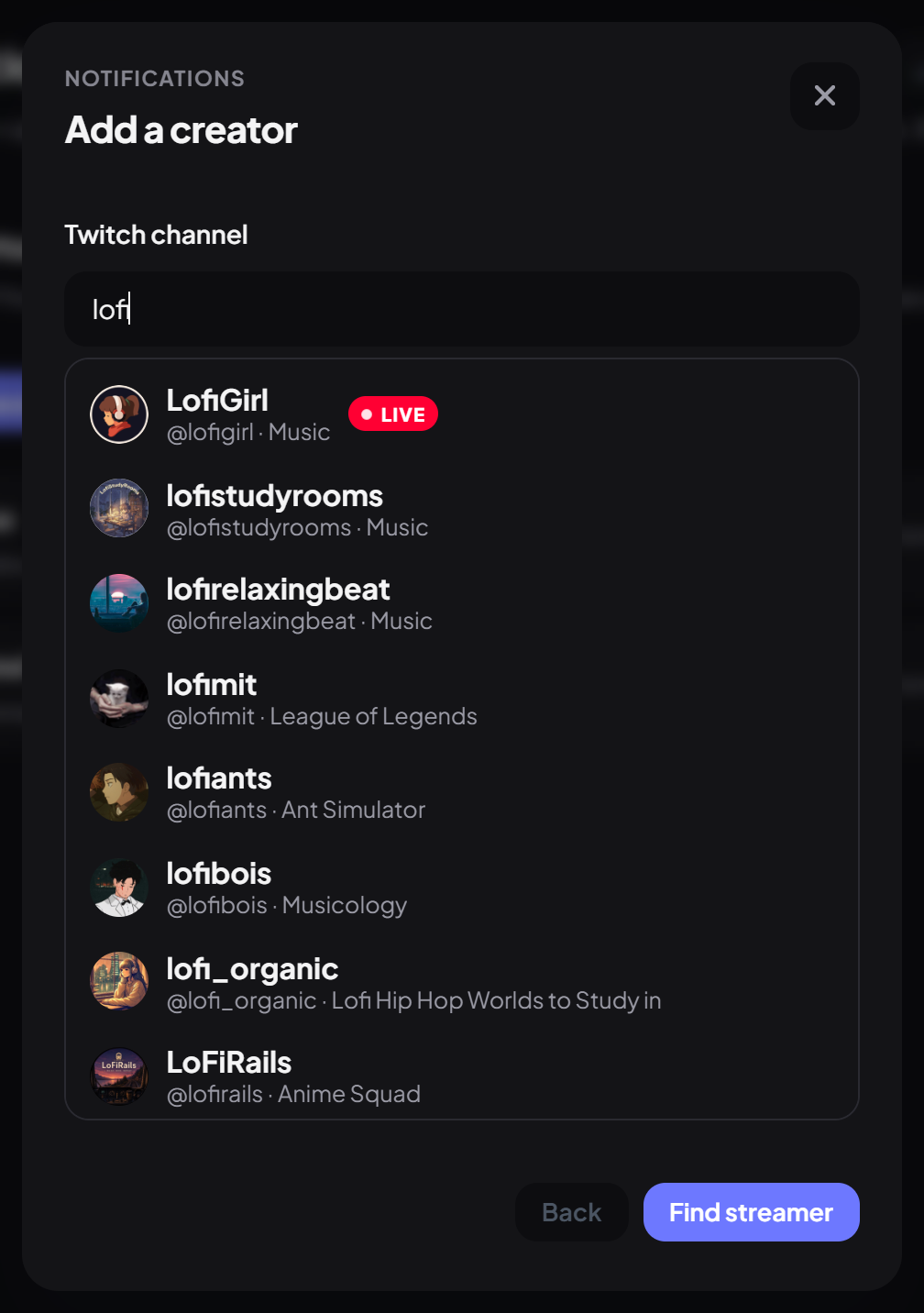
- For Twitch, start typing a name and pick the streamer from the results. For YouTube, paste a handle or link and press Find channel. Creators you already track are marked.
- Pick the channel under Post notifications in and press Add creator.
| Platform | What you can enter |
|---|---|
| YouTube | A handle (@mkbhd), a channel link (youtube.com/@mkbhd), a channel ID starting with UC, or a link to any of their videos or Shorts. |
| Twitch | Search by name as you type, or paste a username or channel link (twitch.tv/mkbhd). |
Step 3 · about 3 min
Write the announcement
Make it yours.
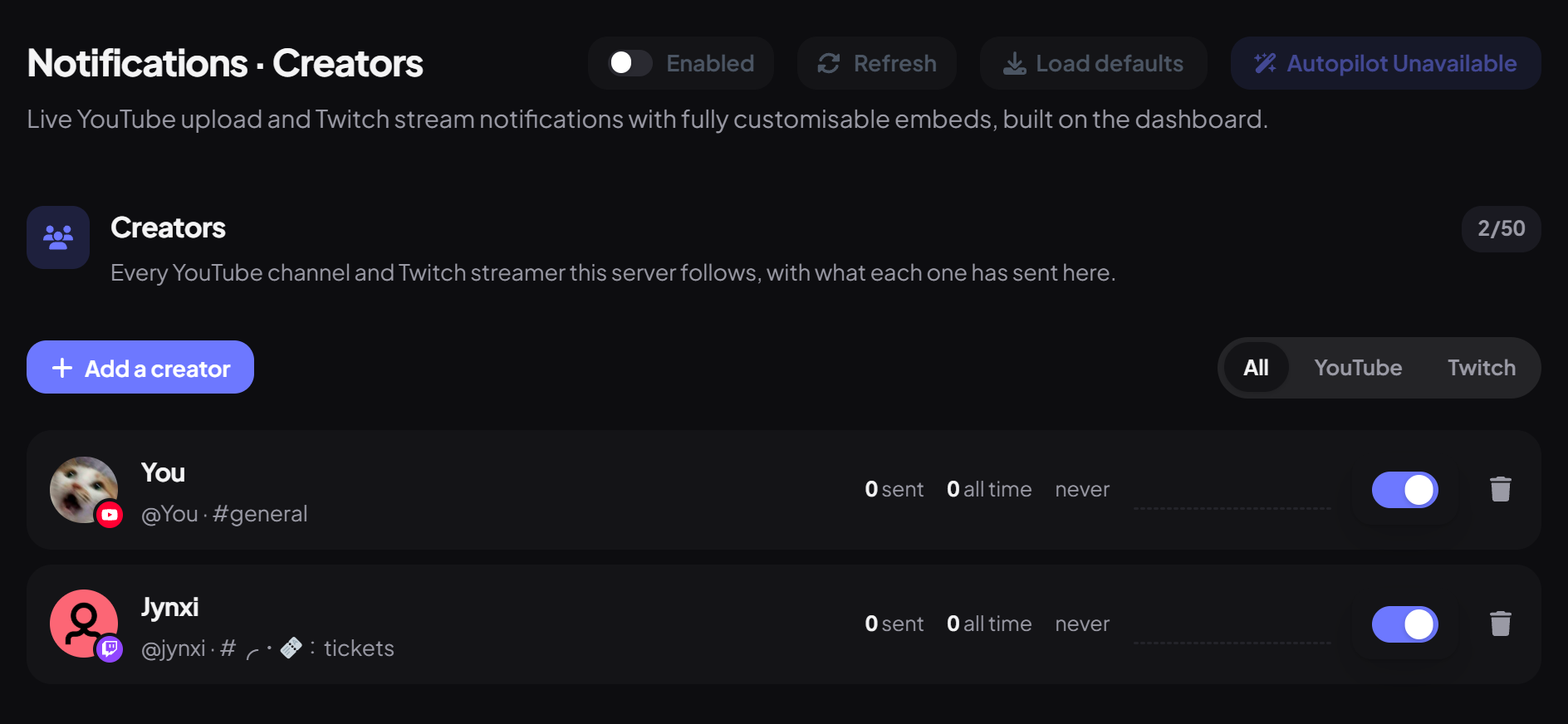
On the Creators sub-page, every creator is listed with notifications sent in the last 30 days and all time, when it last notified, and chips like Live, Paused, Quiet hours or Milestones. Filter by All, YouTube or Twitch, and click a creator to edit it.
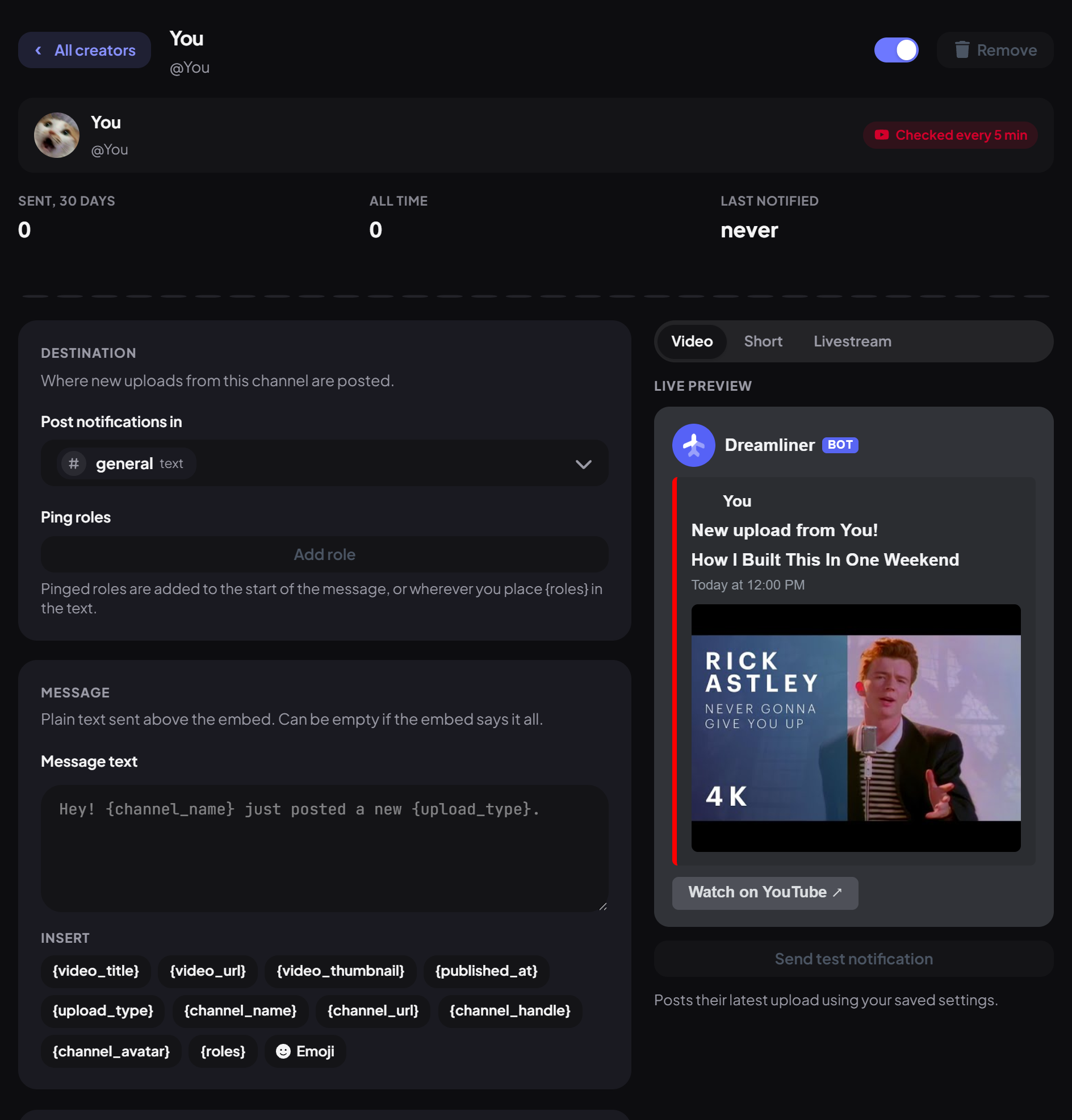
The editor shows that creator's own stats at the top (Sent, 30 days, All time, Last notified) and a Live preview on the right:
| Section | What you set |
|---|---|
| Destination | The channel, and Ping roles (up to 10). Pings go at the start, or wherever you put {roles}. |
| Message | The text above the post. Default for YouTube: **{channel_name}** has posted {video_url}. |
| Embed | Off by default (Discord shows its own preview). Turn on Include an embed for a custom one with a thumbnail and Watch button. |
| Placeholders | YouTube | Twitch |
|---|---|---|
| Title / link | {video_title} {video_url} | {stream_title} {stream_url} |
| Creator | {channel_name} {channel_url} {channel_avatar} | {streamer_name} {streamer_url} {streamer_avatar} |
| Extra | {video_thumbnail} {published_at} {upload_type} | {stream_thumbnail} {game_name} {viewer_count} {started_at} |
The live preview on the right follows your changes. For YouTube, switch it between Video, Short and Livestream; for Twitch, between Going live and Stream ended. Press Send test notification to see it in your channel, then Save changes.
Step 4 · about 4 min
Fine-tune what gets announced
Less noise, nothing missed.
| Option | Where | What it does |
|---|---|---|
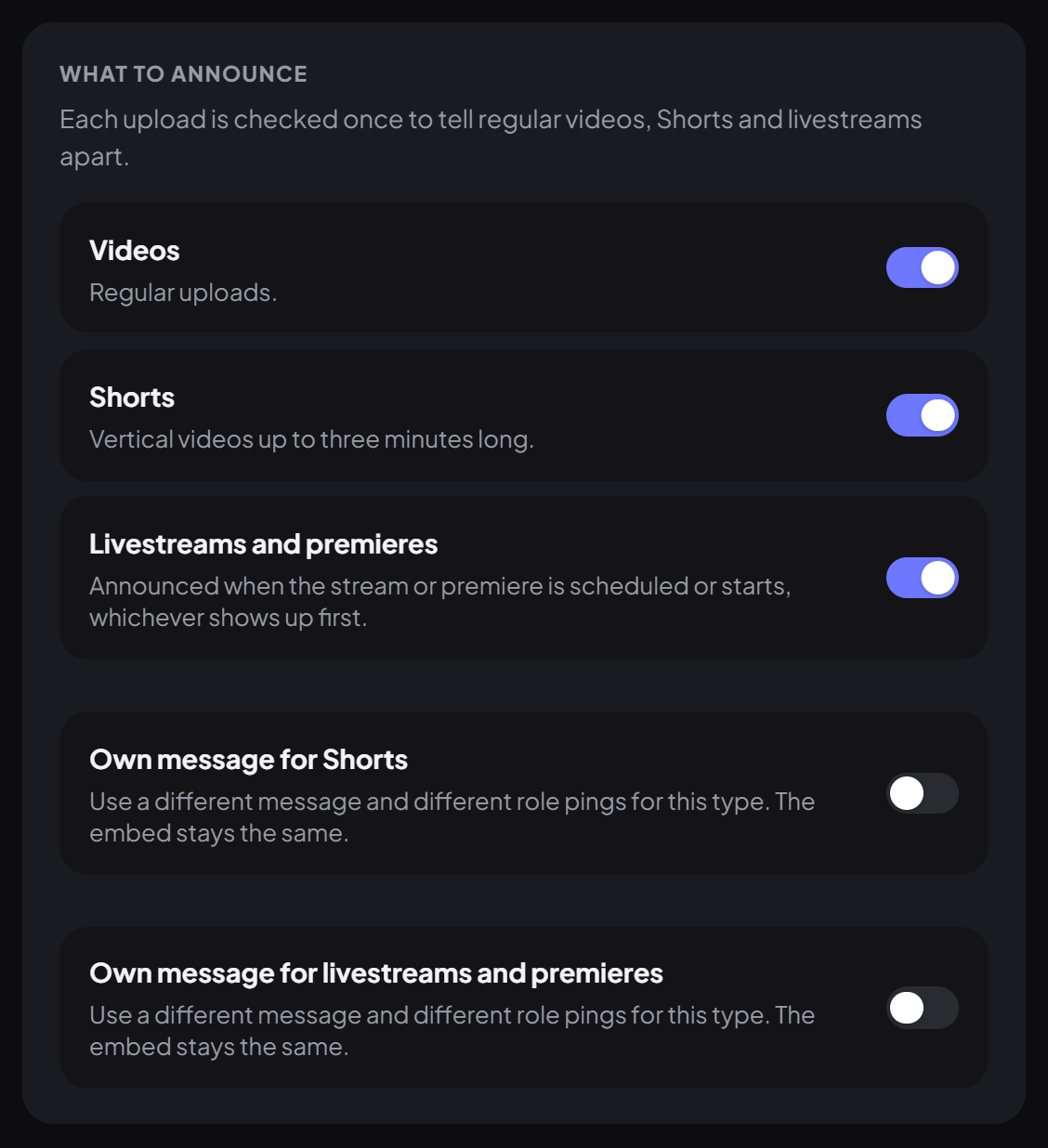
| What to announce | YouTube | Switch Videos, Shorts and Livestreams and premieres on or off separately. |
| Own message for Shorts / livestreams | YouTube | A different message and different role pings for that type, for example a Shorts role. |
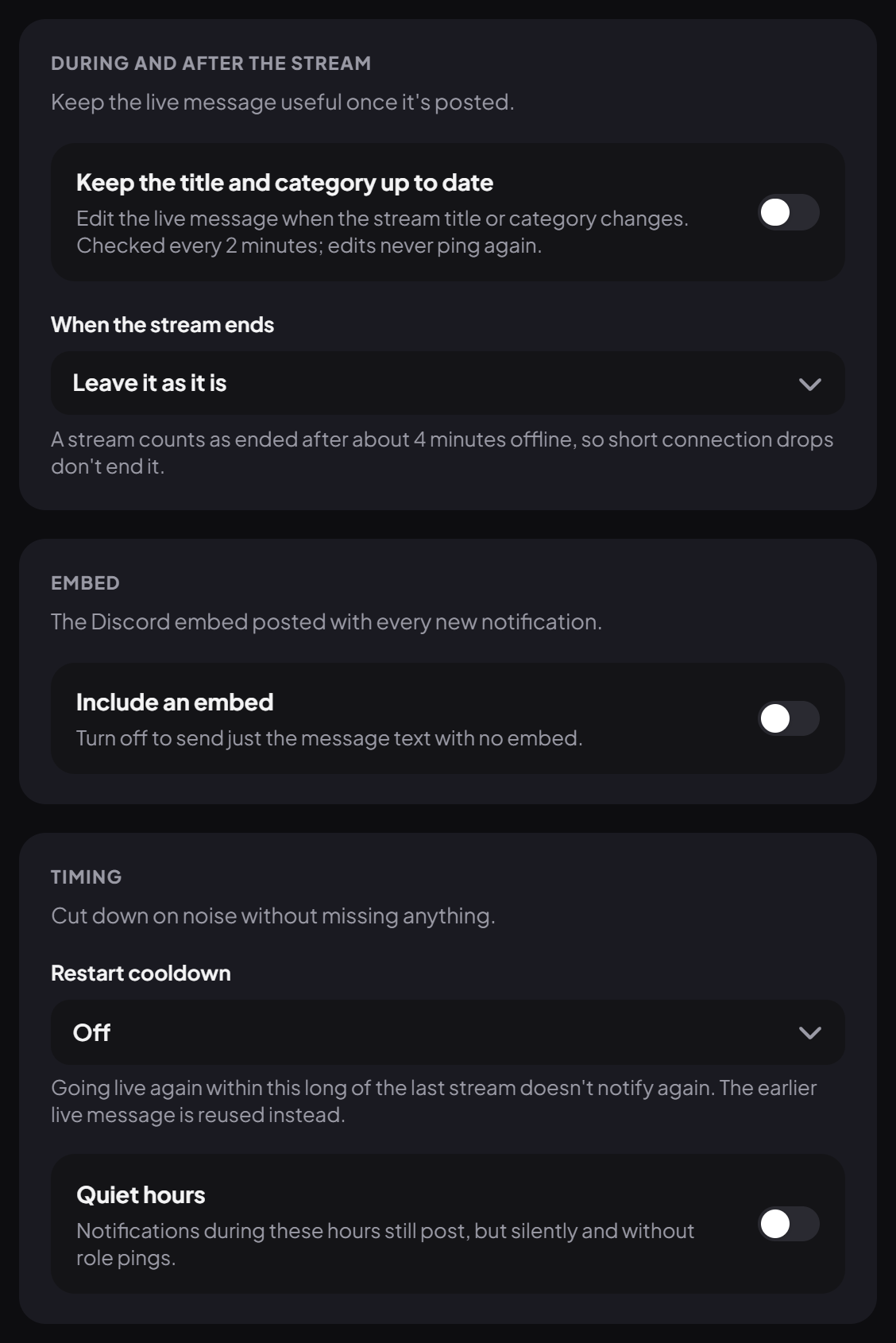
| Keep the title and category up to date | Twitch | Edits the live message when the streamer changes the title or category. Edits never ping again. |
| When the stream ends | Twitch | Leave it as it is, Edit it into a stream summary (how long they streamed, category, peak viewers and the VOD link), Reply with a stream summary, or Delete it. |
| Ping cooldown | YouTube | Uploads within this long of the last notification (Off, or 10 minutes up to 12 hours) still post, just without pinging anyone. |
| Restart cooldown | Twitch | Going live again soon after a stream reuses the earlier message instead of announcing again. |
| Quiet hours | Both | During the hours you pick (From, Until and a Time zone), notifications still post, but silently and with no role pings. |
Step 5 · about 1 min
Set quiet hours for everyone (optional)
Apply the same quiet hours to every creator at once.
- Open the Settings sub-page.
- Under Quiet hours for everyone, keep Quiet hours on and pick From and Until. It uses your browser's time zone.
- Press Apply to (it shows how many creators). To clear them everywhere, switch Quiet hours off and press Turn off for everyone. You can still change each creator on its own afterwards.
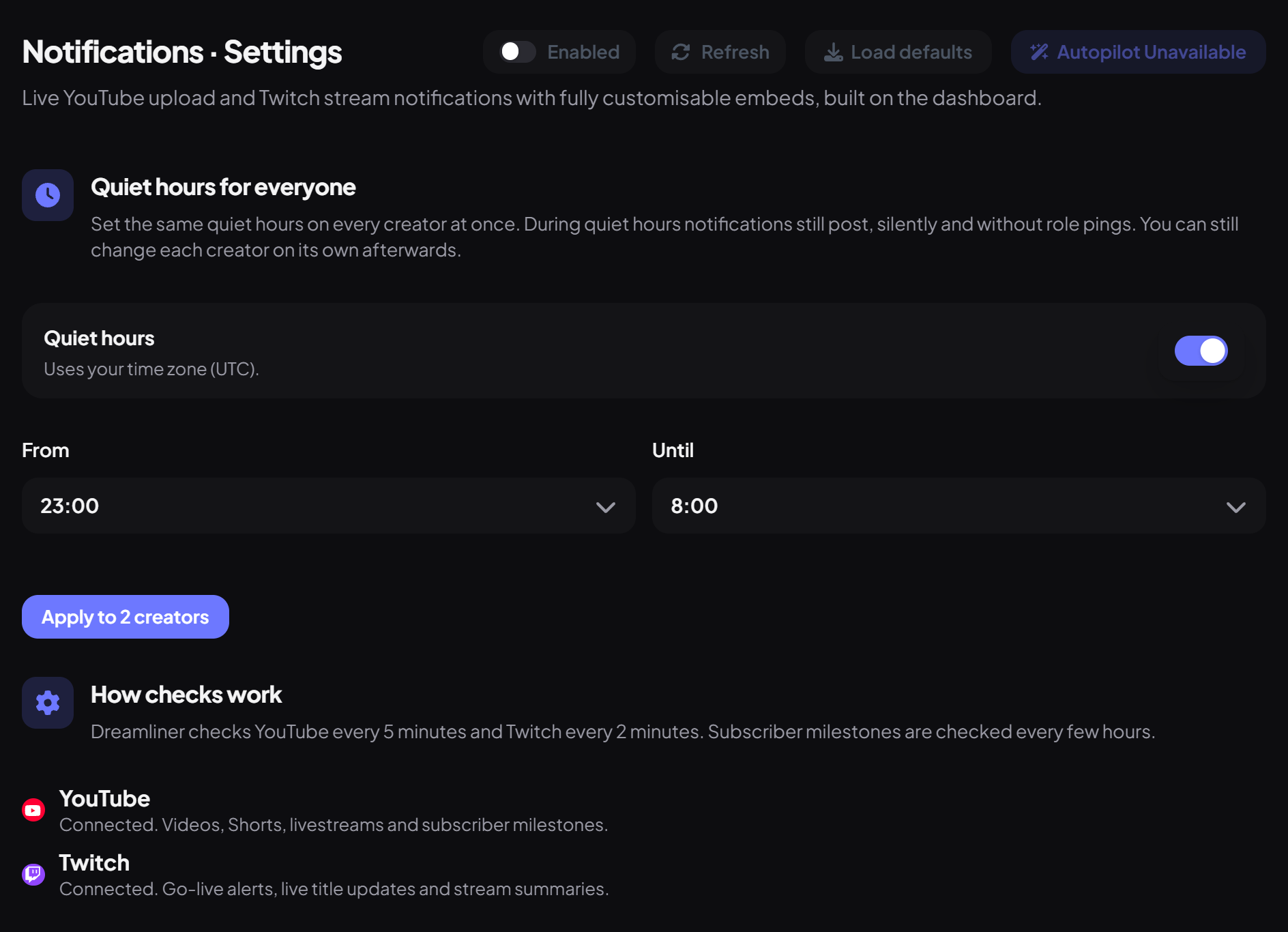
How checks work shows whether YouTube and Twitch are connected on the bot and how often each is checked.
Subscriber milestones
Turn on Subscriber milestones in a YouTube creator's Milestones section and Dreamliner posts a celebration card in the same channel when they reach 100, 250, 500, 1K, 2.5K, 5K, 10K subscribers and up. Counts are checked every few hours, and milestones they passed before you switched it on are never announced.
Managing notifications
Good to know
- If a creator uploads twice within a few minutes, only the newest video may be announced.
- Scheduled YouTube streams and premieres are announced when they first appear on the channel.
- Twitch announces each new stream, not short reconnects. A stream counts as ended after about 4 minutes offline.
- Editing or deleting the live message needs Read Message History in that channel.
- To ping a role that isn't mentionable, Dreamliner needs the Mention All Roles permission.
- TikTok isn't supported.
You're set up
What you just did
- Turned the plugin on and added creators from the Overview or Creators
- Wrote the announcement and pings
- Chose upload types, stream-end behaviour and quiet hours
- Tested it in your channel
Following people on Bluesky too? See Bluesky.
Common questions
Nothing is being announced.
Check the plugin is Enabled at the top of the page, the creator is switched on, the upload type is switched on, and Dreamliner can post in the channel.
"Find channel" shows an error.
Check the handle or link. If it says the integration isn't configured, the service is temporarily unavailable: ask in the support server.
Read next