
Impersonation Detection
Spot members who copy your staff's names or avatars to trick people, and alert your team or act automatically before anyone gets scammed.
By the end, you'll have
- Your staff protected from members copying their names and avatars
- Alerts your team can resolve or dismiss, from the dashboard or Discord
- An optional automatic action for clear-cut copies
Before you start
- Manage Server, so you can open the dashboard.
- A log channel for alerts (or your server moderation log).
A classic scam: someone joins, copies a moderator's name and picture, then DMs members asking for passwords or payments. Impersonation Detection compares new and changed names and avatars against the people you protect, and flags close matches.
Usernames, display names and nicknames, catching lookalike letters.
Compares profile pictures by how they look.
Keeps a record of each member's identity changes.
Step 1 · about 1 min
Open the page and turn it on
Find Impersonation Detection and get to know its sub-pages.
- On the dashboard, open Moderation in the sidebar and click Impersonation Detection. This opens its Overview.
- Switch on Enabled at the top (or press Turn on in the banner), then press Save changes in the bar at the bottom of the page.
- The rest of the plugin lives in the sub-pages under it in the sidebar: Alerts, Watchlist, Settings and Test.
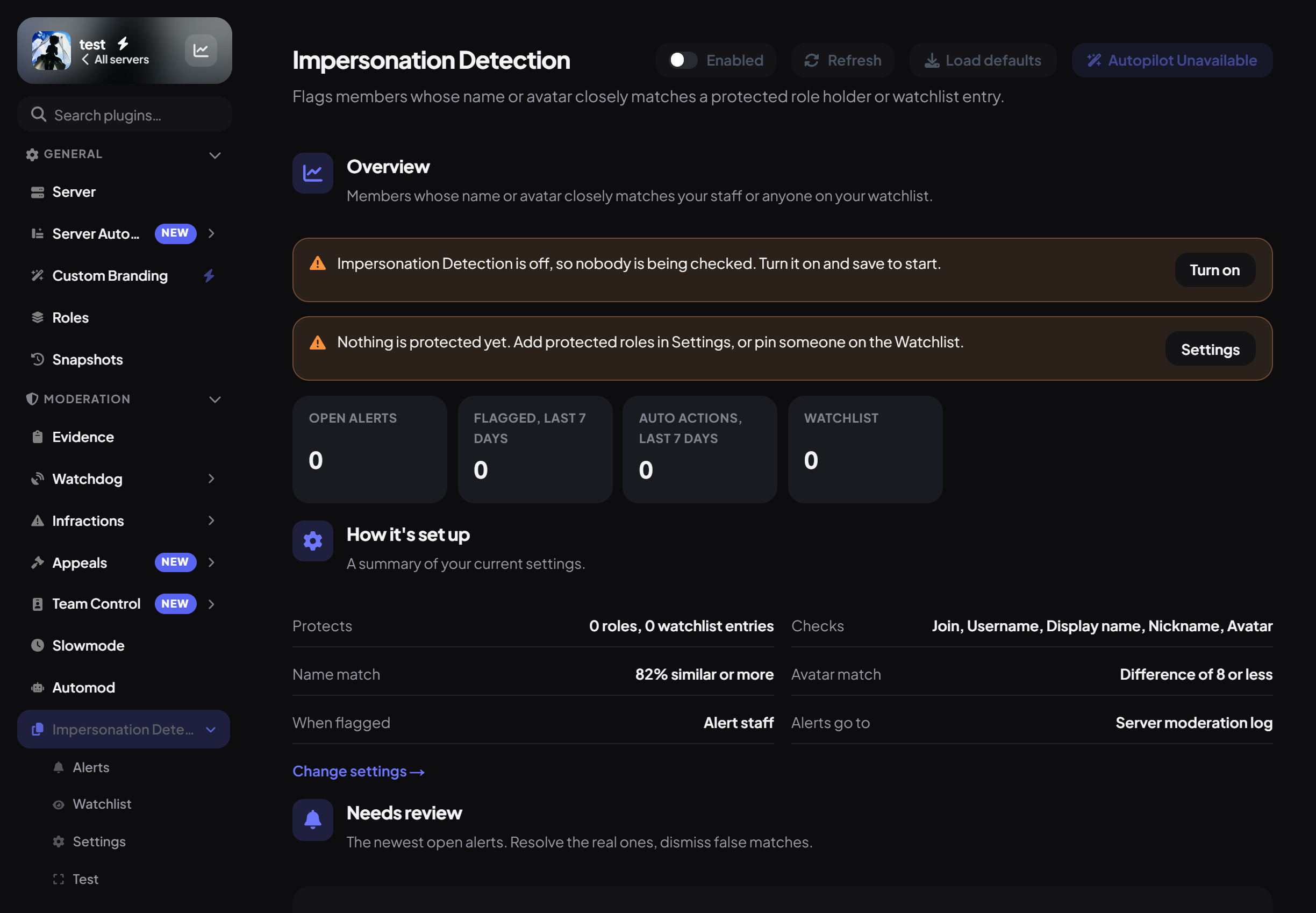
The Overview shows, at a glance:
| Part | What it shows |
|---|---|
| Banners | Warnings with a button to fix them: the plugin is off, nothing is protected yet, every check is off, or matches are only listed (no staff alerts and no auto action). |
| Stat tiles | Open alerts, Flagged, last 7 days, Auto actions, last 7 days, and Watchlist. |
| How it's set up | A summary of who's protected, which checks are on, the match thresholds, what happens when someone is flagged, and where alerts go. Change settings takes you to Settings. |
| Needs review | The five newest open alerts, each with Resolve and Dismiss. |
Step 2 · about 2 min
Choose who to protect
Tell Dreamliner whose identity matters.
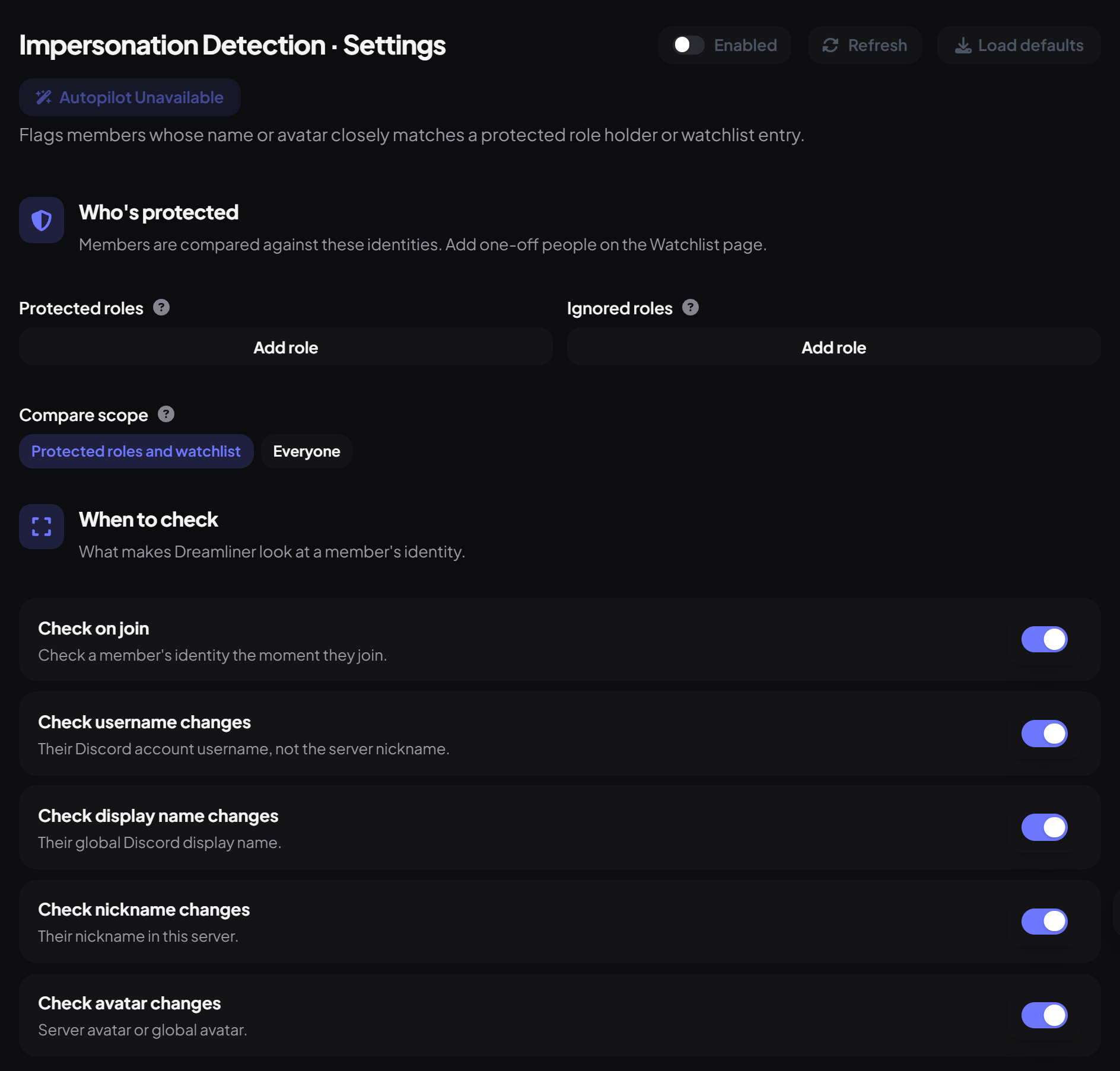
- Open the Settings sub-page.
- Under Who's protected, press Add role under Protected roles and pick your staff roles. Anyone whose name or avatar closely matches a current holder of these roles gets flagged.
- Add roles that should never be flagged (like other bots) to Ignored roles.
- Leave Compare scope on Protected roles and watchlist. Everyone also compares every member against every other member, which is slower and noisier, so it's only worth it on smaller servers.
Step 3 · about 1 min
Pick when to check and how close counts
Decide which changes trigger a check, and how strict matching is.
Under When to check, each switch is on by default:
| Switch | What it checks |
|---|---|
| Check on join | A member's identity the moment they join. |
| Check username changes | Their Discord account username, not the server nickname. |
| Check display name changes | Their global Discord display name. |
| Check nickname changes | Their nickname in your server. |
| Check avatar changes | Their server avatar or global avatar. |
Under Matching, names are compared after swapping lookalike characters (like 0 for o or Cyrillic letters). Name similarity threshold (50 to 100, default 82) is how similar a name has to be; lower catches more. Avatar match strictness (0 to 64, default 8) is how close an avatar's fingerprint must be; lower is stricter.
Step 4 · about 1 min
Choose what happens when someone's flagged
Decide who hears about a match and what happens to the member.
Still in Settings, scroll to When someone's flagged. Pick a Log channel (left empty, alerts go to your server moderation log), then choose:
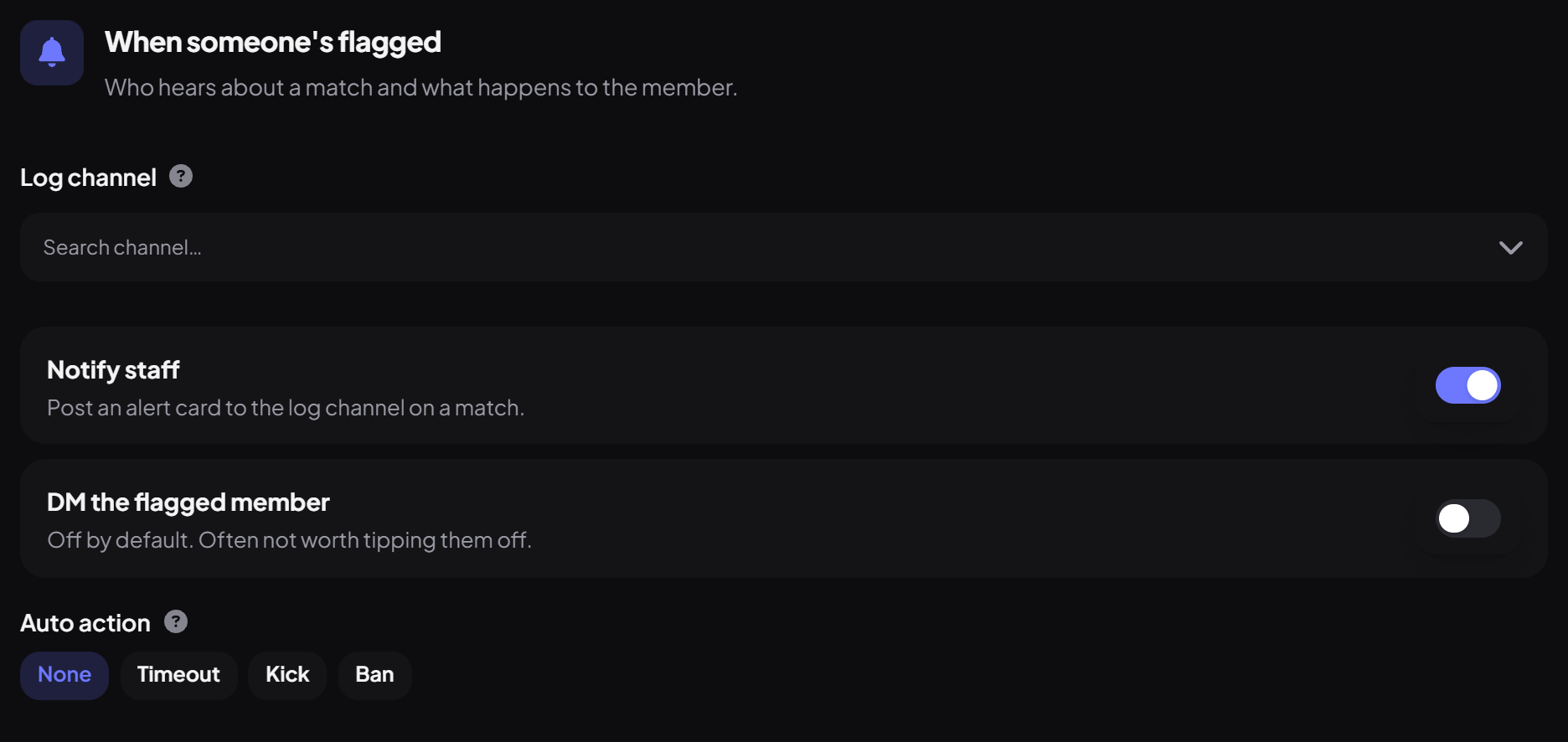
Press Save changes in the bar at the bottom when you're done.
Step 5 · about 2 min
Protect people without a staff role (optional)
Add one-off identities to the watchlist.
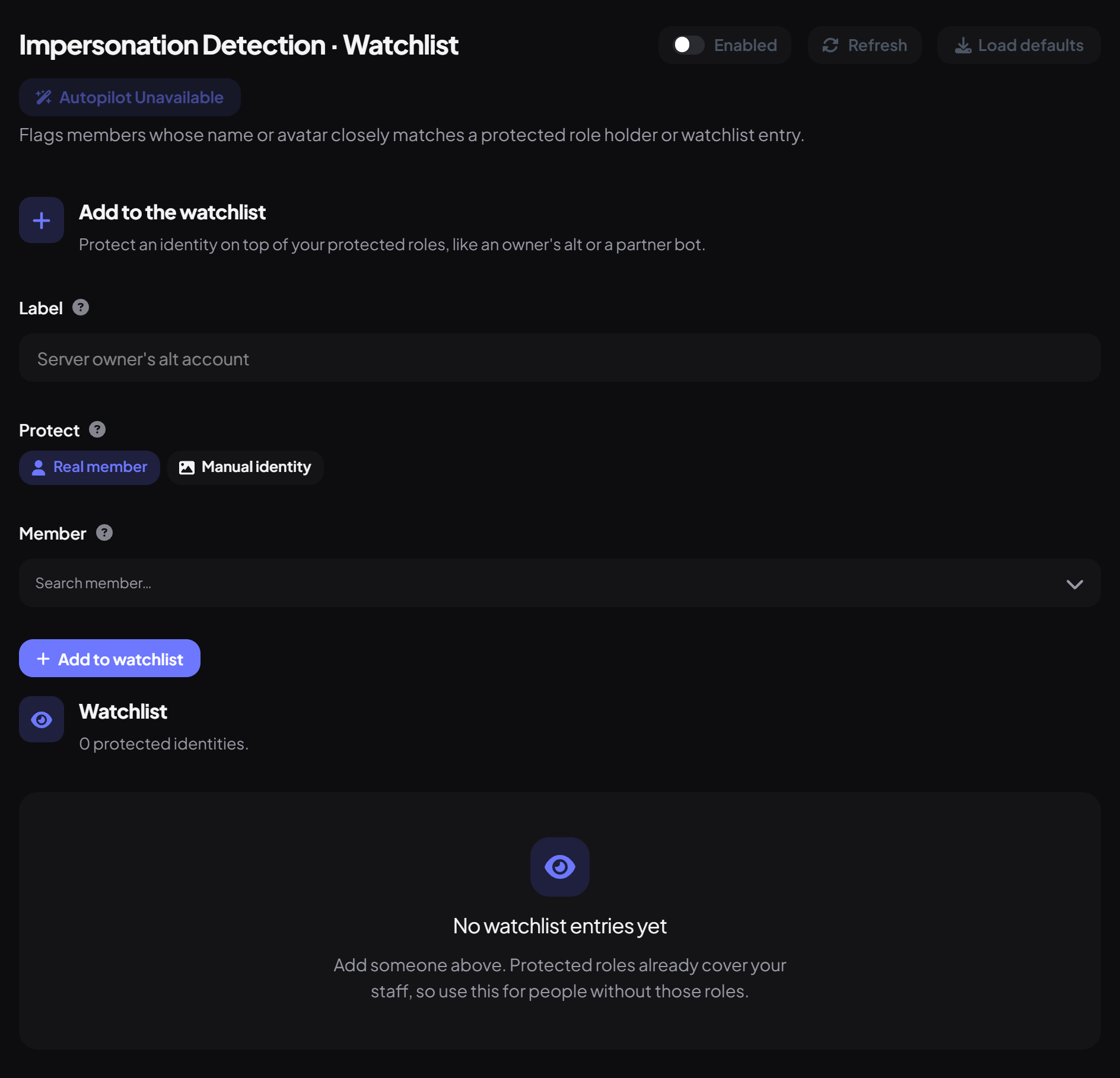
Protected roles already cover your staff. Use the Watchlist sub-page for anyone else, like an owner's alt or a partner bot. Watchlist changes apply right away, no save needed.
- Under Add to the watchlist, type a Label. It's shown on alerts so staff know who is being copied.
- Under Protect, pick Real member and search for them. A real member stays in sync if they change their own name or avatar.
- Or pick Manual identity and fill in Name to protect and, if you like, an Avatar image (optional).
- Press Add to watchlist. The entry appears in the Watchlist list below, where you can remove it later.
Step 6 · about 1 min
Test your settings
Check a name would be caught before relying on it.
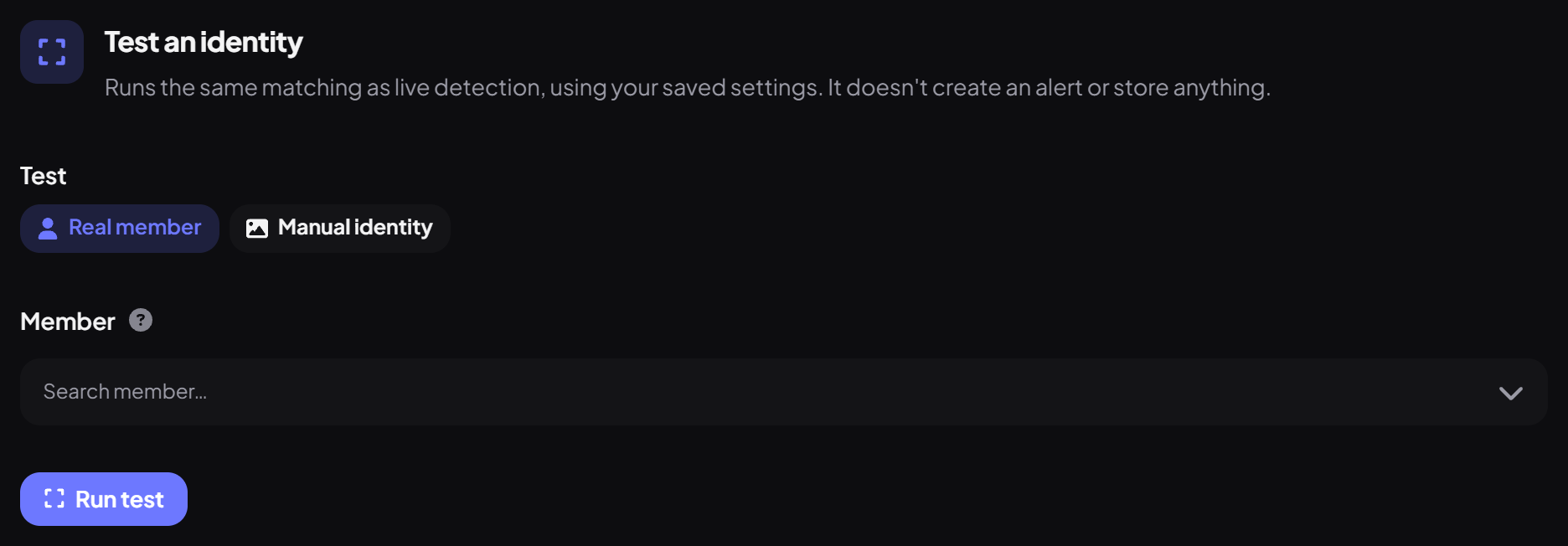
The Test sub-page runs the same matching as live detection, using your saved settings. It doesn't create an alert or store anything.
- Pick Real member to check a member's current name and avatar, or Manual identity to try any Name and optional avatar.
- Press Run test. You'll see either This identity would be flagged with who it matches and the scores, or No match.
Step 7 · about 2 min
Handle alerts
Resolve or dismiss flagged members.
Open the Alerts sub-page. Switch between Open, Resolved and Dismissed. Each alert shows who was flagged, who they look like, what triggered it, the name and avatar scores, and any auto action taken.
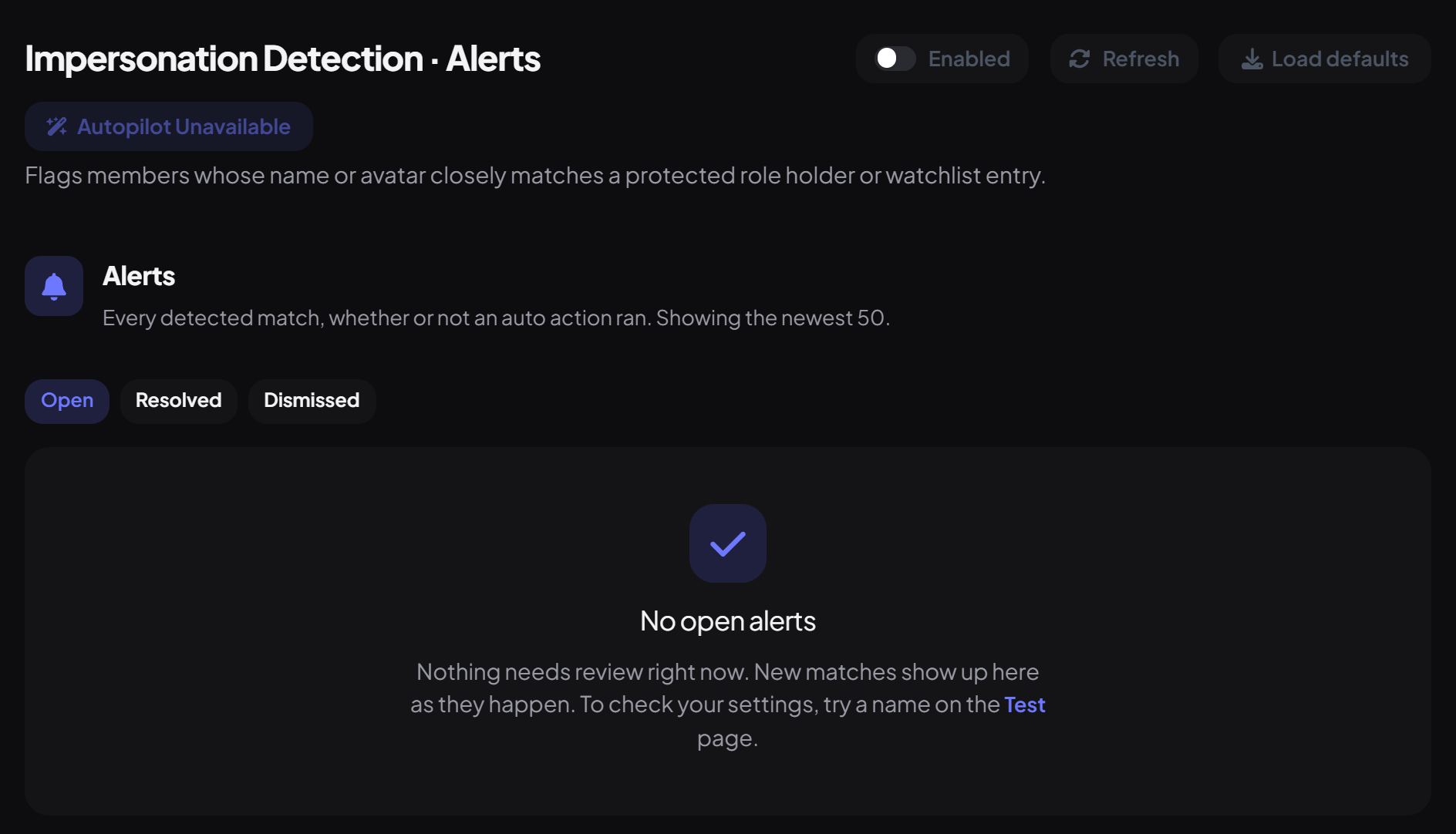
- Press Resolve when you've dealt with a real copy, or Dismiss for a false match.
- Press Name history to load that member into Identity history below, which lists every tracked username, display name, nickname and avatar change. You can also paste any User ID there and press Look up.
Alerts also go to your log channel, and work from Discord:
| Command | What it does |
|---|---|
/impersonation list | Shows open alerts. |
/impersonation resolve | Marks an alert as dealt with. Use the alert's ID or the start of it. |
/impersonation dismiss | Marks an alert as a false alarm. |
Moderator can use these commands by default.
You're set up
What you just did
- Turned on Impersonation Detection and protected your staff roles
- Chose when to check, how strict to be, and what happens on a match
- Added extra people to the watchlist and tested your settings
- Learned to resolve and dismiss alerts
Impersonation alerts also feed Incident Response.
Common questions
A staff member got flagged for copying themselves.
Check whether a second staff member has a very similar name. Add roles that should never be checked to Ignored roles in Settings.
Too many false alarms.
Raise the Name similarity threshold, or lower Avatar match strictness, in Settings. Keep Compare scope on Protected roles and watchlist.
Do watchlist entries need saving?
No. Watchlist entries and alert decisions apply right away. Only the Settings sub-page uses the save bar.
Read next