
Role panels
Let members pick their own roles, like colours, pings or interests, by clicking a button or reacting with an emoji on a message you design.
By the end, you'll have
- A panel where members claim roles with buttons or reactions
- Single-choice panels (like colours) or pick-as-many panels
- A nicely designed message with an embed
Before you start
- The roles members can pick, created in Discord, below Dreamliner's role.
- Dreamliner with Manage Roles, Send Messages and Add Reactions.
- Manage Server, so you can open the dashboard.
Role panels let members help themselves: pick a colour, opt into event pings, or show off their interests. You design the message; Dreamliner posts it and handles every click. It's free.
Up to 25 role buttons, each with a label, emoji and colour.
Up to 20 emoji, one per role.
Let members pick several roles, or just one.
Step 1 · about 3 min
Create a panel
Set up how members claim roles.
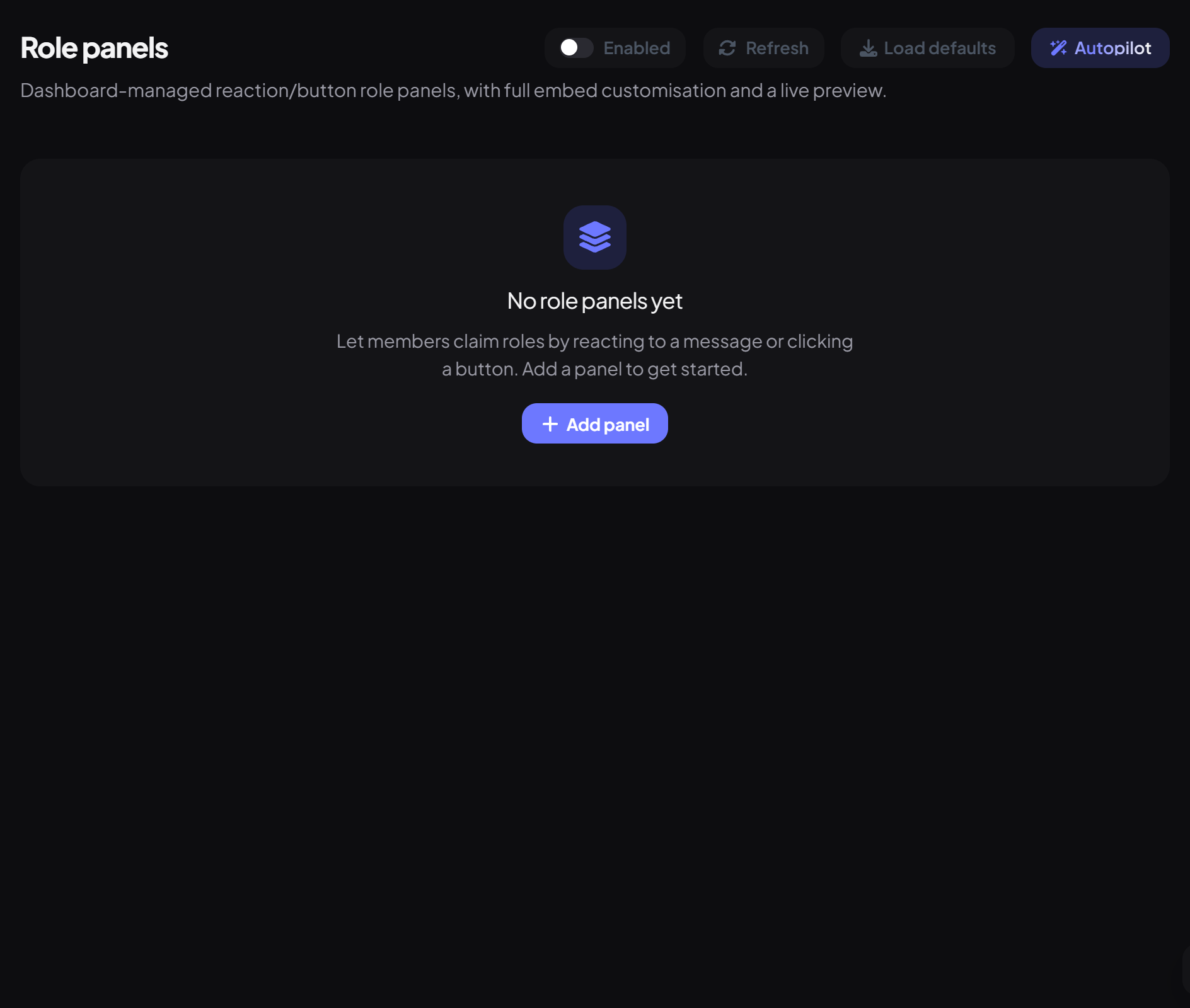
- On the dashboard, open Roles and click Role panels. Switch on Enabled.
- Press Add panel and give it a Label (like "Colour Roles").
- Choose the Message: Dreamliner posts a new message (pick the Channel), or attach to a message already posted (paste its link and press Validate message).
- Pick the Trigger (Reaction or Button) and Selection (Multiple, or Single where picking one removes the others).
Step 2 · about 3 min
Add the roles
Choose what members can pick.
- Under Roles, press Add role for each role.
- For reactions, pick an emoji for every role. For buttons, the emoji is optional; set a label and a colour (Gray, Blurple, Green or Red).
Press Send test message to preview it in a channel, then Save. Dreamliner posts or updates the panel when you save.
How panels work
| Setting | Behaviour |
|---|---|
| Multiple | Each button or reaction toggles its role on and off. |
| Single | Picking a role removes the panel's other roles. On reaction panels, Dreamliner also removes the old reaction (needs Manage Messages). |
| Remove role on unreact | Removing your reaction takes the role back (reaction panels). |
- Roles with staff permissions can't be put on a panel.
- Buttons can only be added to messages Dreamliner posted; reactions work on any message.
- Turning a panel off or deleting it removes the message Dreamliner posted.
- Button clicks show a private confirmation, like "Added @Blue".
You're set up
What you just did
- Created a panel with buttons or reactions
- Added roles and designed the message
- Learned single vs multiple choice
Want richer messages with role buttons? Message Kits can add role buttons too.
Common questions
Clicking a button does nothing or shows an error.
Check the role is below Dreamliner's role, isn't a staff role, and the plugin is enabled.
Can I use a dropdown menu?
Role panels use buttons or reactions. Message Kits supports select menus with role actions.
Read next