
Message Kits
Design beautiful messages with embeds, layouts, buttons, menus and files, send them to any channel, schedule them, and update every copy at once when you make a change.
By the end, you'll have
- A saved message (a kit) built with the visual editor
- Kits sent to channels, as Dreamliner or with a custom name and avatar
- Schedules that post kits automatically, and copies you can update in place
Before you start
- Manage Server, so you can open the dashboard.
- Dreamliner able to send messages in your channels.
Message Kits is a full message designer. Build rules, info panels, announcements or role pickers once, then send them anywhere. Because kits remember where they were sent, editing a kit can update every copy in Discord. It's free.
Classic (text, 10 embeds, buttons) or a modern layout with containers and galleries.
Change a kit, then update every sent copy in place.
Post once, daily, weekly or monthly.
Step 1 · about 3 min
Create a kit
Start your first message.
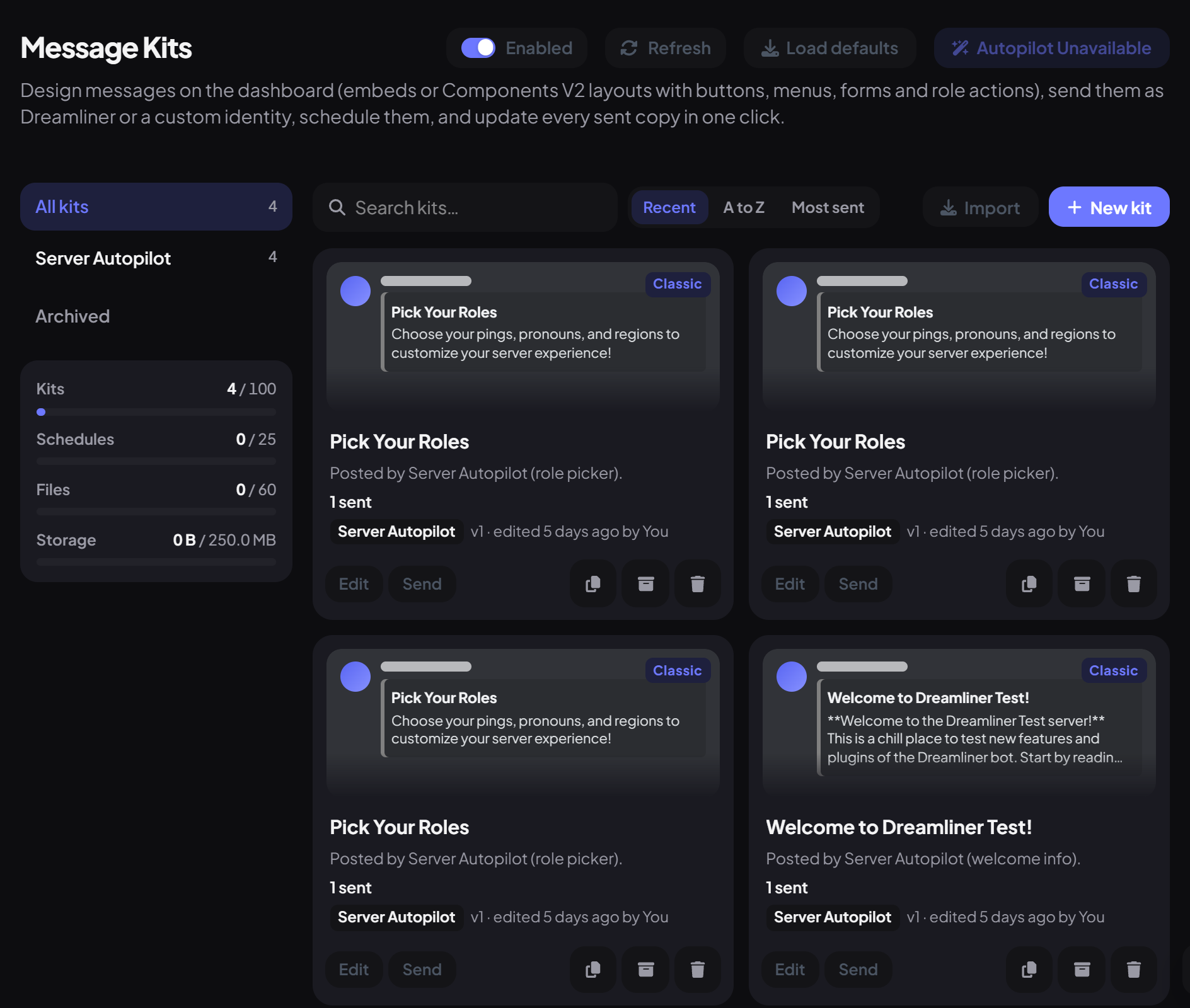
- On the dashboard, open Utilities and click Message Kits. Turn the plugin on if you see the banner (you can build either way, but sending needs it on).
- Press New kit, give it a Name, and choose where to start: Blank message, Blank layout, or a template like Rules, Welcome info, Role picker, FAQ, Announcement or Staff application.
- Press Create and edit.
Step 2 · about 5 min
Design it
Build the message in the editor.
| Section | What you add |
|---|---|
| Message | The text content. |
| Embeds | Up to 10 coloured cards with titles, fields and images. |
| Buttons & menus | Links, role buttons, private replies with another kit, and forms. |
| Files | Images and files attached when it's sent. |
| Layout | In layout kits: containers, sections, galleries, text and separators. |
| Sending | Send as Dreamliner or a Custom name & avatar, pings, silent, link previews and forum post titles. |
The preview switches between dark and light themes and desktop and phone widths. Test sends it to your DMs. Press Save (Ctrl+S); every save is kept in History.
| Placeholder | Becomes |
|---|---|
| {server} / {member_count} | Your server name / member count |
| {channel} | The channel it's sent to |
| {date} / {time} | The current date and time, shown in each reader's timezone |
| {user} | The person, only in private replies and form confirmations |
Step 3 · about 2 min
Send and update
Post your kit and keep copies current.
- Press Send and pick up to 10 channels (text, announcement, thread or forum).
- Later, edit the kit and open Sent copies: copies marked Out of date can be updated one by one, or with Update all out of date.
Step 4 · about 2 min
Schedule kits (optional)
Post kits automatically.
Open Schedules under Message Kits and press Schedule a kit. Choose the kit, the channel, how often (Once, Daily, Weekly or Monthly), the time and the time zone. Turn on Replace the previous post to delete the last one each time.
- A schedule that fails 5 times in a row turns itself off.
- Schedules can be paused and resumed.
Files, settings and limits
- Role buttons only give roles below Dreamliner's that have no staff permissions.
- Custom name & avatar needs Manage Webhooks.
- Only messages sent by Dreamliner can be tracked and updated.
You're set up
What you just did
- Created and designed a kit
- Sent it and updated copies
- Scheduled kits and learned the limits
Common questions
Is there a command to send kits?
No, kits are sent and scheduled from the dashboard.
Can I edit a message another bot sent?
No. Import it as a new kit and send that instead.
Read next