
Companion channels
Join-to-create voice channels: members join a hub and instantly get their own voice room, which they can rename, lock and manage, and which disappears when everyone leaves.
By the end, you'll have
- A hub voice channel that creates a room for whoever joins
- Rooms named and sized the way you want, tidied up automatically
- Owners who can rename, lock and manage their own room, with limits you choose
Before you start
- A voice channel to use as the hub, created in Discord.
- Dreamliner with Manage Channels, Move Members and Connect.
- Manage Server, so you can open the dashboard.
Fixed voice channels are either empty or full. Companion channels gives everyone their own: join the hub and Dreamliner creates a room, moves you in, and hands you the controls. When the last person leaves, the room is cleaned up. It's free, with up to 25 hubs.
One hub channel, unlimited rooms.
Rename, set a limit, lock, permit or reject people.
You choose exactly what owners are allowed to change.
Step 1 · about 2 min
Create a hub
Connect your join-to-create channel.
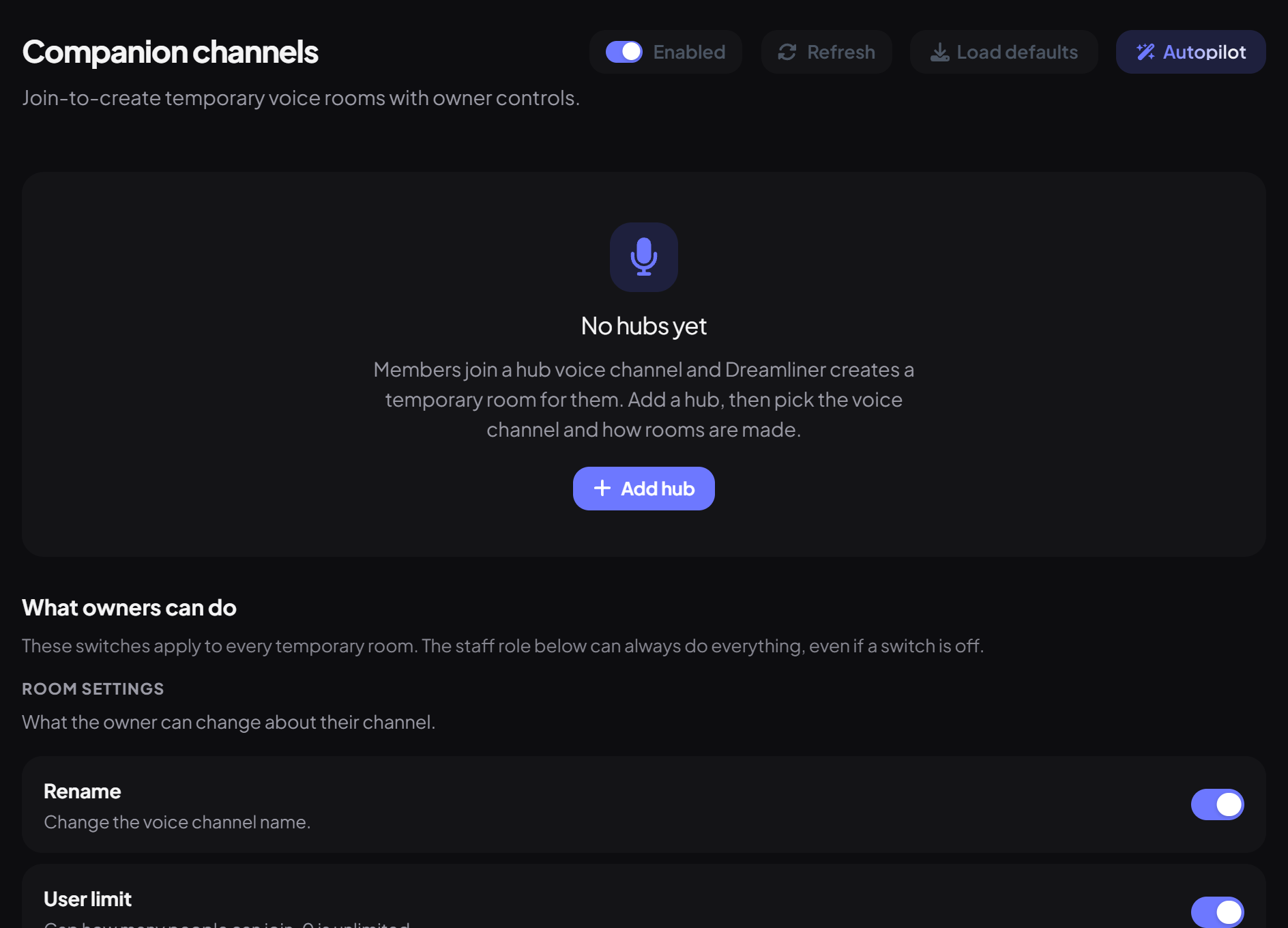
- On the dashboard, open Engagement and click Companion channels.
- Press Add hub, give it a Label (like "Gaming"), and pick the Join to create channel.
- Choose a room mode (next step) and press Save.
- Join the hub in Discord: you'll be moved into a brand new room.
Step 2 · about 2 min
Pick how rooms are made
Choose the room style that suits your server.
| Mode | What happens |
|---|---|
| Personal | Each person gets their own room, named after them, like "Alex's channel". |
| Numbered | Rooms are numbered in order: Room 1, Room 2… |
| Template | Rooms use your name template, with fun random words if you like. |
| Clone hub | Rooms copy the hub's own name and settings. |
| Ready rooms | A set number of empty rooms (1 to 15, 3 by default) always wait, named "Open". |
Step 3 · about 3 min
Name and size rooms
Set names, limits and quality.
The Name template (default "{user_display}'s channel") can use these, with an example shown as you type:
| Placeholder | Becomes |
|---|---|
| {user_display} / {username} | The owner's display name / username |
| {seq} | The room's number (added on the end in Numbered mode if you leave it out) |
| {animals} {colors} {trees} | A random animal, colour or tree, like "Otter" |
| Setting | What it does | Default |
|---|---|---|
| User limit | Most people allowed in a room. 0 is unlimited. | 0 |
| Bitrate (kbps) | Audio quality. 0 uses the server default. | 0 |
| Booster bonus slots | Extra places for server boosters. | 0 |
| Remove empty rooms after | Seconds a room waits empty before it's deleted. | 15 |
Step 4 · about 2 min
Set defaults for new rooms
Choose where rooms go and how they start.
| Setting | What it does |
|---|---|
| Category | Where rooms are created. Empty uses the hub's category. |
| Copy permissions from | The category (usual Discord behaviour) or the hub. |
| Default status | A voice status shown on new rooms, like "Playing games". |
| Owners can edit the room | Lets owners rename and set the limit. |
| Linked text channel | Creates a private text channel next to each room. |
| Lock / Ghost / Mark NSFW | Start rooms locked, hidden or age-restricted. |
Step 5 · about 3 min
Choose what owners can do
Give owners the right amount of control.
What owners can do applies to every room. Most things are on by default:
Under Server extras you can set a Log channel, a Looking for members channel, and a Staff role that can manage anyone's room.
Commands for room owners
Owners use the control panel in their room, or /companion from inside the room:
| Command | What it does |
|---|---|
/companion name | Rename the room. |
/companion limit | Set the user limit (0 to 99). |
/companion lock · unlock | Stop or allow new people joining. |
/companion permit · reject | Let a person or role in, or keep them out. |
/companion ghost · unghost | Hide or show the room. |
/companion status | Set the room's voice status. |
/companion lfm | Post a Looking for members invite (lasts 30 minutes). |
/companion claim · transfer | Take over a room whose owner left, or hand it to someone else. |
Each command only works if you allowed that control under What owners can do. Each member owns one room at a time.
You're set up
What you just did
- Created a hub and chose a room mode
- Set names, sizes and defaults
- Decided what owners can control
- Want spoken chat for members without a mic? See Text-to-speech.
- Rooms work great with Music for listening parties.
Next: Text-to-speech.
Common questions
Joining the hub does nothing.
Check the hub is saved and enabled, and Dreamliner has Manage Channels, Move Members and Connect in that category.
Can someone have two rooms?
No. Joining any hub while you own a room moves you back to the room you already have.
Read next